
Welcome to TotalBrokerage!
This guide is designed specifically for Brokerage Managers to help you quickly become familiar with the platform and understand where to find the tools you’ll use most often.
From managing transactions and monitoring compliance to reviewing brokerage performance and configuring your settings, this guide provides an overview of the primary areas of TotalBrokerage and what you can accomplish in each one.
Your TotalBrokerage Overview
- Dashboard — Get a quick view of important activity, reminders, transactions, tasks, and key brokerage metrics.
- Transactions — Manage transactions, monitor compliance, review documents, and track transaction progress.
- Reports — Access transaction, production, financial, administrative, and performance reports.
- Human Resources — Manage agent onboarding, HR forms, questionnaires, and other office-related information. (If included in your plan.)
- Setup — Configure brokerage settings, accounts, commissions, offices, transaction templates, permissions, and other platform preferences.
- My Profile — Manage your personal information, preferences, and account-related settings.
Helpful Tip: Throughout this guide, clickable topics will take you directly to detailed Help Desk articles with additional information and step-by-step instructions.
Dashboard
Your Dashboard gives you quick access to the information and tools you need when you log in to TotalBrokerage.
TotalBrokerage offers several dashboard views, allowing you to choose the experience that works best for you.
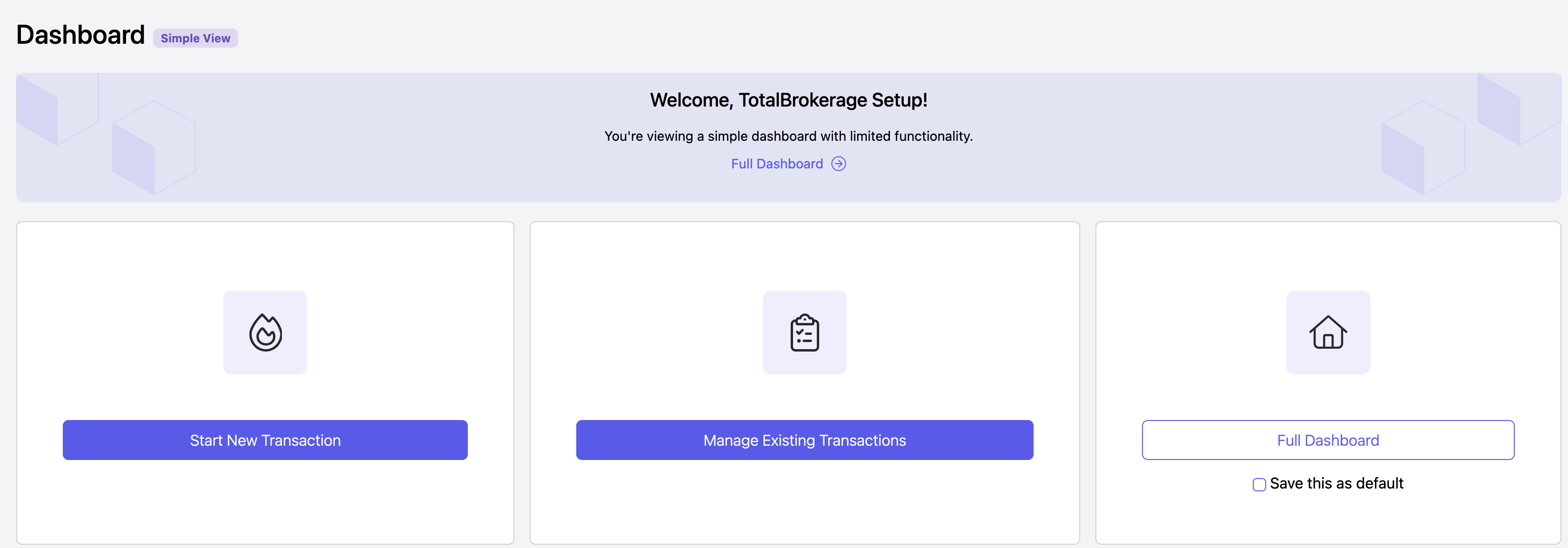
Simple Dashboard
The Simple Dashboard is a streamlined view that focuses on your transactions and is the default view for users unless another dashboard has been selected.
Brokerage Managers can set the default dashboard for all users by navigating to Setup > Brokerage.
Individual users can also select their preferred default dashboard from My Profile or by selecting a dashboard and saving it as their default.
Full Dashboard
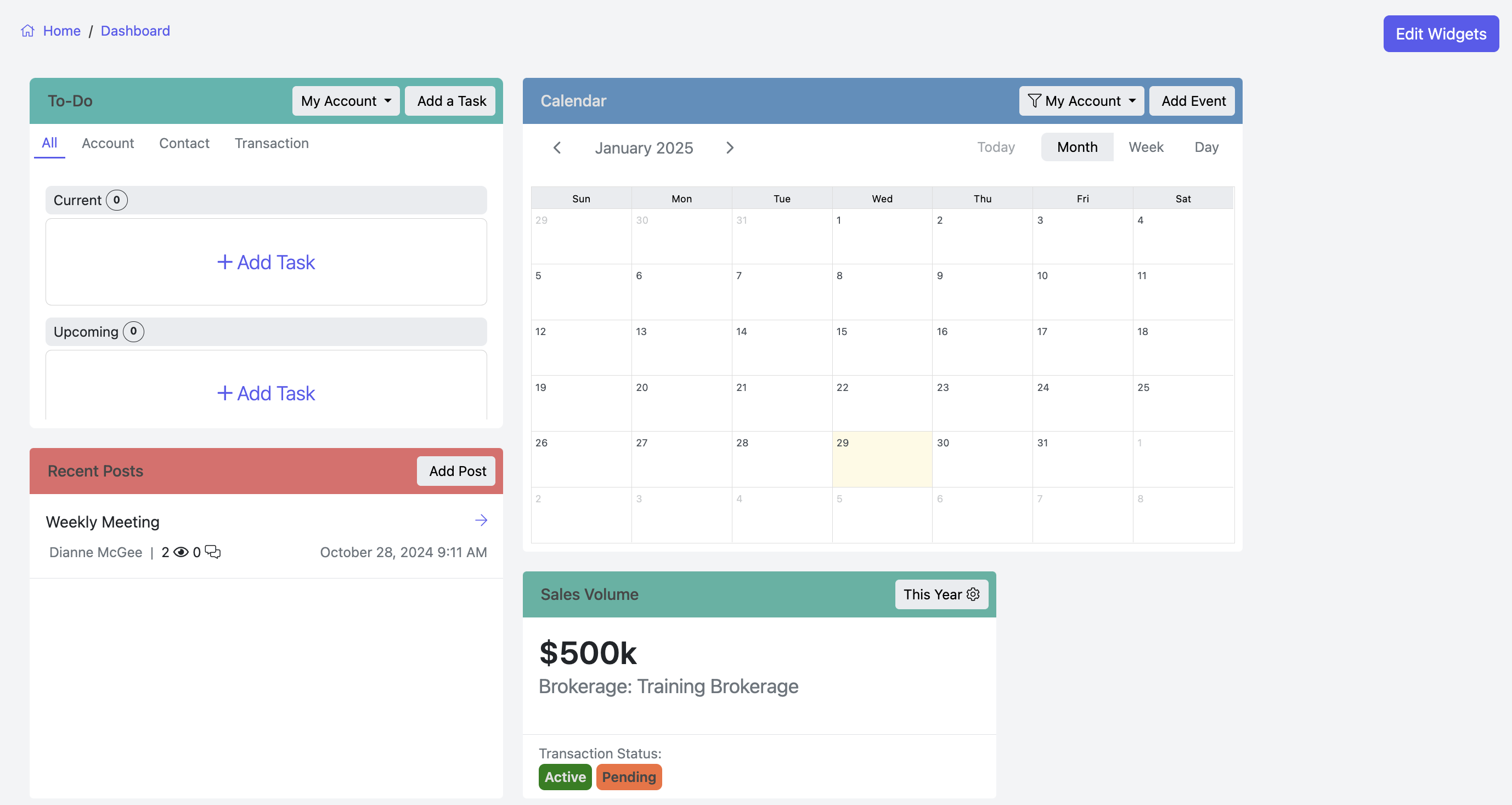
The Full Dashboard provides access to additional tools and information, including:
- Calendar — View calendar events associated with your contacts and transactions.
- To-Do — View tasks from Action Plans as well as tasks assigned directly to your account.
- Widgets — Display personalized information and usage metrics so you can monitor the areas that matter most to you.
Broker Dashboard:
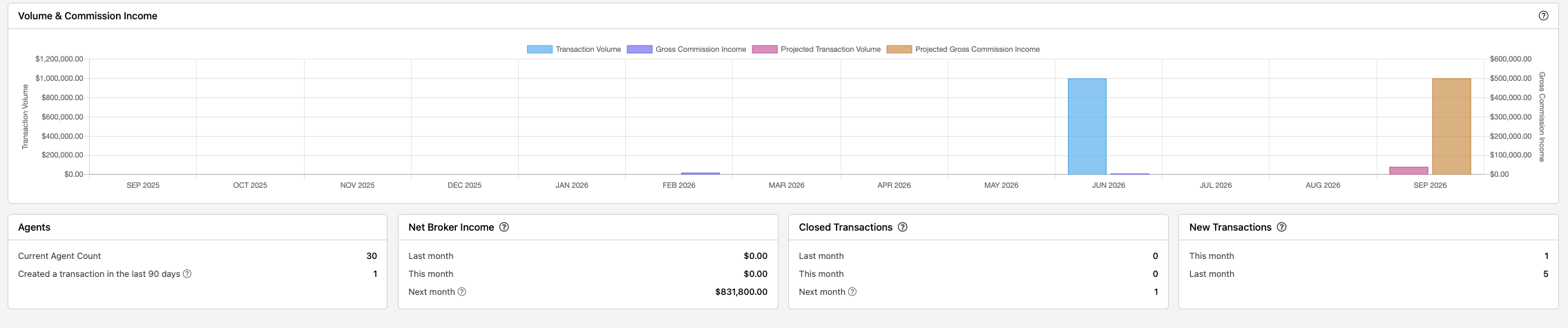
Brokerage managers have instant visibility into the key metrics that matter most, all from one convenient location.
The dashboard includes charts for:
- Transaction Volume
- Gross Commission Income
- Projected Transaction Volume
- Projected Gross Commission Income
Quickly view important brokerage metrics, including:
- Agent Count
- Agents Creating a Transaction in the Last 90 Days
- Net Broker Income — Last Month, This Month, and Next Month
- Closed Transactions — Last Month, This Month, and Next Month
- New Transactions — Last Month and This Month
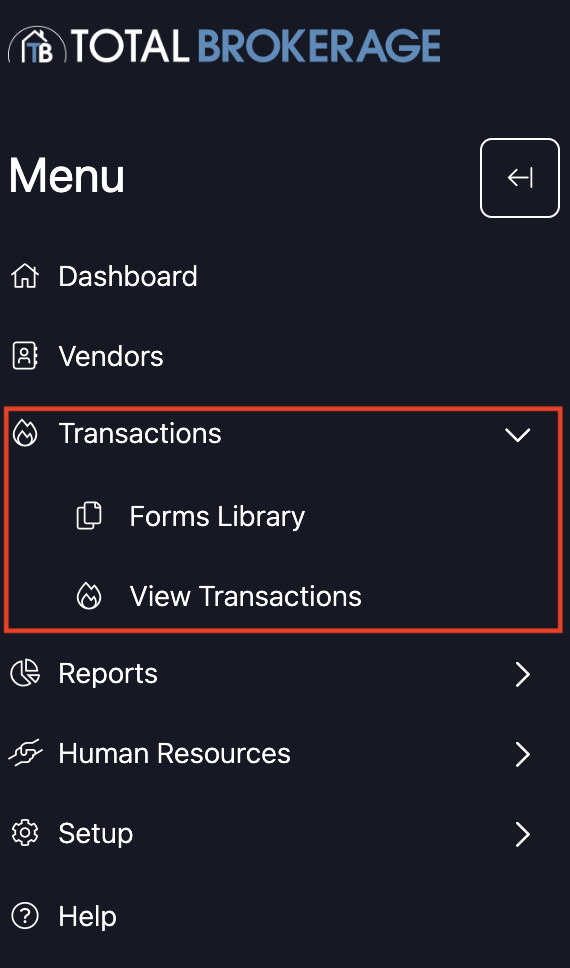
TRANSACTIONS - The transactions tab is where you manage your transactions for contacts.
- Forms Library- (if included in your plan) This is the master copy of the forms needed for transactions.
- View Transactions- Here, you can see and track the transactions you have created. (As seen below)
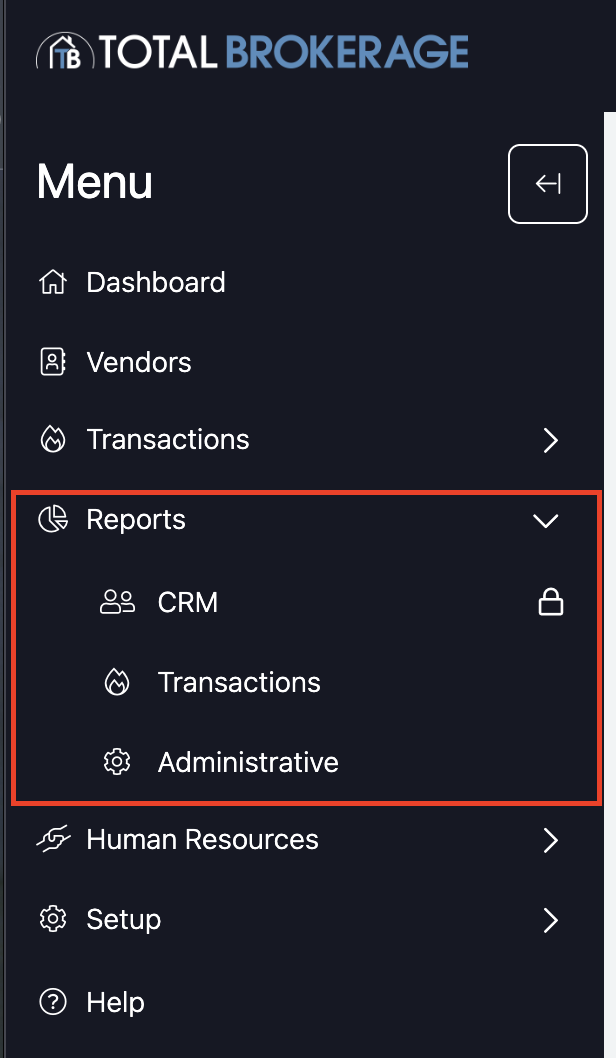
REPORTS —The reports tab lets you view your usage statistics in TotalBrokerage.
- CRM (if included in your plan)- You can search for Contacts, Contacts Added, Contacts Trashed, Contact Activity, Full Activity, and Lead Sources.
- Transactions- You can search for information from your transactions by Transaction Summary, Transaction Summary by Agent, Volume, Pipeline, Vendor Summary, Vendor Count, and Expenses. (As seen below)
- Administrative- You can track agent usage, commission contribution, and onboarding reports.
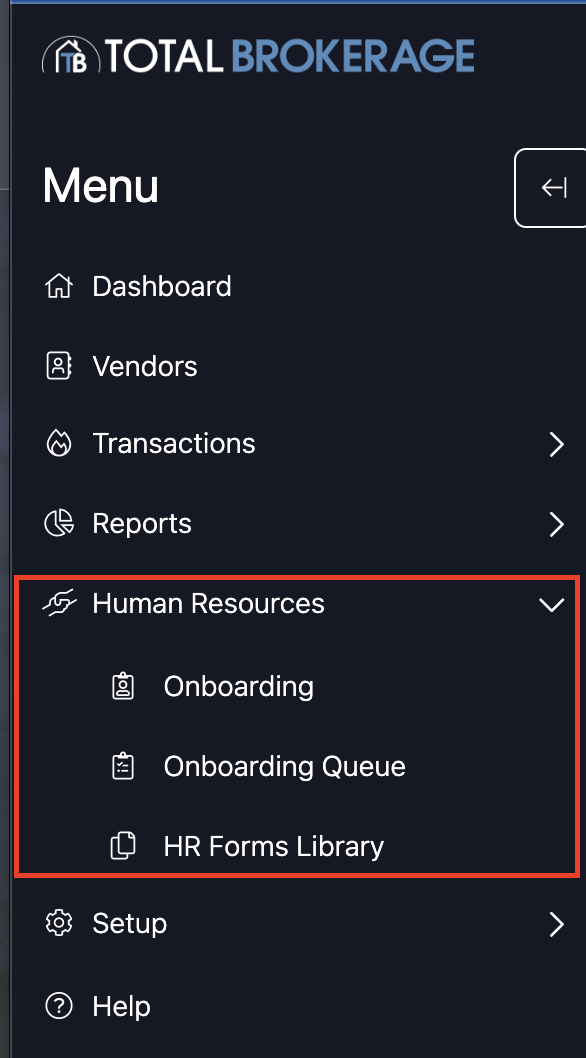
HUMAN RESOURCES (if included in your plan) - You can create onboarding questionnaires for your agents, see how many are in the queue, and upload any HR forms. (Plus & Enterprise Only)
- Onboarding- You can build and edit custom questionnaires for agents and see how many steps each questionnaire has.
- Onboarding Queue- You can create a custom search to see which agents have completed the questionnaire or who are in progress.
- HR Forms Library- This is where the HR forms are stored.
SETUP - Here you will customize your important data and details.
- Accounts- You can create and add new accounts or disable accounts.
- Brokerage- You can customize settings for the entire brokerage.
- Commissions- You can create and set up commission & fee plans
- Human Resources - Customize the information collected for your users.
- Licenses- View maximums and usage for the Brokerage, Office or Account.
- Offices- You can build and create as many offices as needed.
- Transactions- You can add or create templates to use within your transactions.
- User Fields- You can add items to the dropdown menus in contacts, vendors, and transactions.
MY PROFILE- My Profile is where all users can access their personal details, preferences, and other information related to their account.

For access to the full Help Desk article library, CLICK HERE.
If you have any questions, please email Support@TotalBrokerage.com and our team will be happy to assist!