Administrative reporting is only available for Brokerage Managers, and Office Managers.
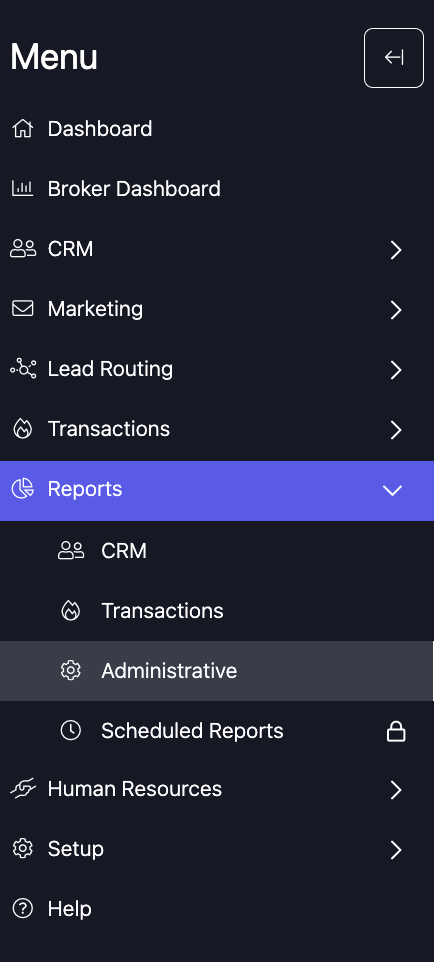
To access the Administrative report, navigate to Reports → Administrative in the left sidebar.
AGENT USAGE
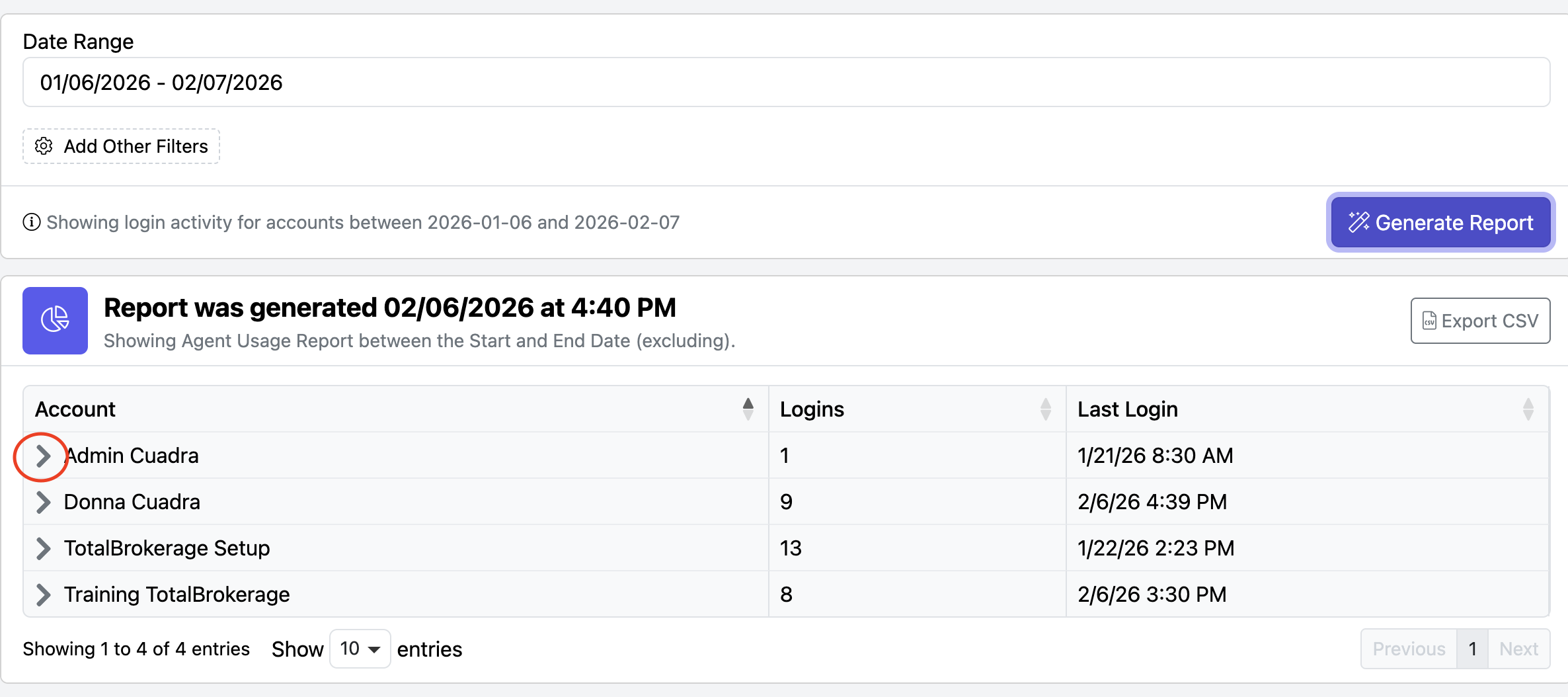
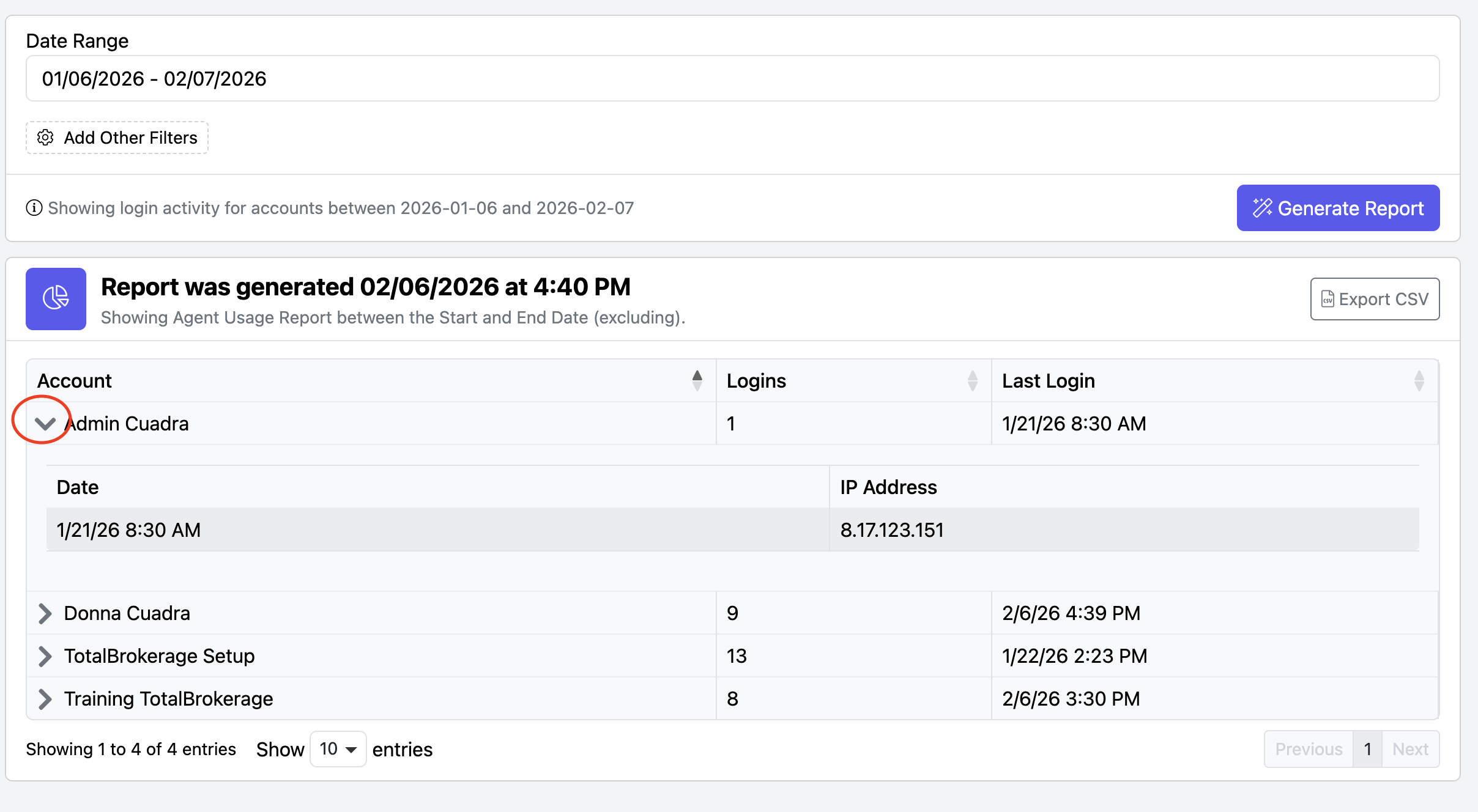
This tab reports agents' login activity within a particular time frame.
The report provides information on which Accounts have logged in (including the IP Addresses they have logged in from), the number of Logins, and the date & time of the account’s Last Login.

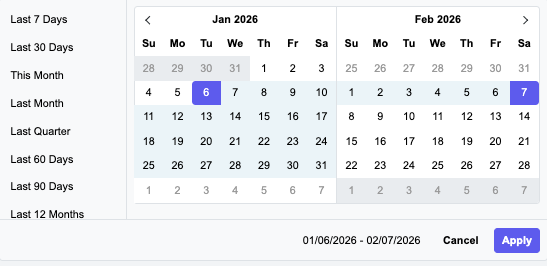
- Select the Date Range
- You can filter to view accounts by Multiple Fields
- When ready, click the “Generate Report” button.
- If you want to see which IP Addresses an agent has logged in from, simply select the ">" icon.
- Select the “V” icon to minimize.
AGENT COMMISSION CONTRIBUTION
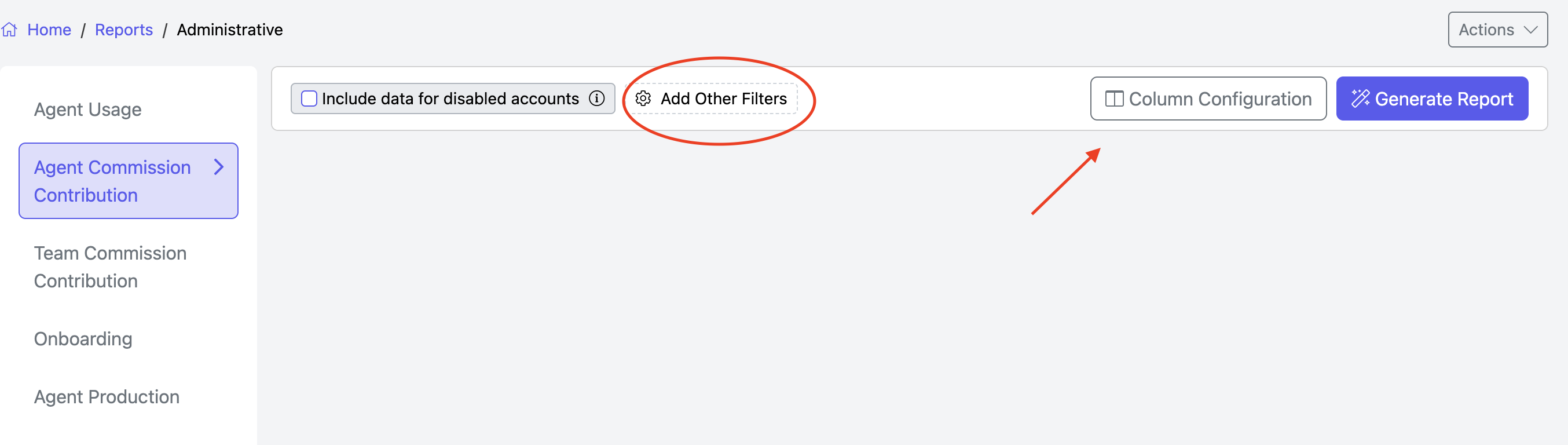
Use Add Other Filters to search by:
- Teams
- Accounts
- Offices
- Transaction Type
Click Apply when done.
Click the blue 'Generate Report' button when you have entered your search parameters.
If no parameters are entered, it will generate everyone's contributions.
This report will show the following:
- Account
- Contribution Based on: Tiered or Flat
- Current contribution: Current contribution for the tiered plan
- Tier: Which tier is the account on?
- Current Agent Split/Broker Fee
- Bonus Commissions.
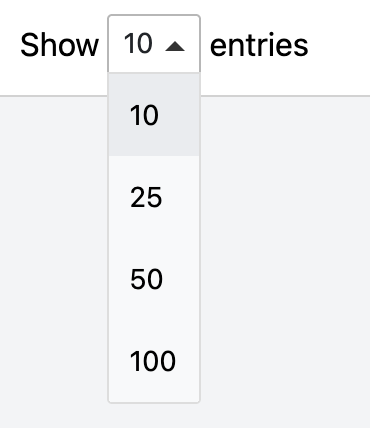
You can view more results on a single page by selecting the Show Entries button on the left.
Click the Column Configuration button to adjust the columns' order or add Account Details to the results.
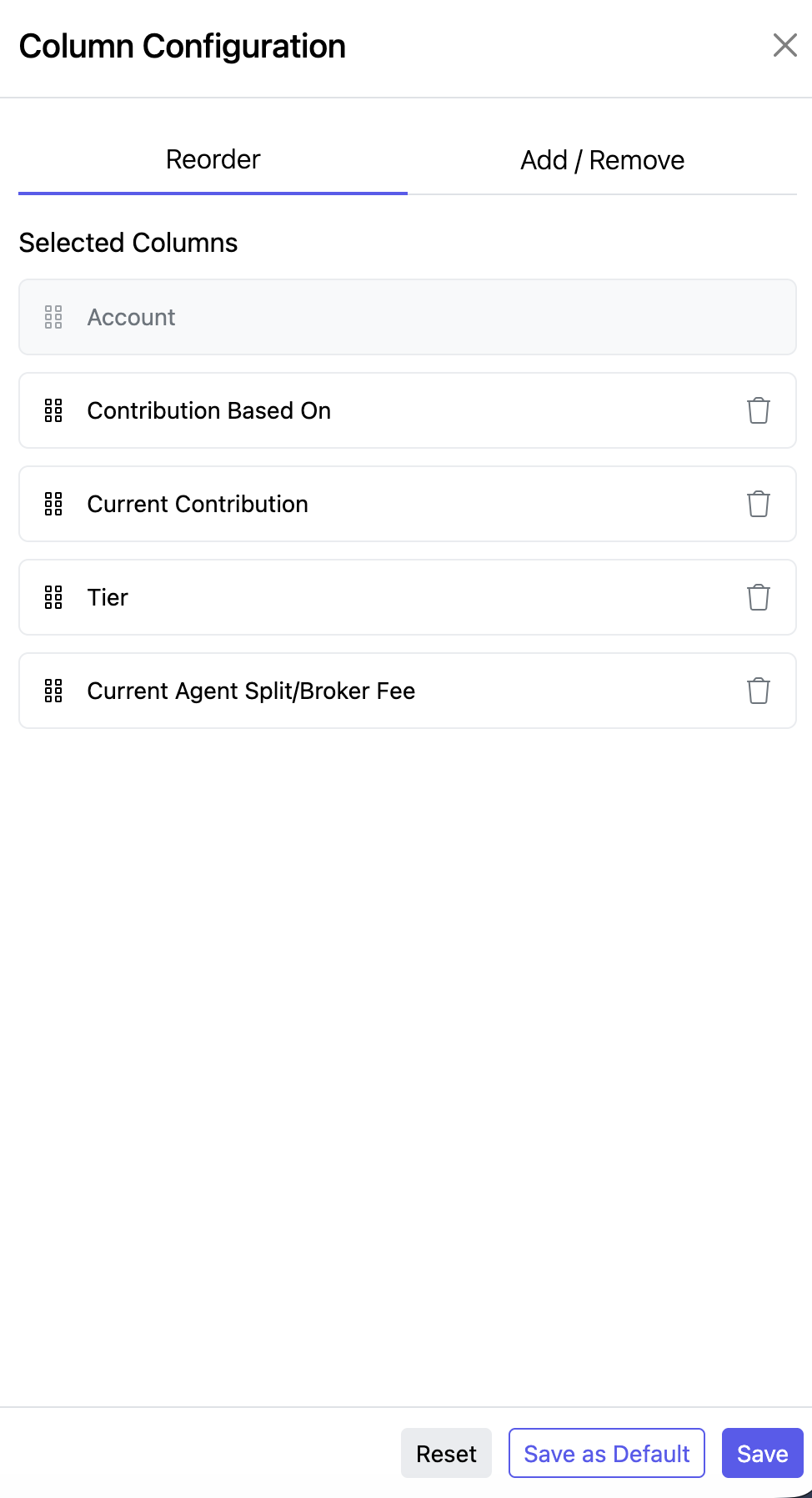
Click Save as Default or Save.
You can export this report by clicking the Export CSV button on the right side.
A commission-contributions.csv CSV file will be downloaded to your browser.
TEAM COMMISSION CONTRIBUTION
Generate this report to obtain the following details about your team:
- Commission Basis
- Current Contribution
- Tier
- Current Agent Split/Broker Fee
- Commission Plan Name
- Transaction Type
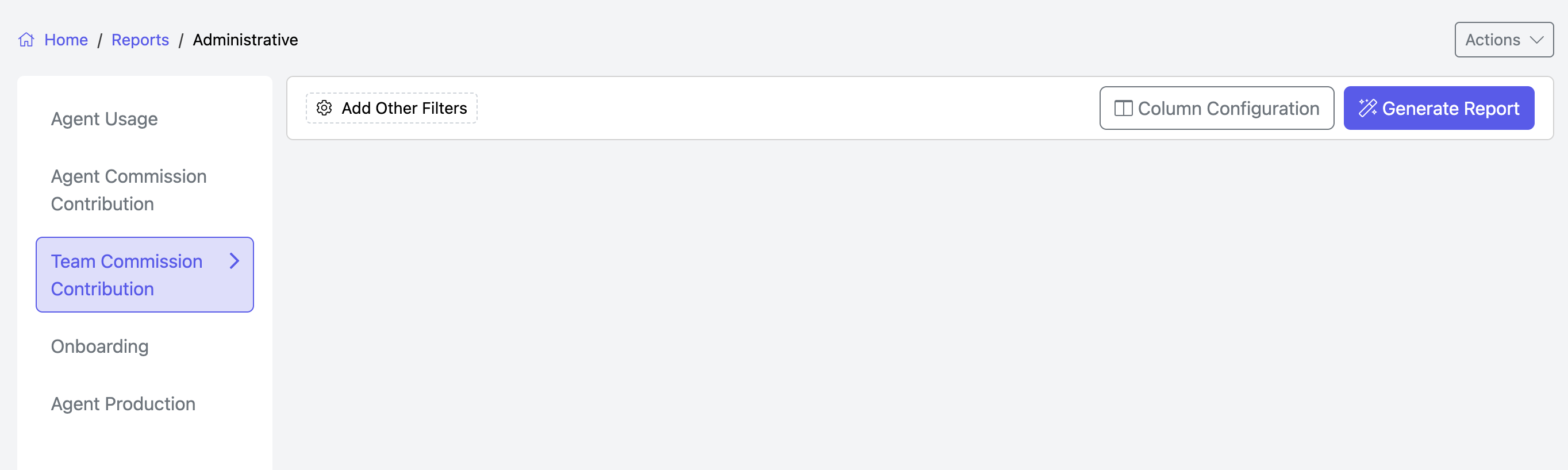
Add Other Filters and Configure Columns as needed.
ONBOARDING
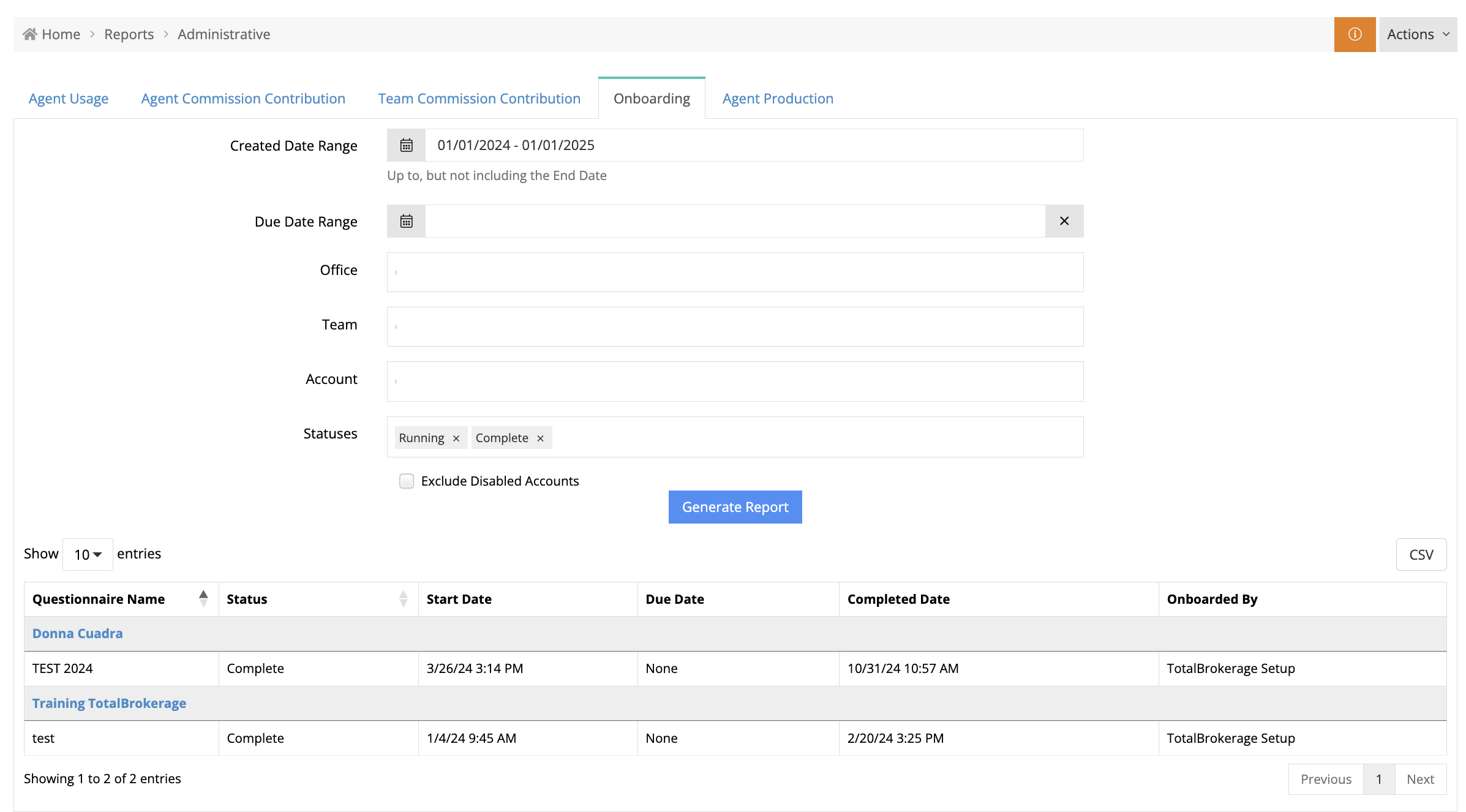
This report will display all created questionnaires, their status, start date, and due date.
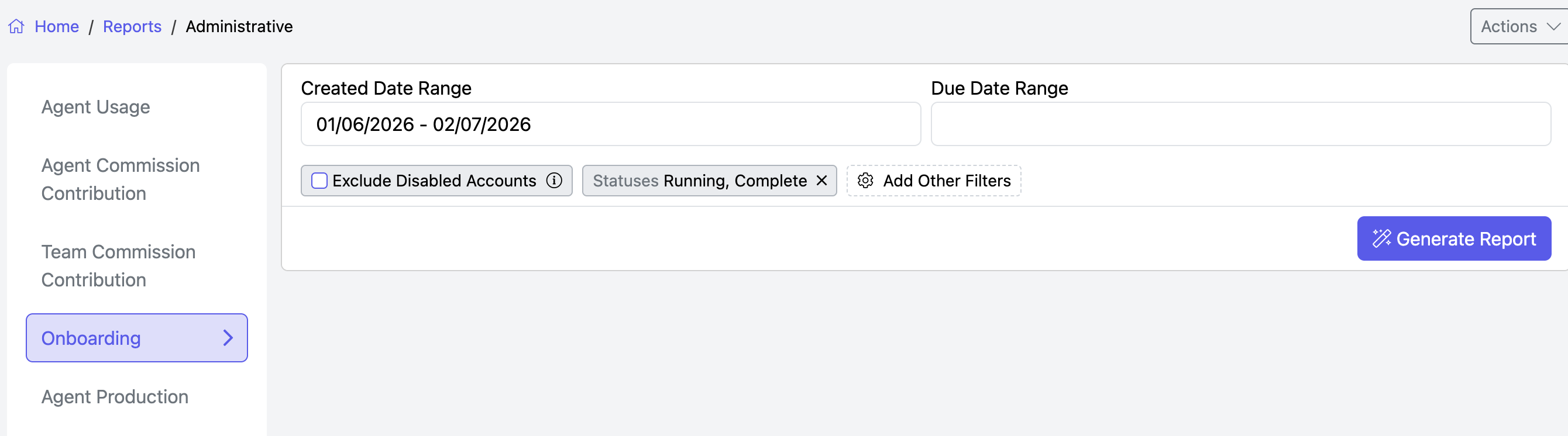
- You may Exclude Disabled Accounts
- Add Other Filters as needed
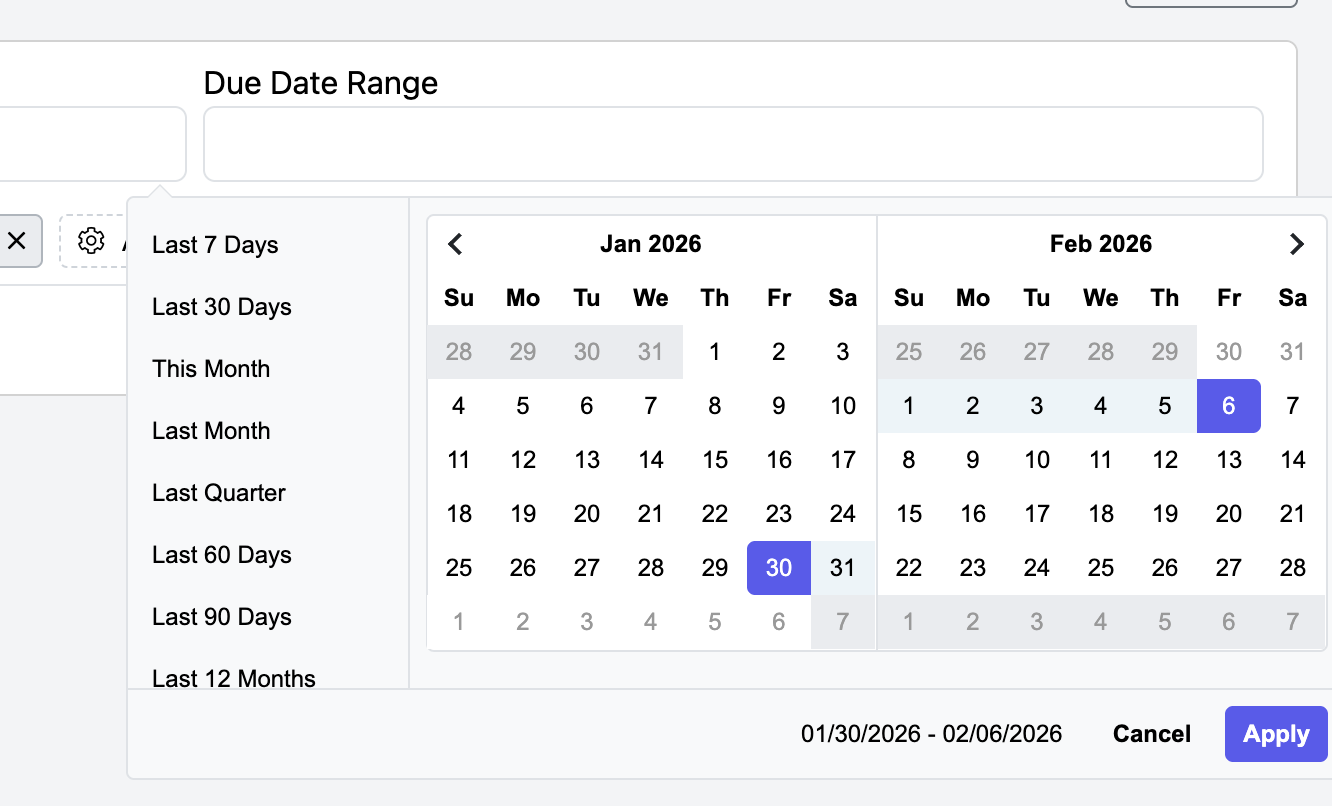
- Enter the Due Date Range by clicking in the box and making your selection. Then click Apply.
- When ready, click the “Generate Report” button.
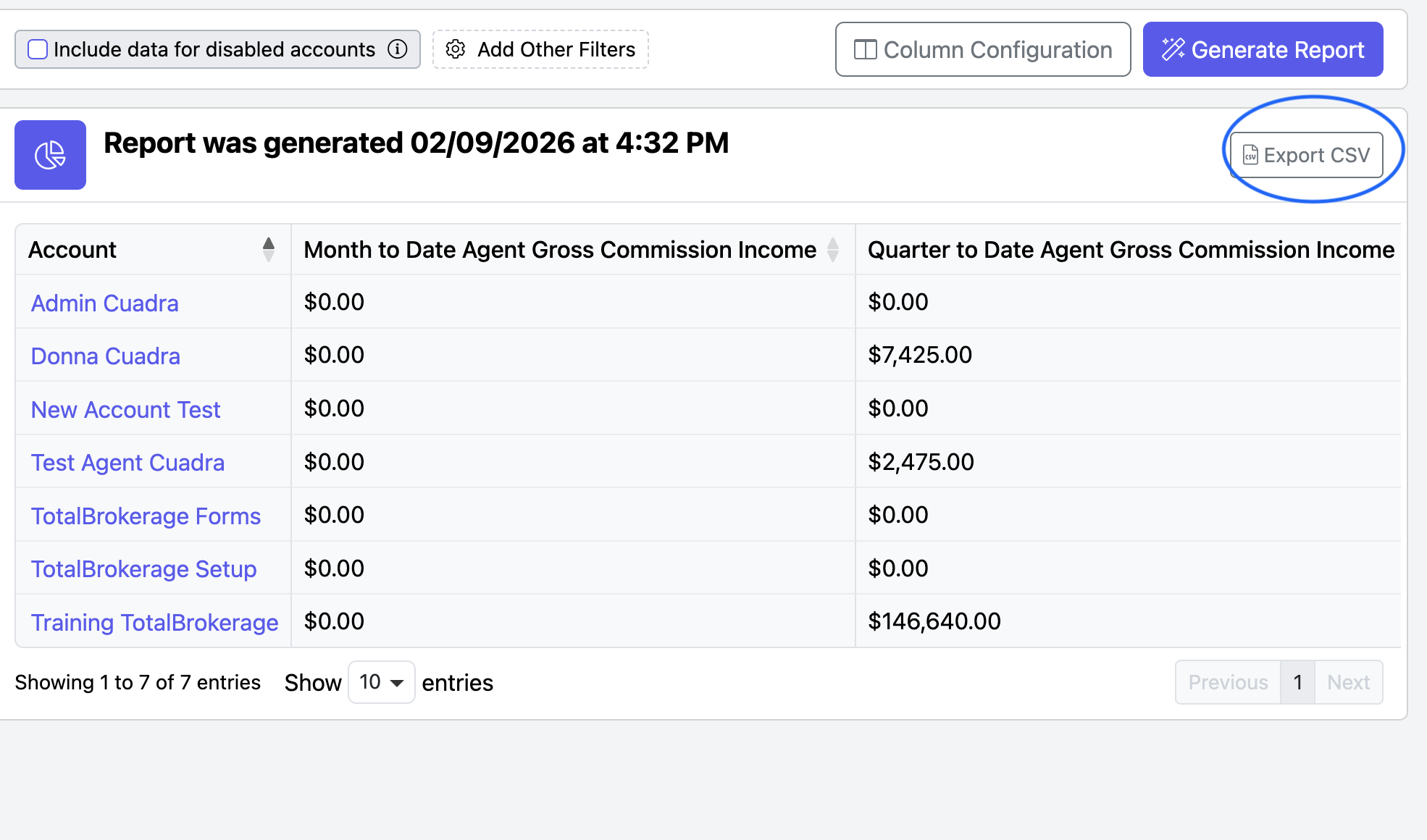
AGENT PRODUCTION
You can customize your report to include specific offices, teams, or agent accounts by clicking Add Other Filters.
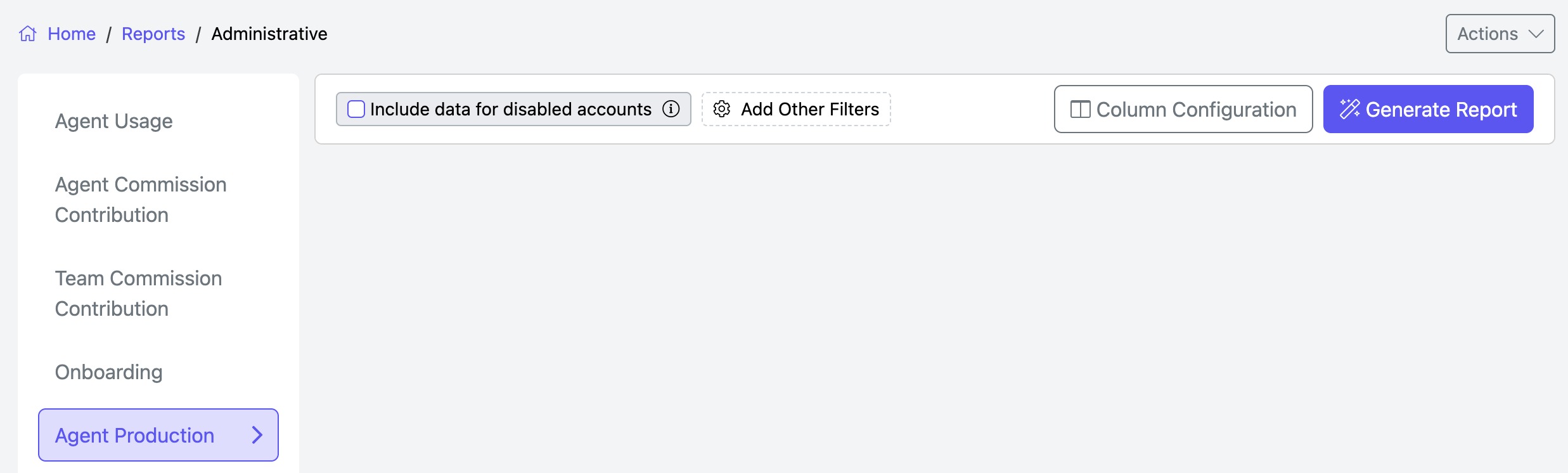
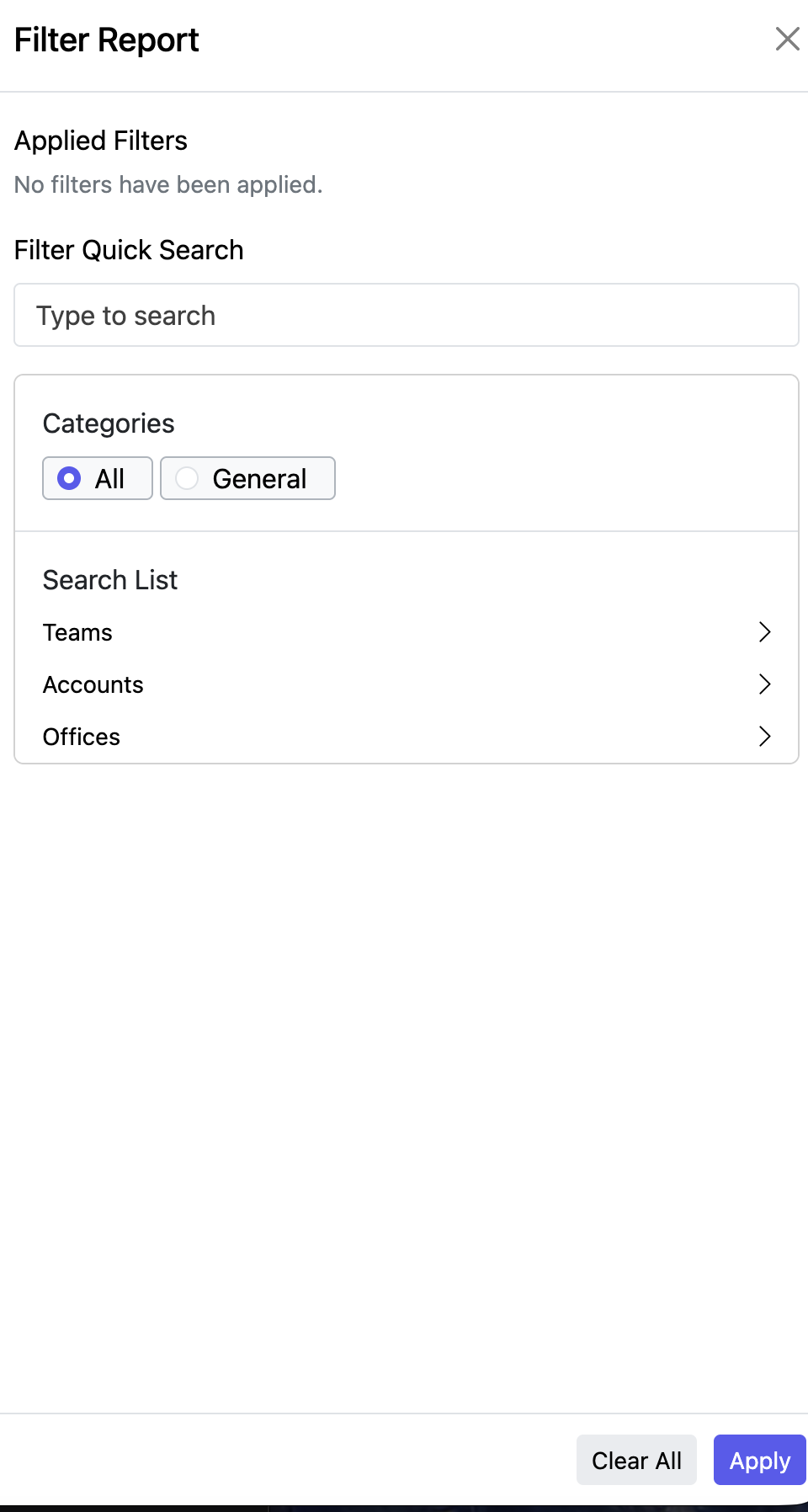
If you wish to generate a report without any filters, leave these fields blank and select Generate Report.
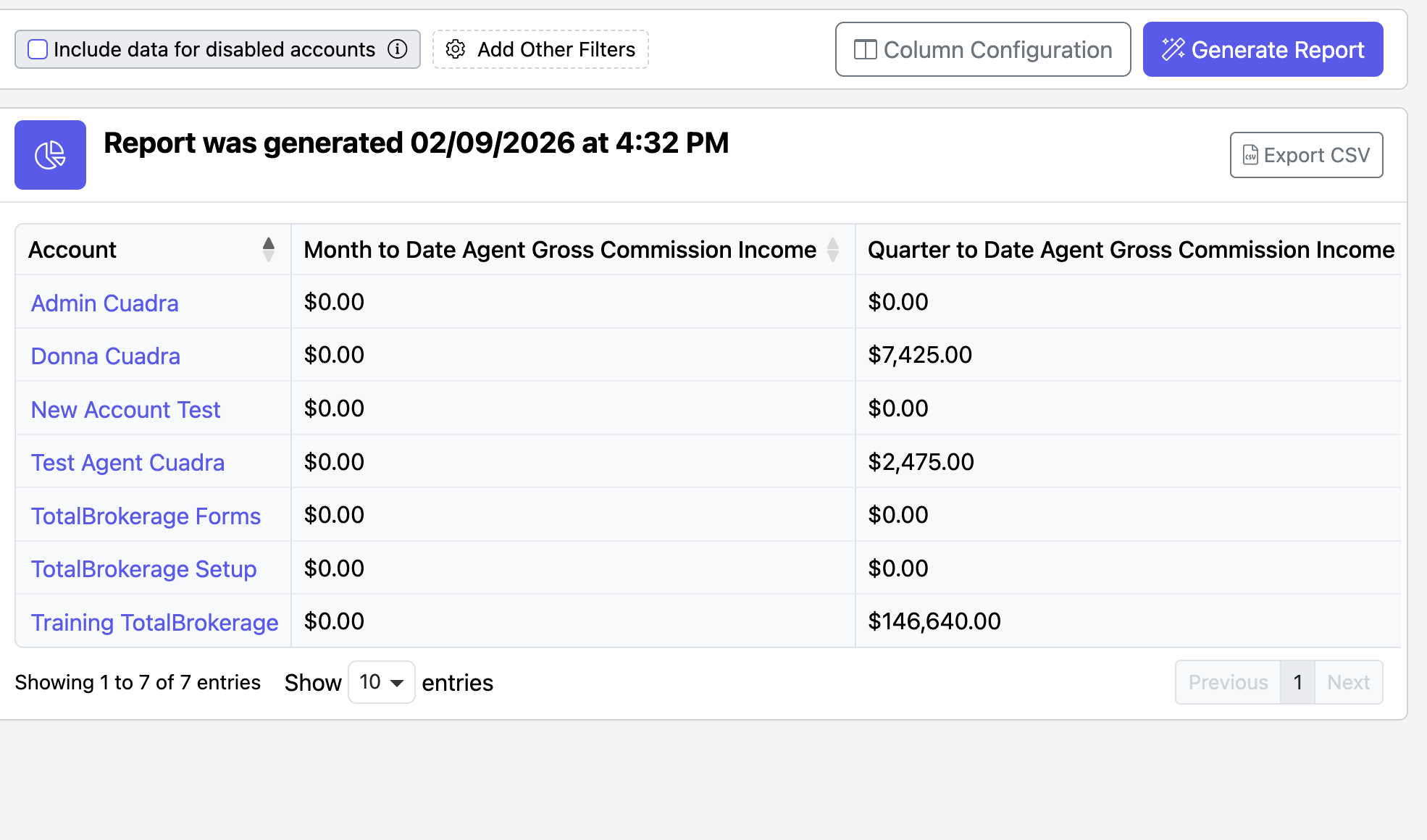
The default report includes the following:
- The hyperlinked account name is directed to the account page
- Gross commission income (month-to-date, quarter-to-date, year-to-date, last 12 months)
- Current bonus agent split or broker fee
To modify the number of results displayed on one page (up to a maximum of 100 agent accounts), use the Show _ Entries button.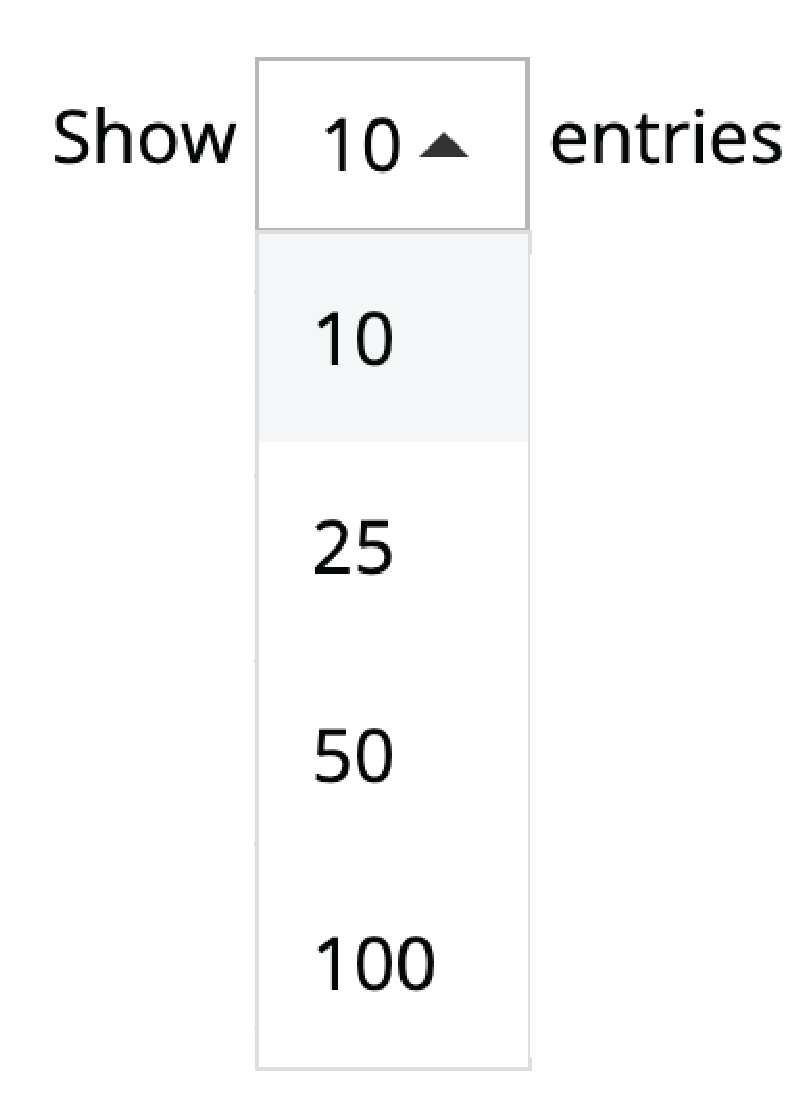
To adjust the table columns or to add account details, select Column Configuration.
You can reorder the columns by using the icon to the left of each title.
Click Add/Remove to make further edits.
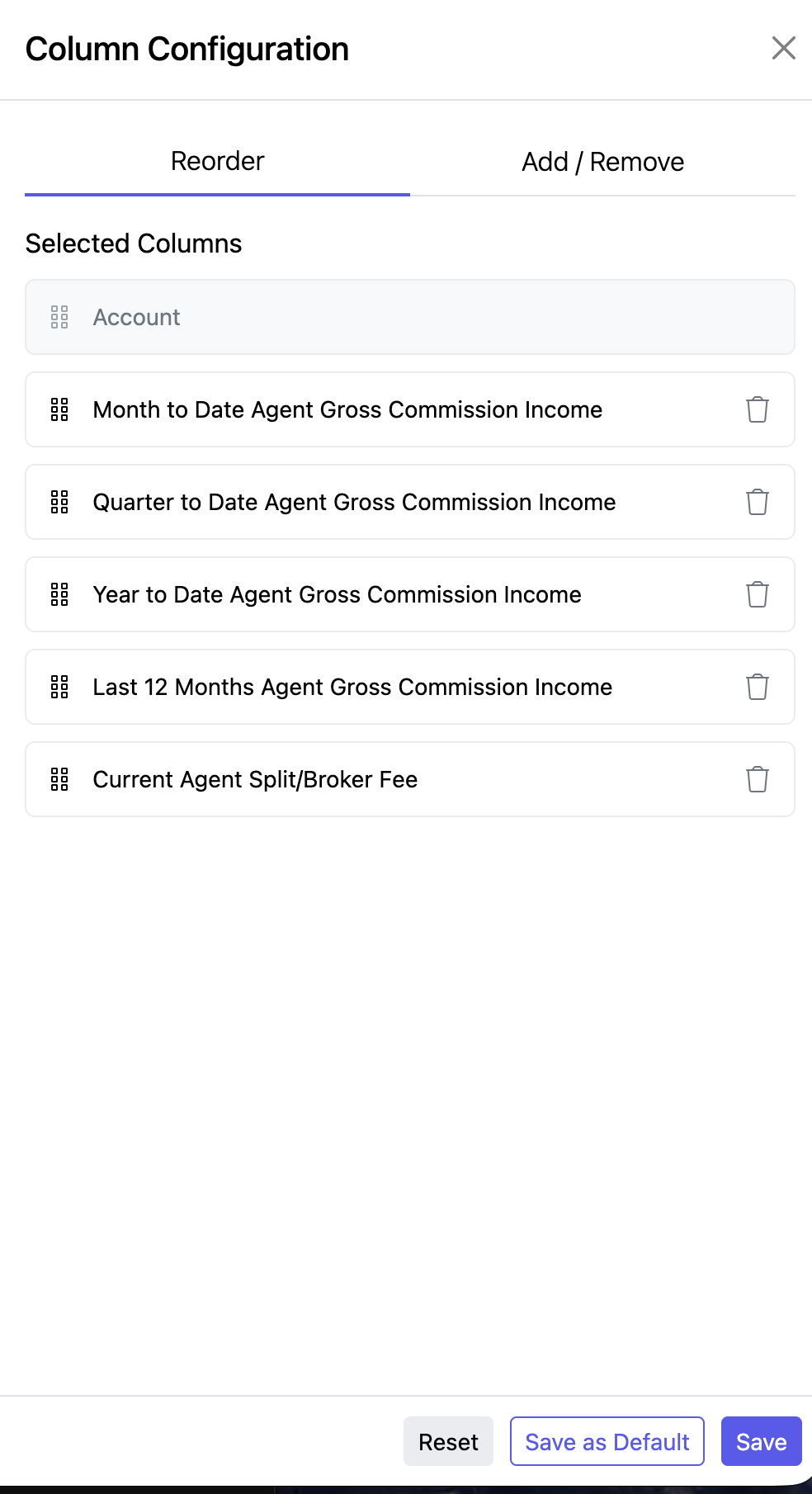
Once you have made your changes, click on Save as default to make the same arrangement available for future reports.
Click the Save button to implement these changes to your current view.
To download the table as a CSV file, select the Export CSV at the top right of the table.