
HELP CENTER / BROKERAGE MANAGERS
Get started with
TotalBrokerage Lite
Set up your brokerage, find your transactions, and build a dashboard that helps you manage your day.
For Brokerage Managers · A quick-start guide
Sign in with your brokerage manager account. Available menus and actions depend on your permissions and your brokerage’s settings. Use the linked guides for detailed instructions.
1. Get familiar with your dashboard
Simple View is the default for all users. You can change your default to Full Dashboard directly from the Simple View dashboard or in your profile.
Simple Dashboard
The Simple Dashboard gives you quick access to Start New Transaction and Manage Existing Transactions. Select Full Dashboard to open the calendar, task, and widget view. To make that your default, select Save this as default before opening the Full Dashboard.
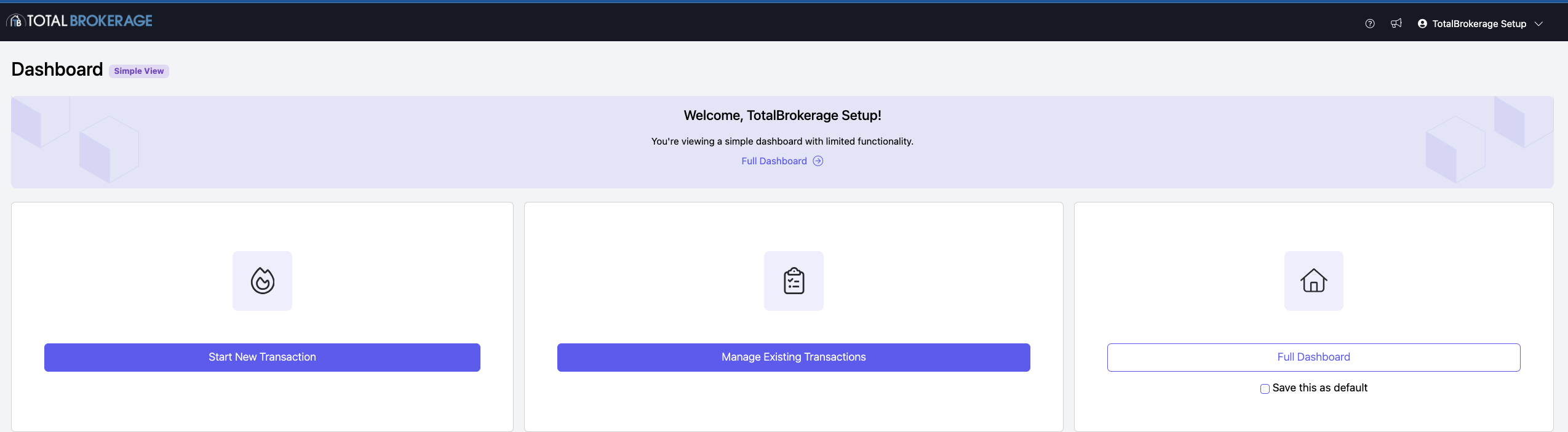
Simple Dashboard: use the quick actions or switch to the Full Dashboard. Select the screenshot to open it full size.
Full Dashboard
The Full Dashboard displays your Calendar and To-Do list. Select Edit Widgets to personalize the information you track.
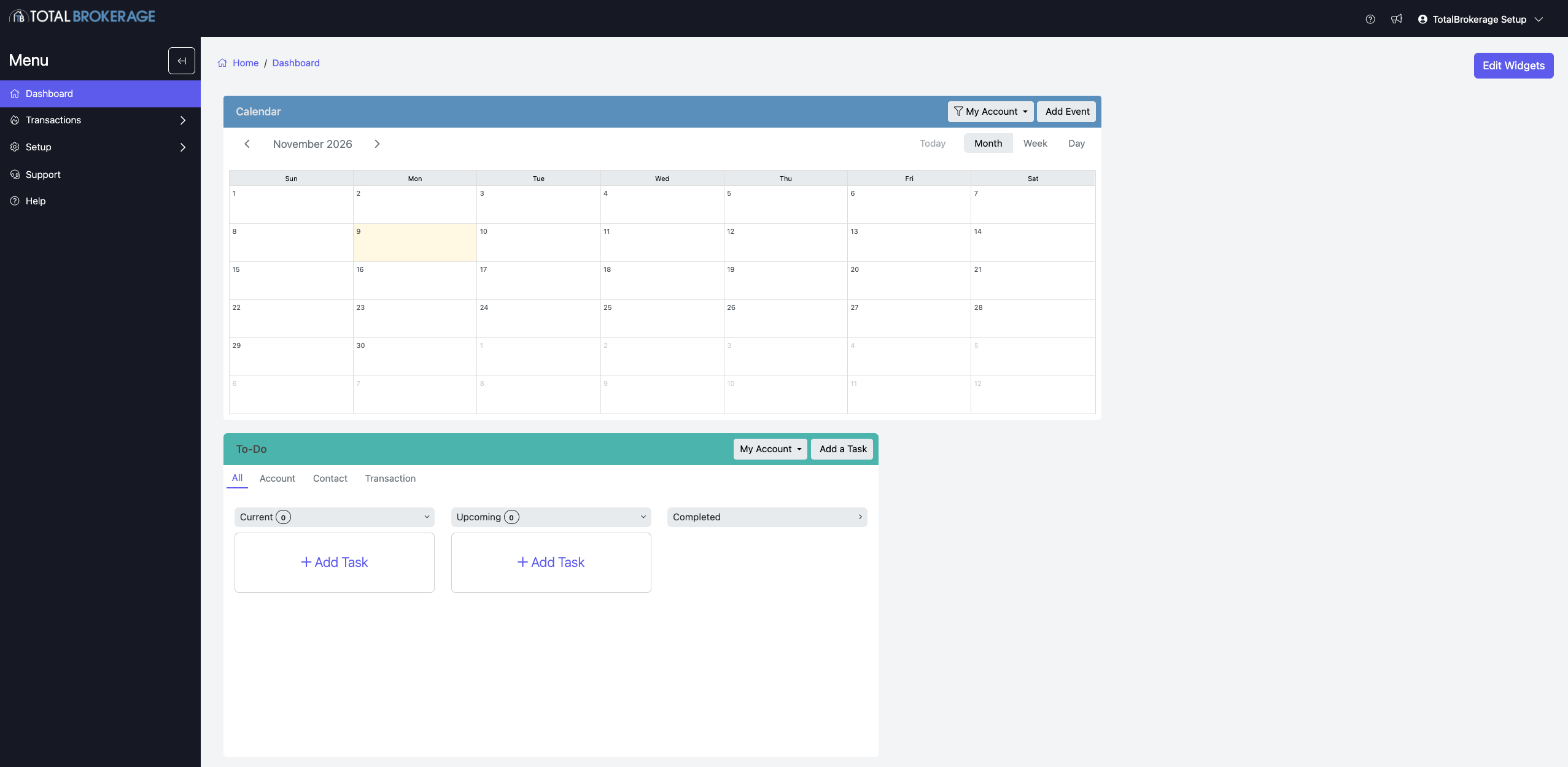
Full Dashboard: Calendar, To-Do, and Edit Widgets. Your layout may vary. Select the screenshot to open it full size.
To change your default from your profile, select your name in the upper-right corner, open My Profile, and choose Full Dashboard as your default dashboard.
Manage calendar events
Add and edit dashboard widgets
Create a brokerage-wide widget
2. Set up your brokerage
Open Setup in the left menu. Start with the areas below so your team has the accounts, plans, and transaction structure it needs.
Accounts
Add team members, update account details, or disable an account when appropriate.
Commissions
Create the shared commission and fee plans your brokerage uses.
Create a brokerage commission or fee plan
Transactions
Open Setup → Transactions. Use the Statuses tab to organize transaction stages and the Checklists tab to set up compliance requirements.
3. Manage transactions and compliance
Use the Transactions menu to find and manage the transactions available to your account. Open a transaction to work with its details and tabs.
Create a transaction
Work with transaction tabs
Review compliance requests
Compliance review access depends on your assigned role. If you are responsible for reviews, confirm that your account has the appropriate compliance permissions and that review notifications are enabled in your profile.
4. Get help when you need it
Explore the TotalBrokerage Knowledge Base for complete instructions, or email Support@TotalBrokerage.com.
Schedule your complimentary onboarding session
Once you’ve explored the platform, meet with our team for a complimentary 30-minute session to ask questions and plan your next steps.
Choose an onboarding appointment
Review the booking page’s cancellation policy before scheduling.