
Bulk Emailing & SMS allows you to select multiple contacts and send a single message to all selected recipients at the same time. This provides an efficient way to communicate with groups of contacts without having to send messages individually.
NOTE: To send bulk emails or SMS messages, your plan must include these features.
If you are unsure whether your plan includes them, go to:
You can then search by:
- Brokerage
- Office
- Account
NOTE: Bulk messaging is an add-on feature and requires an additional fee.
If you would like to add a feature to your plan, please email Support@TotalBrokerage.com for more information.
Accessing Your Contacts
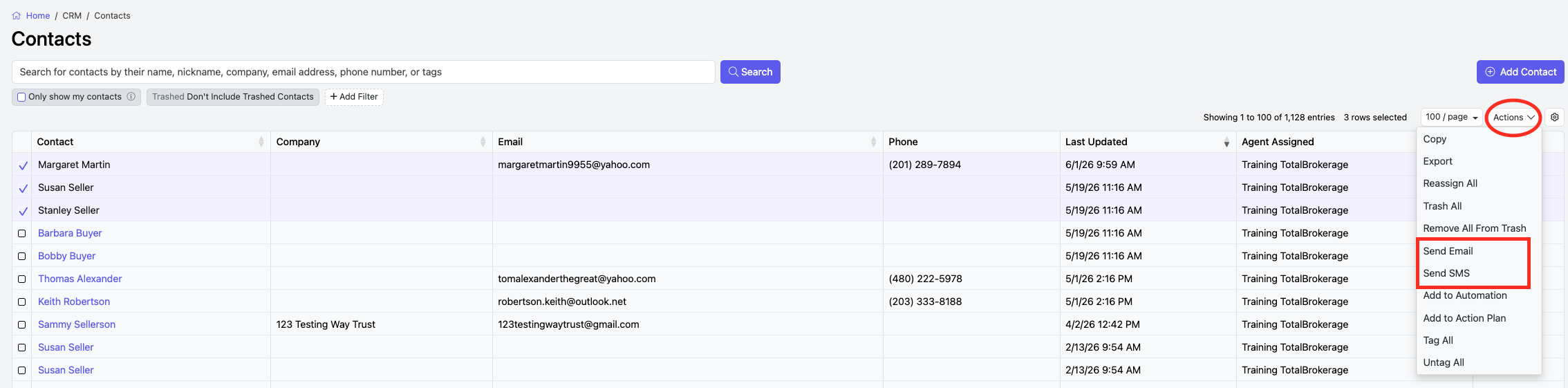
Go to: CRM > View Contacts
If you would like to send an email to a specific group of contacts, either
- Check the box next to the contact name or
- Click + Add Filter.
- Select the desired filter fields
- Click Search.
NOTE: If you do not make selections or apply a filter to your contact list, the email will be sent to ALL contacts.
Once your contact list is ready, go to: Actions > Send Email
Composing Your Bulk Email
From:
You will first select which account the email should be sent from.
If you are a manager, you may choose from the following options:
- My Account
- Contact Owner
- A Specific Account
Email Address:
- Send from TotalBrokerage capture email address
- Send from Profile email address
The number of Contacts selected to receive this email will display.
Create your email
You can compose your email directly within the email editor.
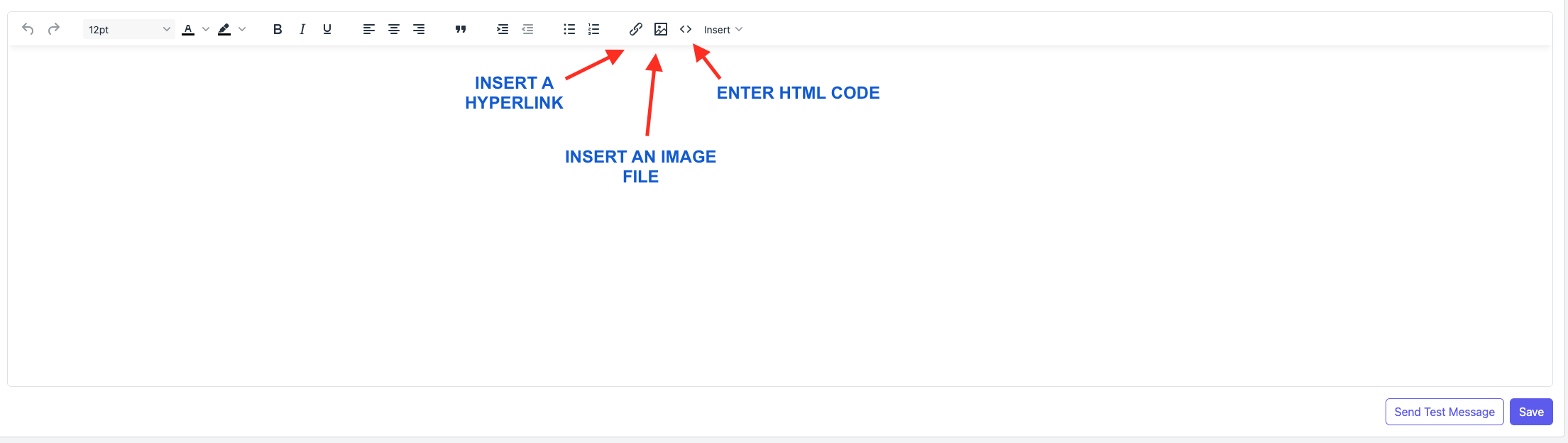
Toolbar: Use the toolbar to enhance your template with dynamic elements:
- Hyperlink - Choose the text you would like displayed in the email, along with the URL where the recipient will be directed when the link is clicked.
- Image - If you created your email using external marketing software, you must first save or download the design to your computer as an image file, such as a JPEG or PNG. You can then upload the image file into the email.
- Insert custom HTML code - Within the template body, you may also use the Insert button to add contact details using mail merge fields.
Template: You may send a previously created Marketing Template by clicking here and selecting your preferred template. Once the template has been added to the email, you will still be able to make any edits or updates as needed.
Signature: Your signature will automatically populate if you have previously created one in My Profile.
Edit Signature: You may also edit your signature directly within the email. To create and save a new signature, you will be directed to My Profile.
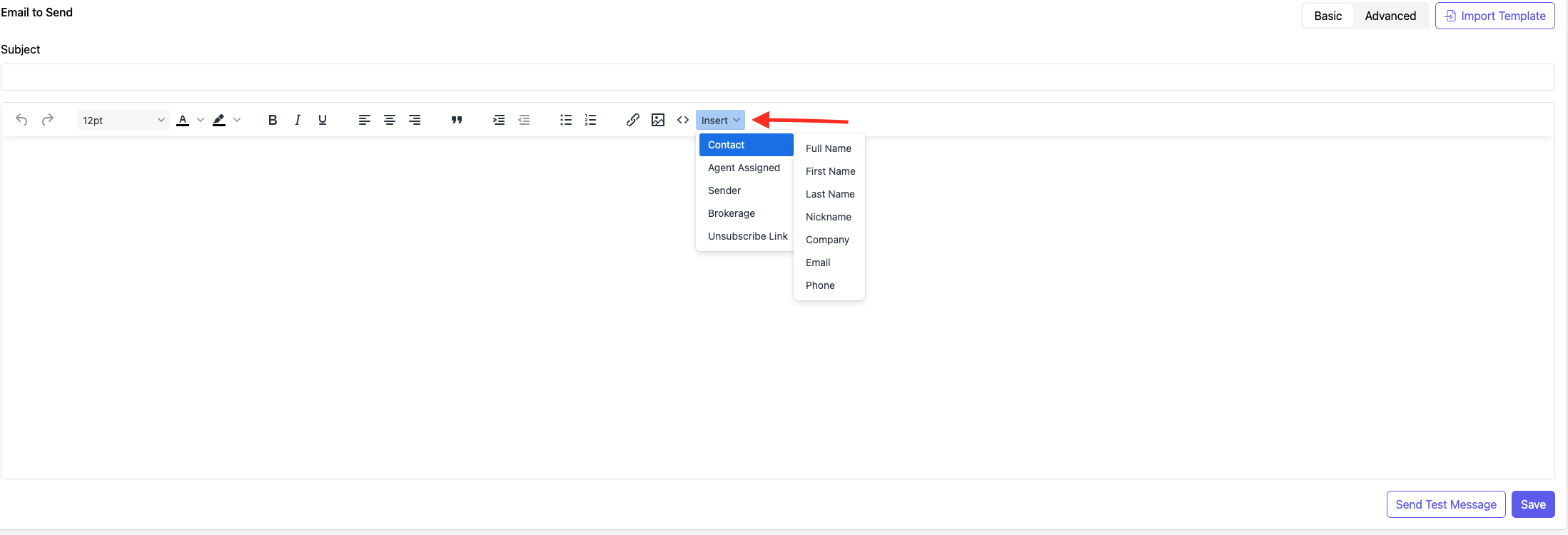
By clicking Send Test, you can send a preview email to yourself to review the template before using it.
Tags: You also have the option to add a Tag to the recipients of the email.
When you are satisfied with the email, click Send.
Composing your Bulk SMS:
Sending mass SMS texts to your contacts is only available if you have an SMS number set up within your profile and enough SMS text message licenses.
To send mass SMS texts, go to CRM → View Contacts, and search for your contacts.
For a guide on searching for contacts, see this.
Once you have selected your contacts, click Actions → Send SMS.
NOTE: If you do not select any contacts, an SMS will be sent to all contacts in the search results.
On the next page, you will see the number of contacts selected and will be able to compose your message.
In the editor, you can Insert details to automatically personalize your message.
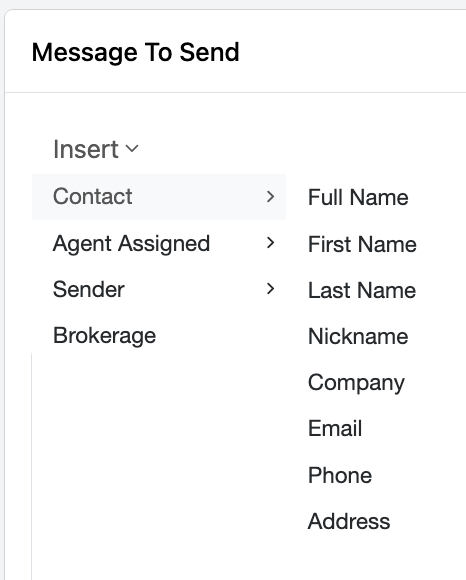
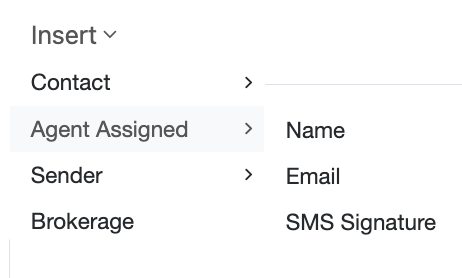
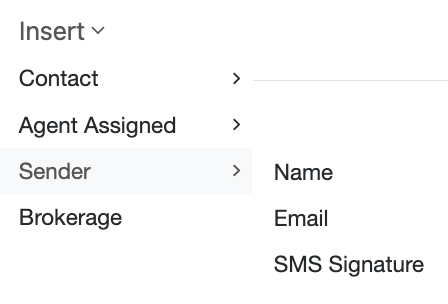
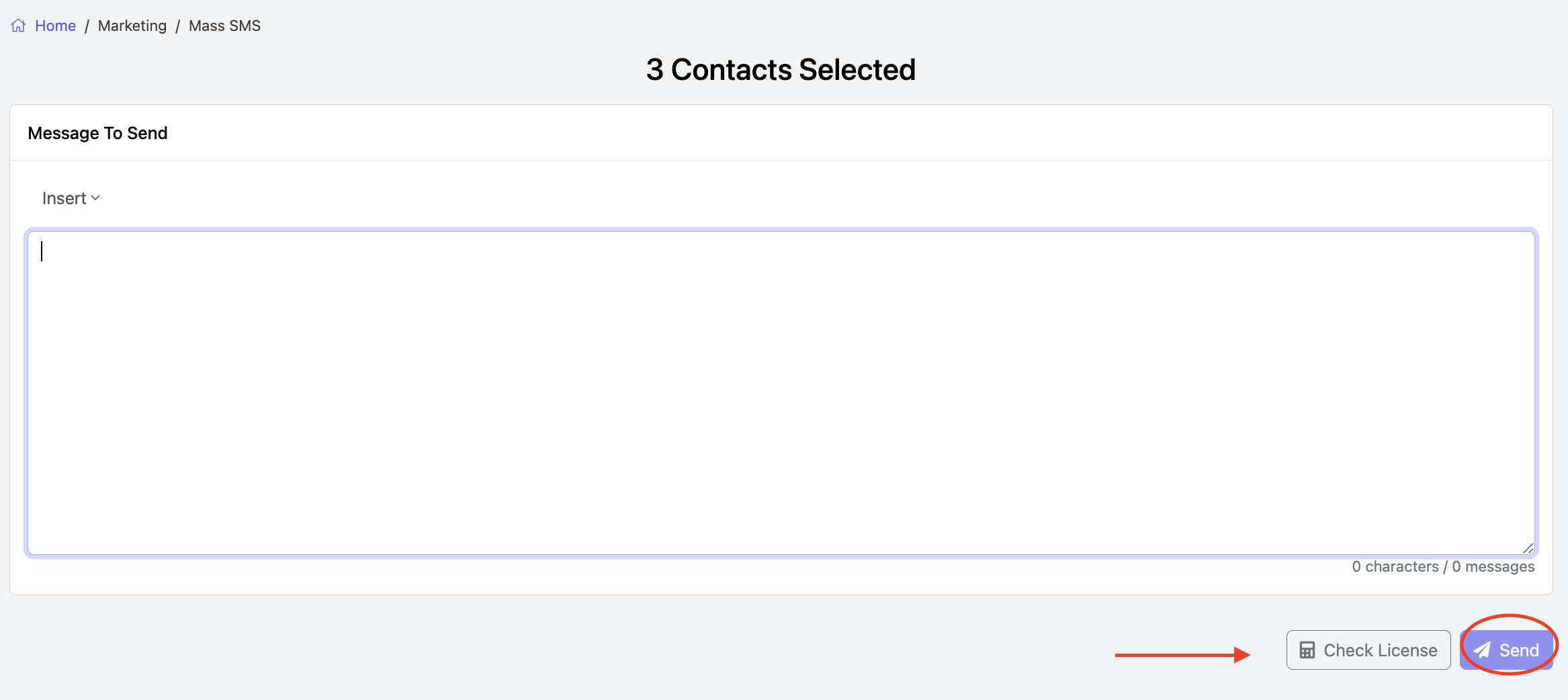
Once your message is complete, click the Check License button to confirm you have enough licenses to send the SMS to the selected group of contacts.
When you are ready, click the blue Send button.