
Transaction Simple View provides a streamlined way to view and manage a transaction bydisplaying its most important information on a single page. Instead of navigating through multiple tabs, users can quickly review and update key transaction details from one centralized view.
Users can switch between Simple View and Detailed View at any time.
Benefits of Transaction Simple View
- View the most important transaction information on a single page.
- Reduce navigation between multiple tabs.
- Edit key transaction details quickly.
- Customize the displayed fields to match your brokerage's workflow.
- Easily switch between Simple View and Detailed View.
- Allow managers to quickly close transactions using Quick Close.
Accessing Transaction Simple View
- Open a transaction.
- Select Actions.
- Click Go to Simple View.
The transaction will open in Simple View, displaying the fields configured by your brokerage. 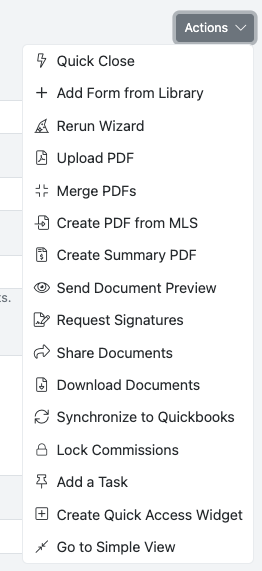
What You'll See
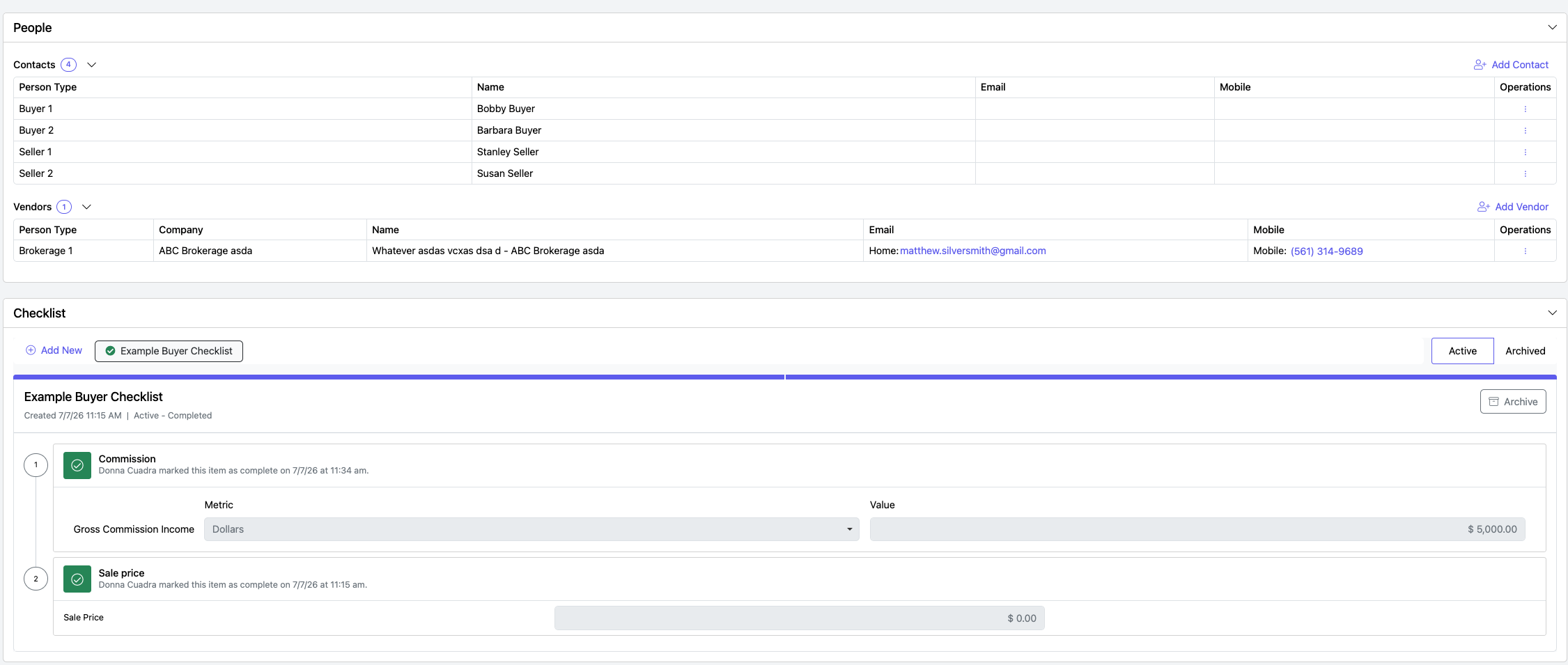
Simple View can display a variety of important transaction information, including:
- Transaction name
- Transaction status
- Important dates
- Financial information
- Property information
- People associated with the transaction
- Compliance checklist
The information displayed is determined by your brokerage's configuration. 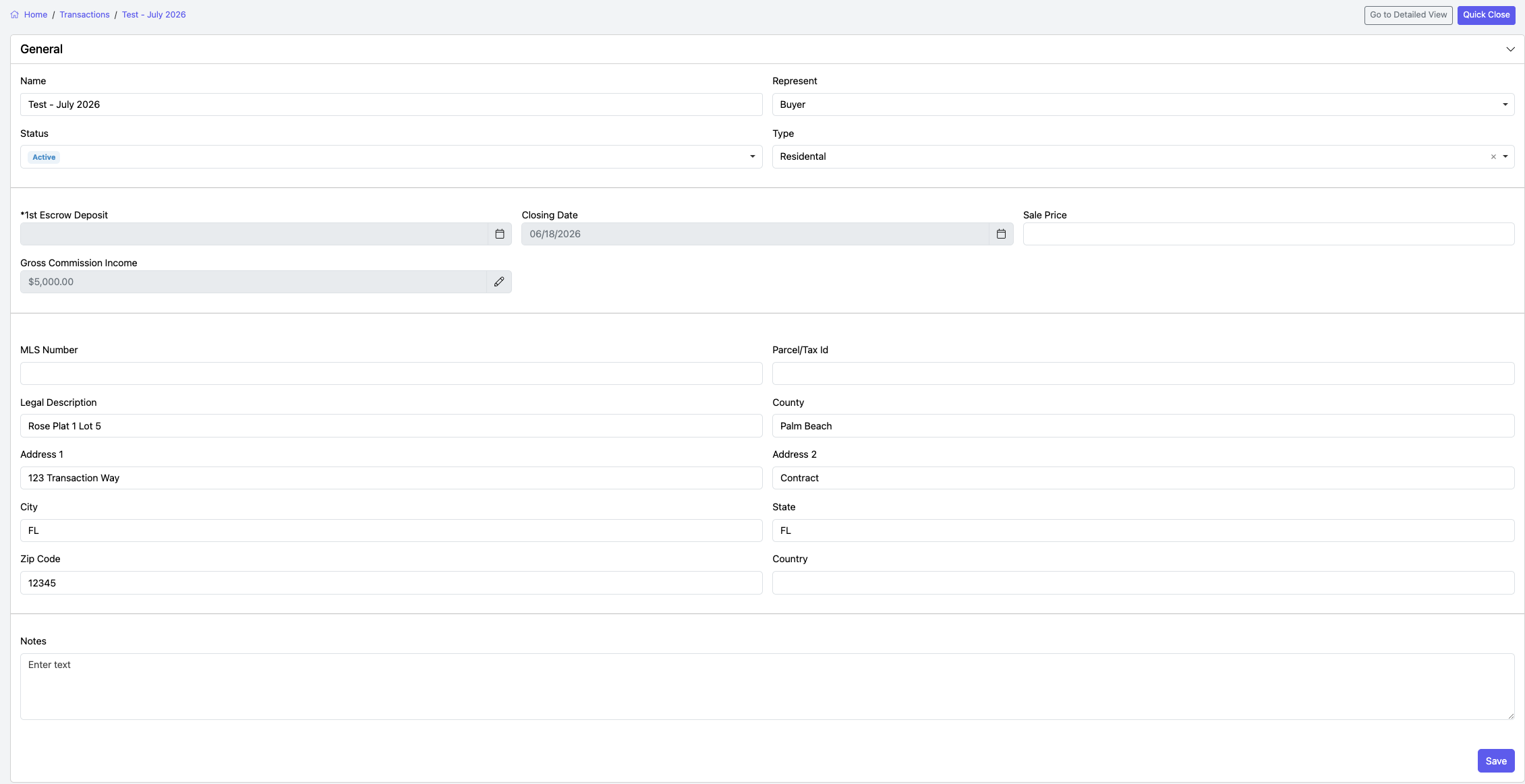
Editing Information
Most fields displayed in Simple View can be edited directly on the page.
- Locate the field you want to update.
- Enter or select the new value.
- Save your changes, if prompted.
This allows you to make updates without navigating through multiple transaction tabs.
Returning to Detailed View
If you need access to the complete transaction layout:
- Select Go to Detailed View.
The transaction will open in the standard detailed interface.
Quick Close
Users with the appropriate permissions can quickly finalize a transaction directly from Simple View by selecting Quick Close.
Quick Close allows managers to efficiently complete the transaction without returning to the Detailed View.

Configuring Simple View (Brokerage Managers)
Brokerage Managers can customize which fields appear in Transaction Simple View.
To configure the displayed fields:
- Navigate to Setup.
- Select User Fields.
- Configure the fields that should appear in Transaction Simple View.
- Save your changes.
The selected fields will be displayed for users when they access Simple View.
For more information CLICK HERE to access the User Fields help desk article.