You can create Teams inside of TotalBrokerage.
This feature allows Teams to be seen in the CRM Contact card and within a transaction.
Follow the steps below to learn how to create a team!
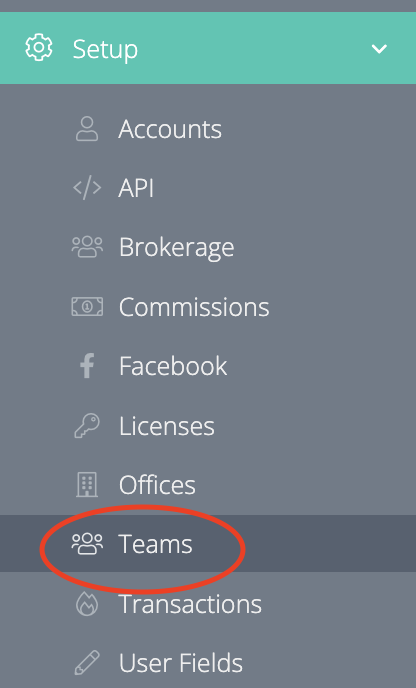
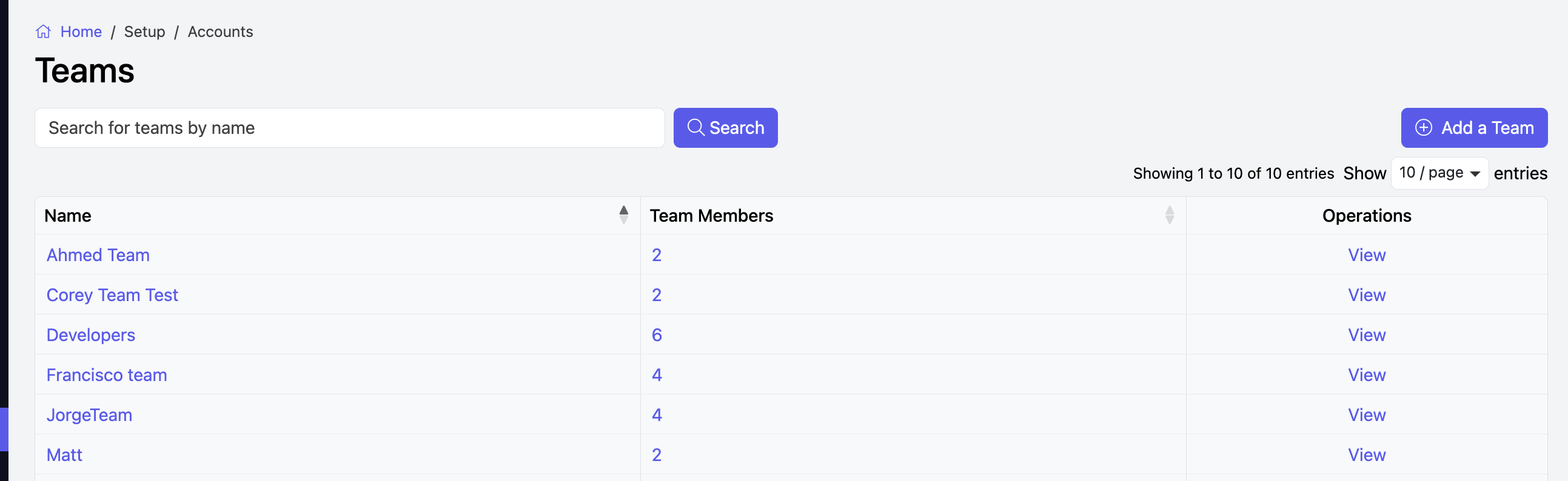
Go to Setup > Teams.
To add a new team, click Add a Team at the top right.
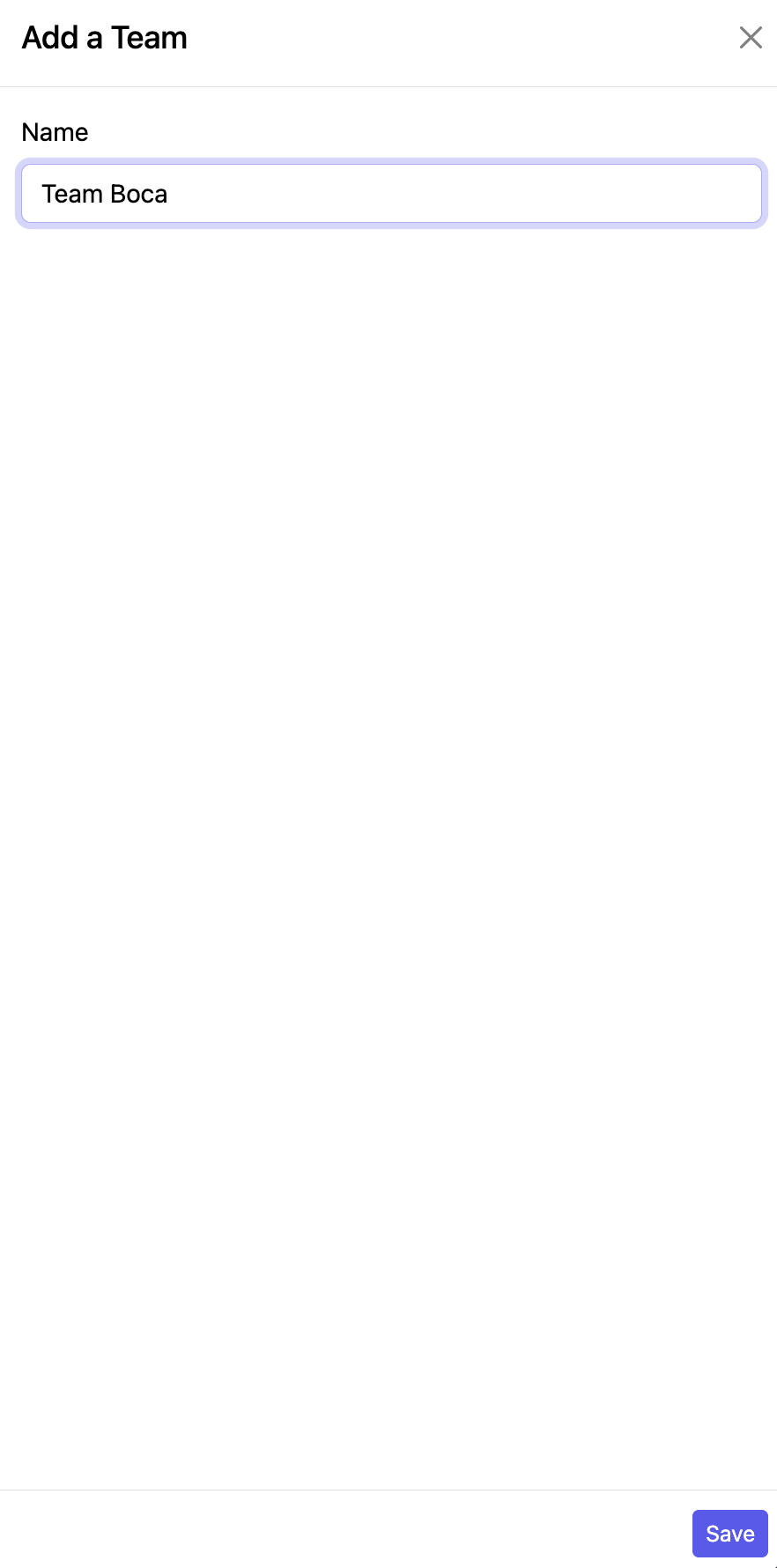
Enter a Team Name and Save.
GENERAL
Create the Team settings here.
Click Save once completed.
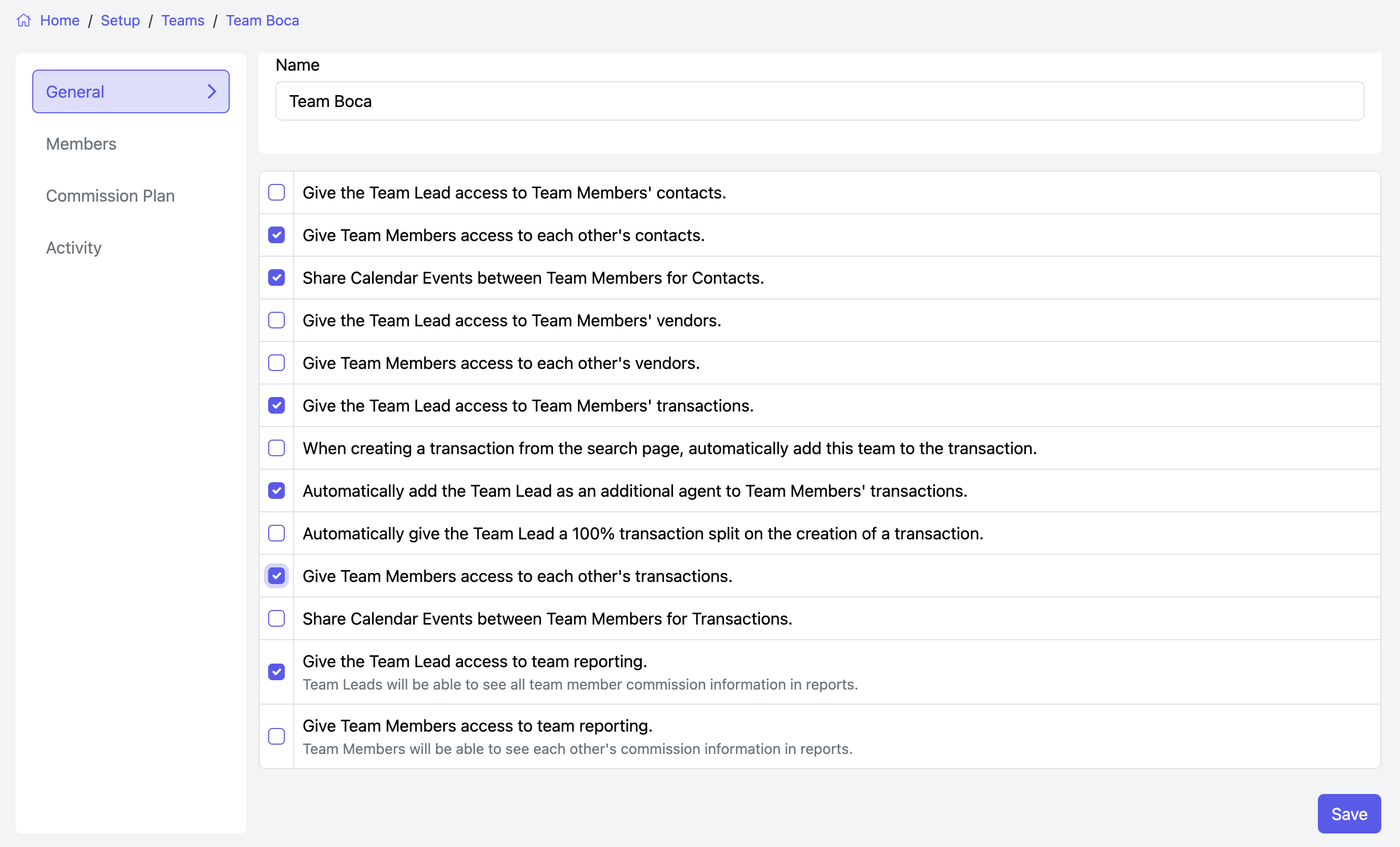
You can also select the following options:
- Give Team Lead Access to Team Members' Contacts
- Give Team Members access to each other's contacts
- Share Calendar Events between Team Members for Contacts. (This requires "Give Team Members access to each other's contacts" to be enabled.)
- Give Team Lead Access to Team Members Vendors
- Give Team Members access to each other's Vendors
- Give Team Lead Access to Team Members Transactions
- When creating a transaction from the search page, automatically add this team to the transaction
- Automatically add Team Lead as an additional agent to Team Members Transactions (This requires "Give Team Lead Access to Team Members Transactions" to be enabled.)
- Automatically give the Team Lead a 100% transaction split on creation of a Transaction. (This requires "Automatically add team lead as an additional agent to Team Members transactions" to be enabled).
- Give Team Members access to each other's transactions
- Share Calendar Events between Team Members for Transactions. (This requires "Give Team Members access to each other's transactions" to be enabled.)
- Give Team Lead access to team reporting
- Give Team Members access to team reporting
MEMBERS
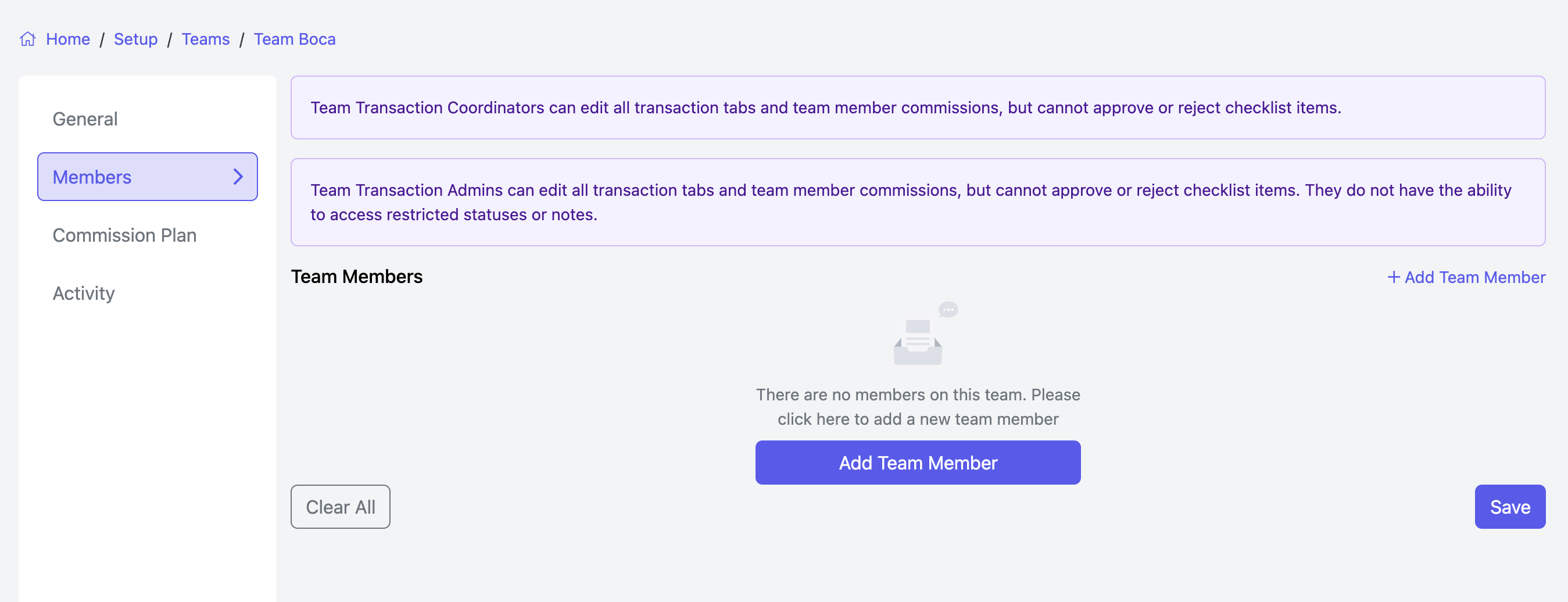
This is where you can add or remove team members.
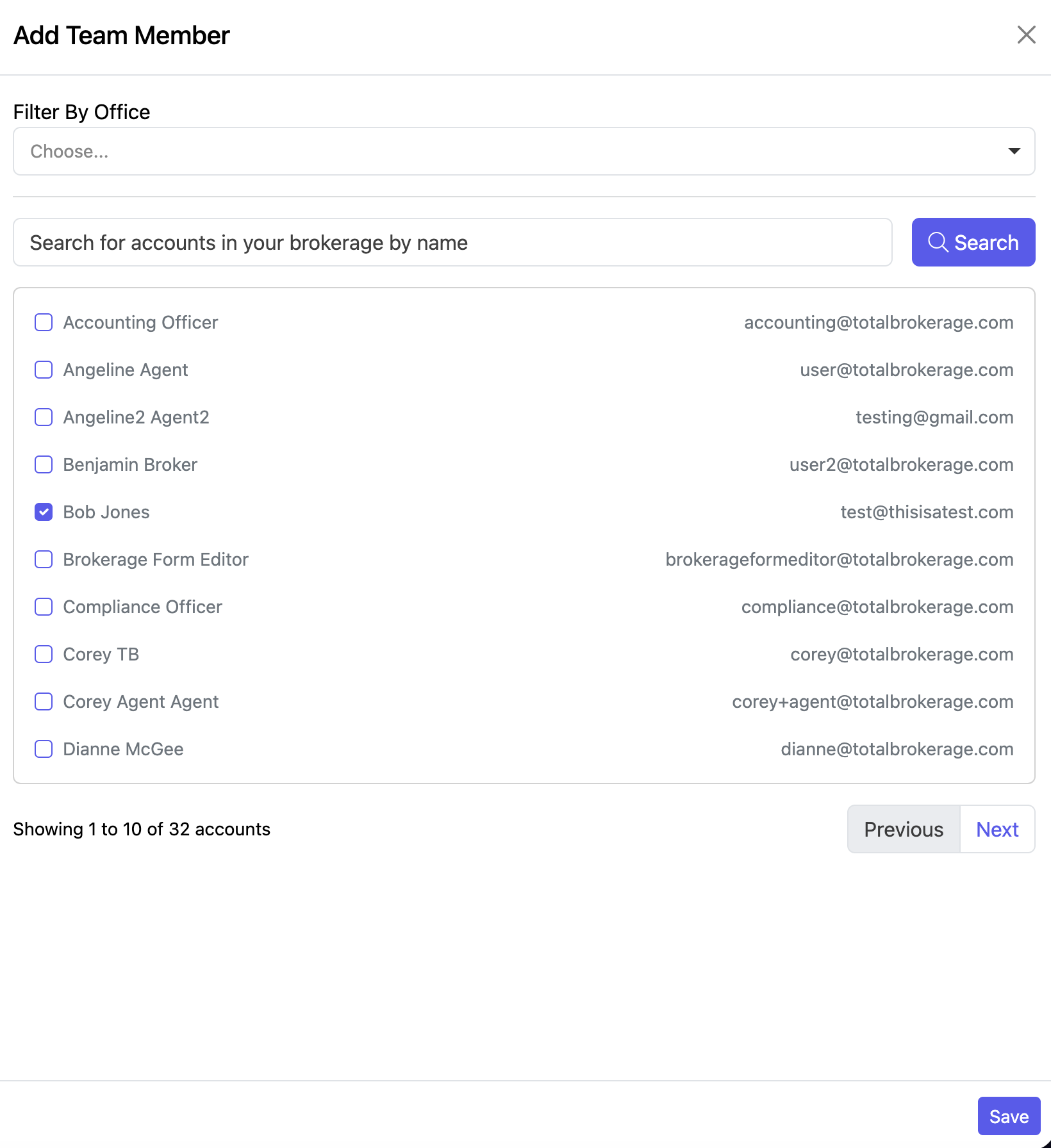
Click + Add Team Member.
Make your selection(s) by entering the person's name to search or checking the box to the left of the name. You may also Filter by Office first.
Click Save.
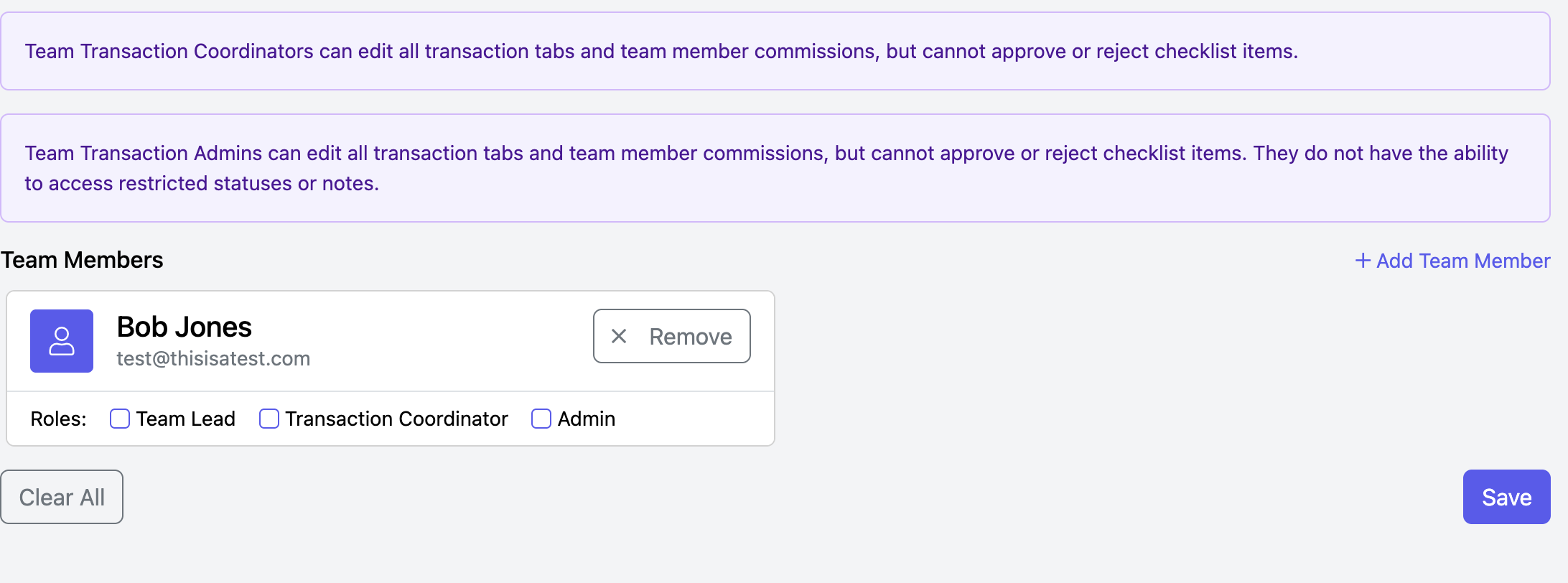
You may also designate the following roles to a member if applicable.
- Team Lead
- Transaction Coordinator: Team Transaction Coordinators can edit all transaction tabs and team member commissions but cannot approve or reject checklist items.
- Transaction Administrator: Team Transaction Admins can edit all transaction tabs and team member commissions but cannot approve or reject checklist items. They also cannot access restricted statuses or notes.
To remove a team member, click X Remove.
Click the blue Save button in the bottom right when finished.
COMMISSION PLAN
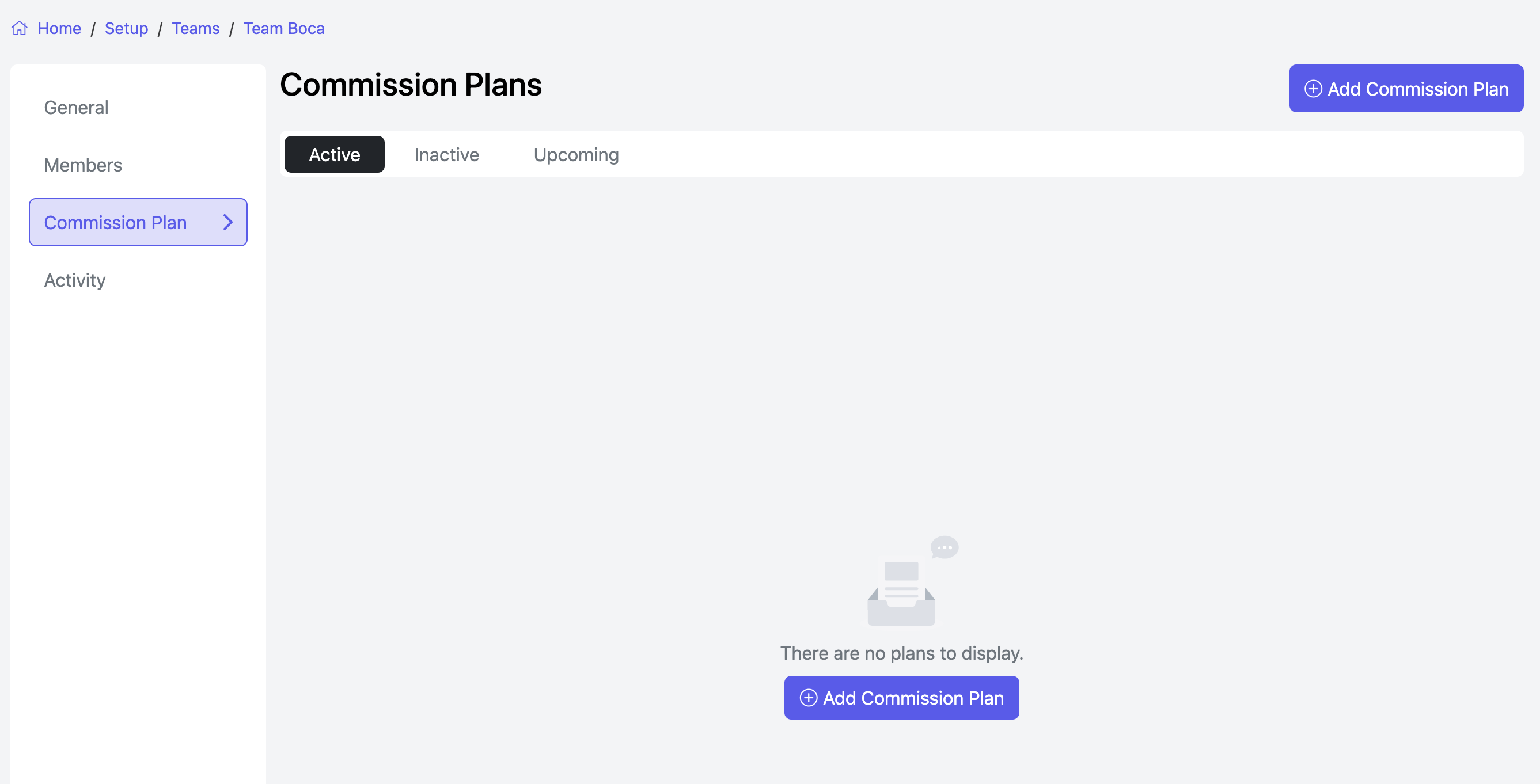
Here, you can Add a new plan or Import a plan that has already been created.
Team Commission Plans in TotalBrokerage allow you to manage commissions for an entire team, overriding the plans set for individual agents.
This is useful for offices with tiered commission structures, allowing contributions from all team members to be consolidated.
Important notes:
- This plan will apply to all members of the Team.
- The team commission plan applies only to transactions originally associated with the team. Transactions assigned to individual agents will continue to follow the individual agent’s commission plan.
- To apply commission contributions to the plan, please ensure commissions are locked and that a Closing Date or Lease Execution Deadline is set on the Calendar tab.
- We recommend enabling the setting to lock transaction teams so the transaction remains correctly tied to the team once set and cannot be changed by agents. This can be configured in Setup → Transactions → General → Lock Transaction Team.
- Once enabled, only managers, accountants, and compliance officers can change the transaction team.
For additional information on creating a commission plan, Click Here.
ACTIVITY
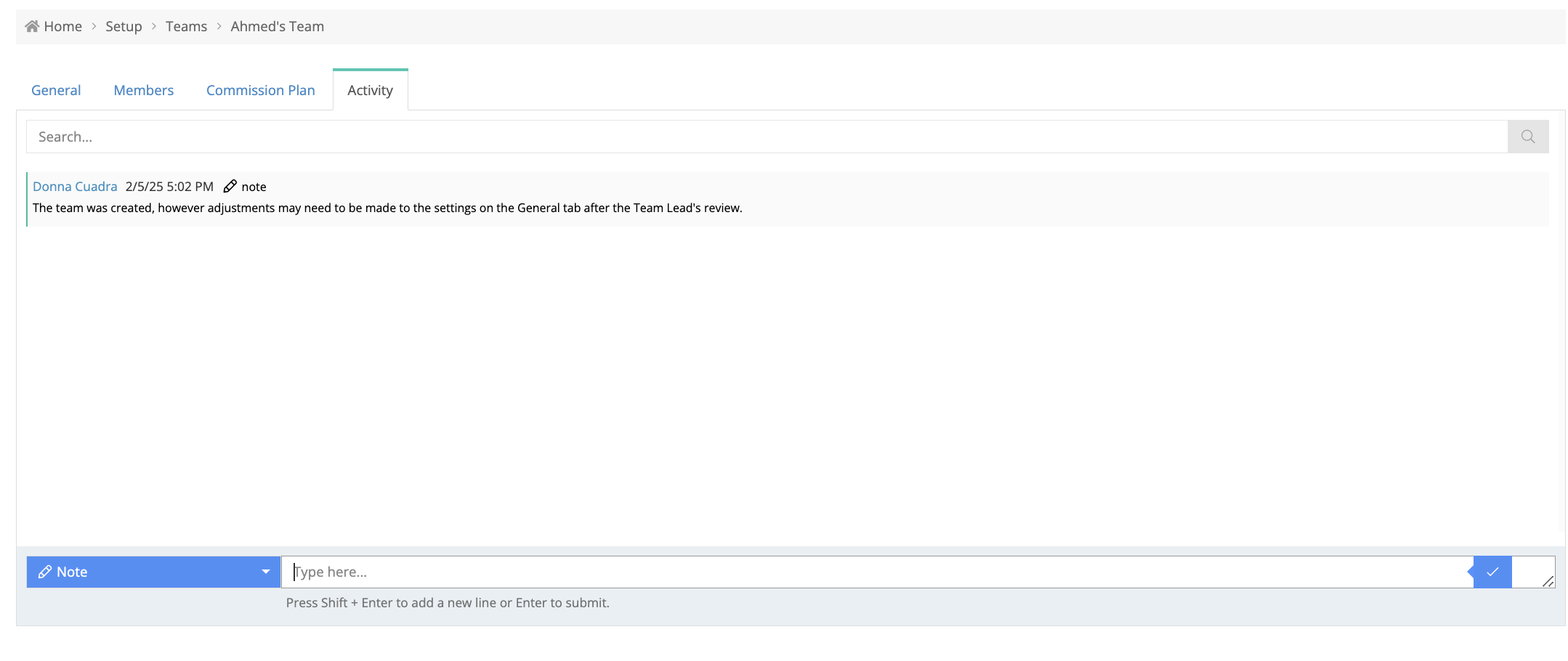
Create notes about the team, which will only be visible to managers.
The Team Activity Tab automatically tracks team member changes, logging who made the change, what action occurred, and when.
Brokerage Managers can also add notes for context.
Office Managers can access similar information in the Account Activity Tab.
Features:
Automatic Logging:
Tracks team member additions and removals automatically.
Includes details of who performed the action and when.
Team Notes:
Brokerage Managers can add notes for additional context.
Access Across Accounts:
Join and leave logs are visible in the Account Activity Tab for both Brokerage and Office Managers.
Who Can Access It?
Team Activity Tab: Accessible only to Brokerage Managers & Brokerage Human Resources Representatives.
Account Activity Tab: Accessible to Brokerage Managers, Brokerage Human Resources Representatives and Office Managers.
How to Use:
Team Activity Tab:
Go to Setup → Teams.
Open the Activity tab to view logs and add notes.
Account Activity Tab:
Go to Setup → Accounts.
Open the Activity tab to view logs.
Benefits:
Clear Tracking: Logs all team member changes.
Accountability: Shows who made changes and when.
Enhanced Management: Notes help clarify changes.
FAQs:
Who can access the Team Activity Tab? Only Brokerage Managers.
Can agents or team leads, admins, or transaction coordinators see these logs? No, logs are limited to managers.
Are these logs editable? Logs are automated and cannot be changed, but notes can be added.
What is logged? Team member additions and removals, with action details.
TEAM SEARCH
Go to Setup > Teams
3 ways to find the team:
- Type the name in the search box
- Click on the Team Name
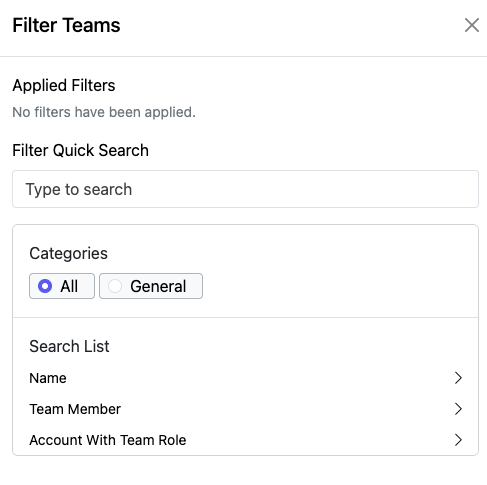
- Use +Add Filter

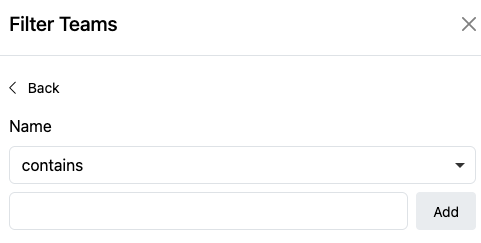
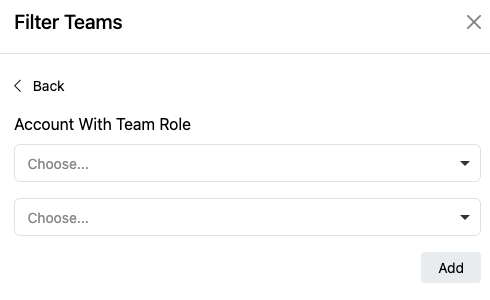
- You can Filter by Team Name, Team Member or Account with Team Role.
- Make your selections from the dropdown menu.
- Click Add.
- Click Apply.