

HELP CENTER / TRANSACTIONS
Create a transaction
From the Dashboard, select Create → Transaction. On the Simple Dashboard, select Start New Transaction.
Choose who owns the transaction
If you have permission to create transactions for others, you’ll be asked:

If the selected transaction owner belongs to multiple offices or teams, you’ll be asked to pick the correct office and team.
Choose how to start
Choose I have executed forms to upload signed documents, I need blank forms to load forms through the Wizard, or I do not need blank forms to add them later.
Do you have signed documents?

Upload executed forms
I have executed forms: follow the prompts to upload your PDFs.
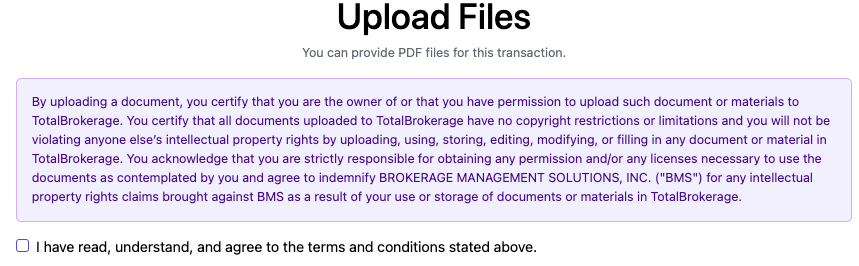
After uploading the files, they will be read to pre-fill your transaction tabs
NOTE: The prefilled information may contain inaccuracies.
Please double-check the information.
To make changes, click Edit Information.
If correct, click Confirm and Create Transaction.
Complete the Wizard
NOTE: If you do not want to enter all of the information, click Next. You can add/edit the information after the transaction has been created.
I need blank forms: You’ll answer a few Wizard questions to determine which forms to load.
Click Next.
Select the number of Buyers and Sellers. If unsure, click None. Then click Next.
Click Choose to select a contact that has previously been added to your CRM.
If the contact is not already listed in your CRM, click Create New Contact and follow the prompts.
Enter the address and any known details, then click Next.
Add key dates (if enabled), then click Next.
Input key financial data, then click Create Transaction.
If you chose I do not need blank forms, complete the same transaction details and add documents later.
The General tab opens when you finish.