
HELP CENTER / AI ASSISTANTS
Connect Google Gemini to
TotalBrokerage
Connect Google Gemini to TotalBrokerage using Model Context Protocol (MCP). This AI integration lets your AI assistant look up transactions, tasks, and commissions you can already access.
For agents and brokers · Uses your existing TotalBrokerage permissions
Before you begin
Use a personal Google Account with access to Gemini custom apps. Google currently limits this setup to users age 18 or older in the US, using English, with Keep Activity on. Work and school Google accounts are not supported for this custom-app setup. Custom-app availability can vary by account and rollout; check Google’s linked requirements below if the option is missing.
STEP 1
Open your profile
Sign in to TotalBrokerage. Select your name in the upper-right corner, then My Profile.
* Screenshots in this article were taken November 9, 2026. Screens and labels may change.
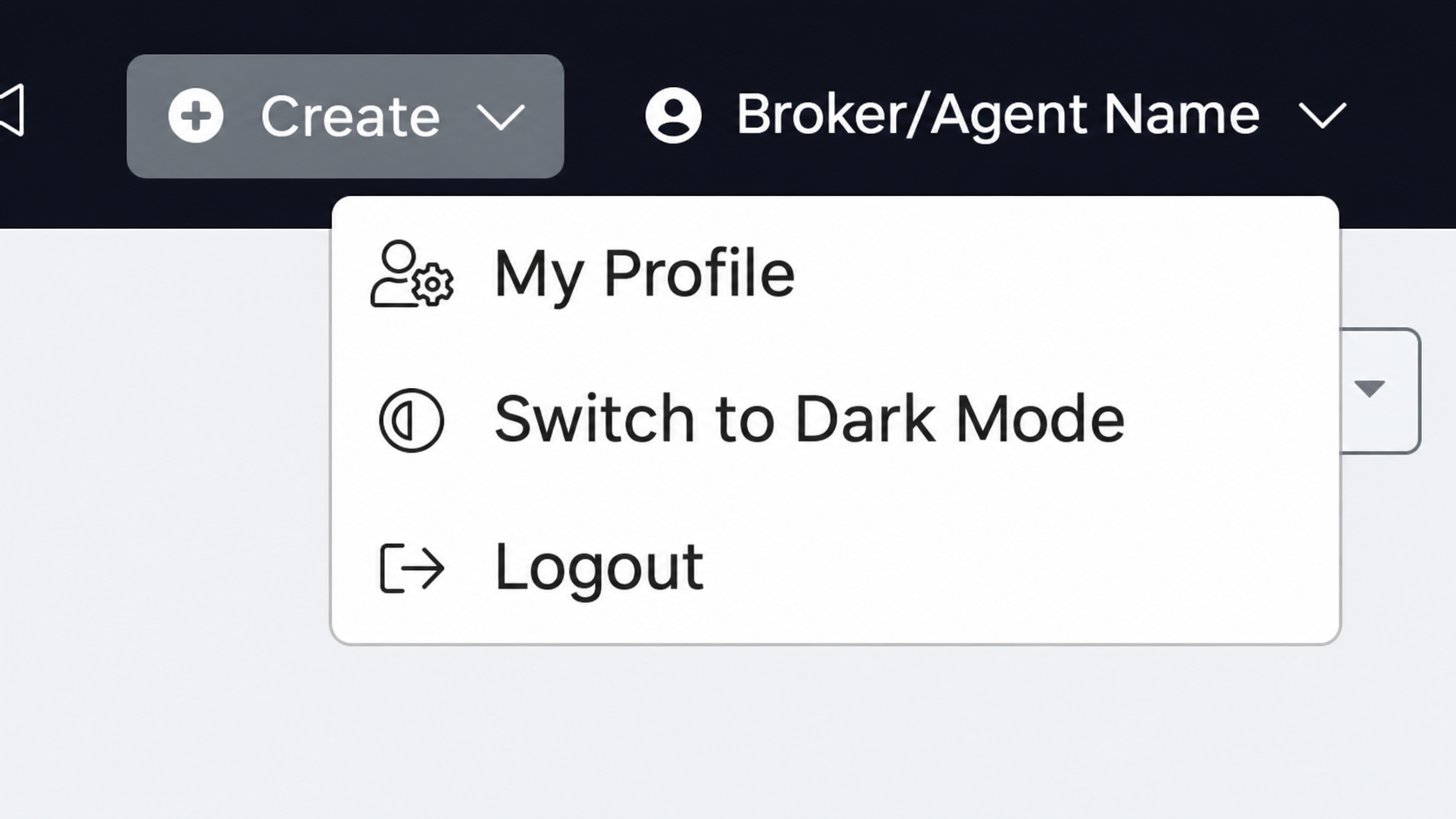
Select My Profile from your account menu.
STEP 2
Choose your AI assistant
Select the AI tab, then Connect AI Assistant.
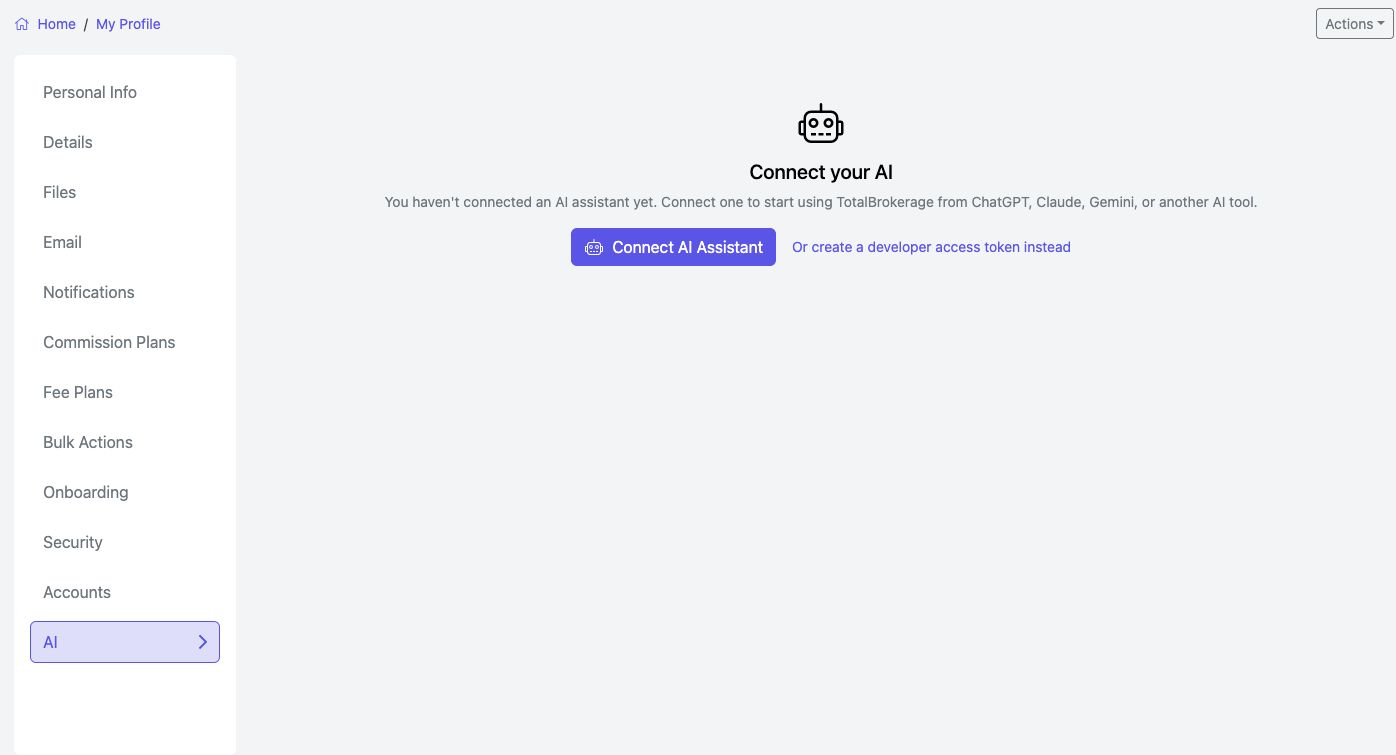
My Profile → AI. Select a screenshot to open its full-size image in a new tab.
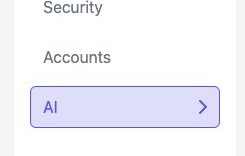
A Select the AI tab
B Open the connection instructions

Choose Gemini in the connection instructions.
STEP 3
Add TotalBrokerage as a Gemini custom app
- On a computer, open gemini.google.com and sign in with your eligible personal Google Account.
- Open Settings → Connected Apps. Some accounts show Settings & help or put Connected Apps under Personal Intelligence.
- Find Custom apps. Select Add a custom app, or use the first-app URL field shown there.
- Paste the MCP server URL below. Select Next and follow the sign-in prompts.

In Settings, select Connected Apps.
MCP SERVER URL
https://login.totalbrokerage.com/mcp/api
Add the TotalBrokerage MCP URL directly. You do not need a public Gemini directory listing. If the custom-app option is missing, check the account requirements above before continuing.
STEP 4
Sign in and start a conversation
- Sign in with your TotalBrokerage account and review and approve the requested access when prompted.
- Return to Gemini. In the prompt box, type @ and select your TotalBrokerage custom app.
- Ask a question about information you can already access in TotalBrokerage.
TRY A QUESTION
Use TotalBrokerage to show my transactions closing in the next 30 days.
You can also ask for incomplete tasks due in the next 7 days or a summary of last month’s commission figures. Ask the assistant to state which dates and records it used.
The AI connection uses your existing TotalBrokerage access. You can disconnect it from Connected Apps in TotalBrokerage’s My Profile → AI tab.
If you get stuck
I do not see Custom apps or Add a custom app
Confirm that you are using an eligible personal Google Account with custom-app access. The option may be unavailable on work or school accounts or accounts outside the supported account, region, age or language requirements. See Google’s current custom-app requirements and setup instructions for availability.
Gemini asks for advanced credentials
Recheck the URL above. If Gemini cannot use the normal TotalBrokerage sign-in flow and asks for client credentials, stop and ask TotalBrokerage Support to confirm the connection settings.
The assistant cannot find my information
Confirm that TotalBrokerage is connected and enabled for the conversation. Sign in with the correct TotalBrokerage account and ask about records you can already see there. If you still need help, tell Support which step failed and the exact error.