

HELP CENTER / AI ASSISTANTS
Connect Claude to
TotalBrokerage
Connect Claude to TotalBrokerage using Model Context Protocol (MCP). This AI integration lets your AI assistant look up transactions, tasks, and commissions you can already access.
For agents and brokers · Uses your existing TotalBrokerage permissions
Before you begin
Have your TotalBrokerage sign-in ready and use a Claude account with custom connectors available. Claude currently permits one custom connector on its Free plan. On Team or Enterprise accounts, an administrator may need to add the connector for your organization first.
STEP 1
Open your profile
Sign in to TotalBrokerage. Select your name in the upper-right corner, then My Profile.
* Screenshots in this article were taken November 9, 2026. Screens and labels may change.
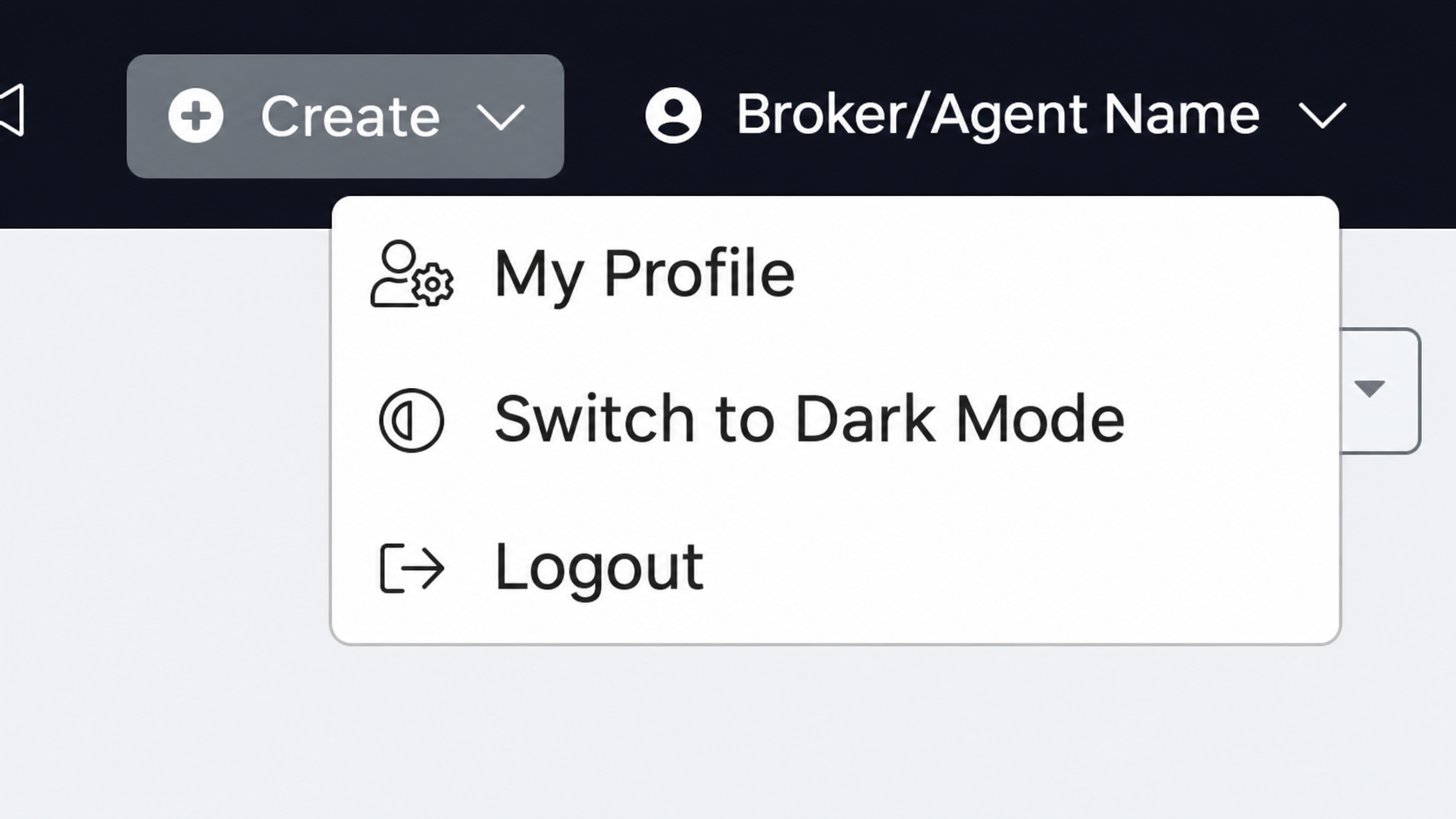
Select My Profile from your account menu.
STEP 2
Choose your AI assistant
Select the AI tab, then Connect AI Assistant.
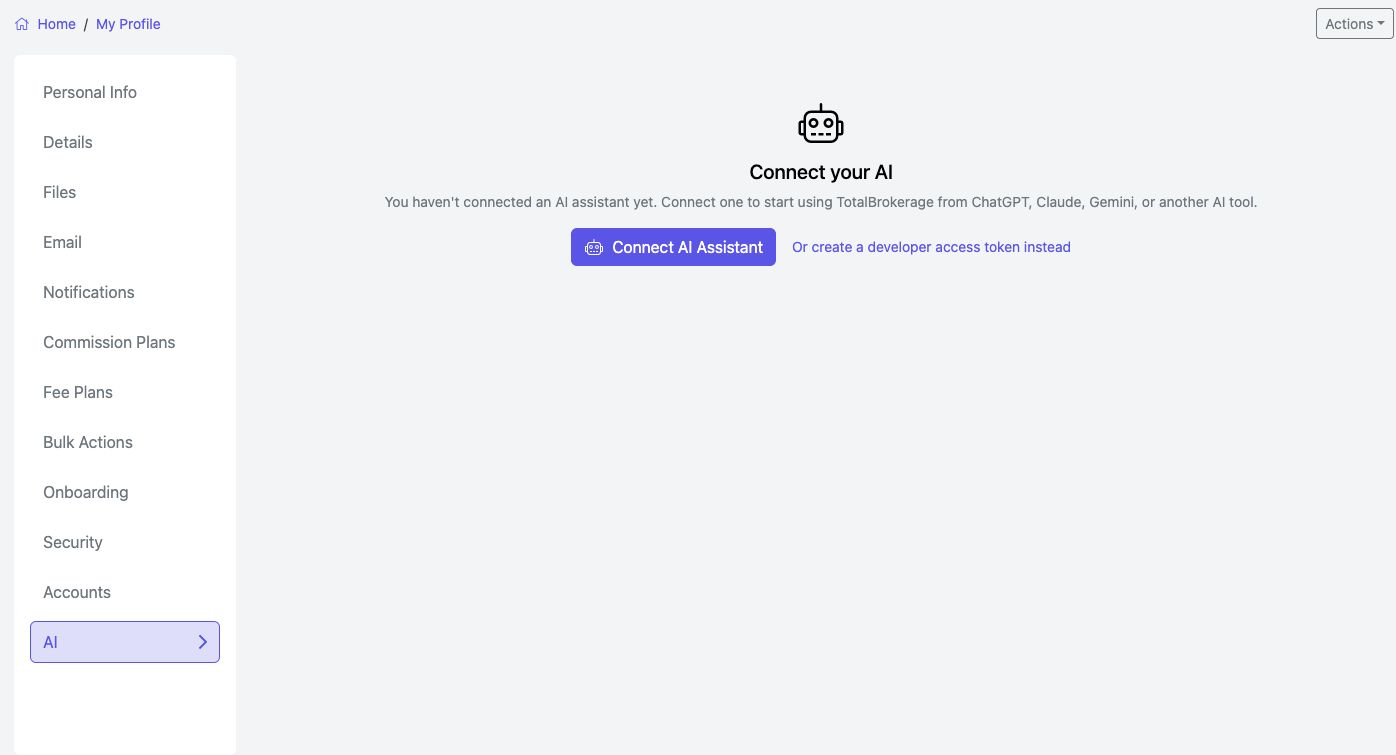
My Profile → AI. Select a screenshot to open its full-size image in a new tab.
A Select the AI tab
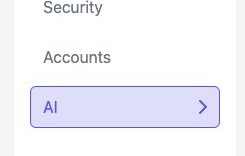
B Open the connection instructions

Choose Claude in the connection instructions.
STEP 3
Add TotalBrokerage as a Claude connector
- In Claude, open Customize → Connectors.
- Select Add → Add custom connector.
- Enter TotalBrokerage as the name and paste the MCP server URL below. Select Continue.
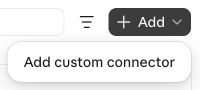
Choose the manual custom connector option.
MCP SERVER URL
https://login.totalbrokerage.com/mcp/api
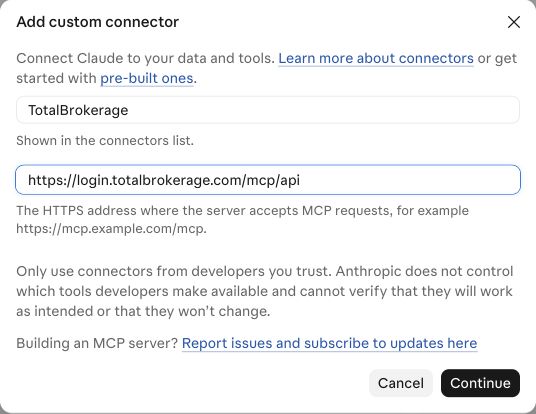
Enter the name and URL, then select Continue.
Claude checks the server and shows the sign-in settings. For the TotalBrokerage URL, the current form detects Sign in now and Register automatically. Keep these detected choices, leave Request headers empty, and select Add.
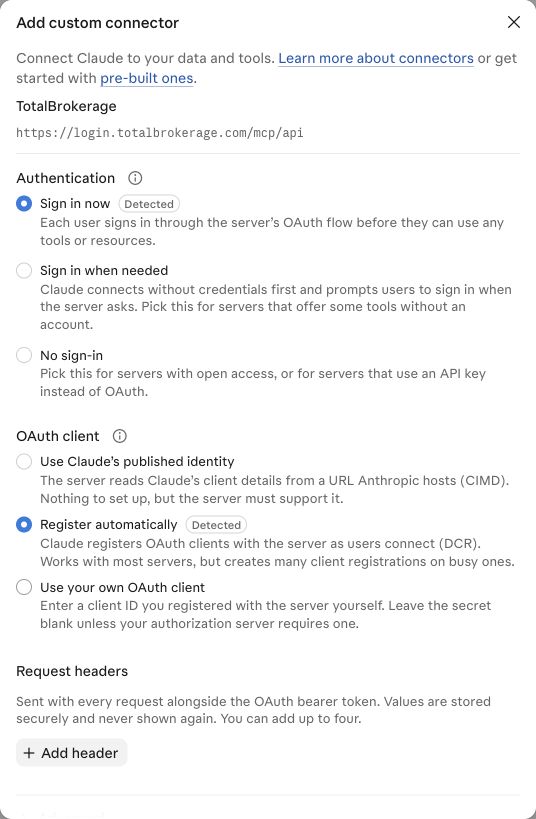
Keep the detected OAuth sign-in and automatic registration settings.
You add TotalBrokerage manually with this URL. You do not need to find a public directory listing.
STEP 4
Sign in and start a conversation
- If Claude shows Connect for TotalBrokerage, select it. Sign in with your TotalBrokerage account and review and approve the requested access when prompted.
- Return to Claude and enable TotalBrokerage in the conversation’s connectors or tools menu if it is not already enabled.
- Ask a question about information you can already access in TotalBrokerage.
TRY A QUESTION
Use TotalBrokerage to show my transactions closing in the next 30 days.
You can also ask for incomplete tasks due in the next 7 days or a summary of last month’s commission figures. Ask the assistant to state which dates and records it used.
The AI connection uses your existing TotalBrokerage access. You can disconnect it from Connected Apps in TotalBrokerage’s My Profile → AI tab.
If you get stuck
I cannot add a custom connector
Check that your Claude account has custom connectors available. A Free account may already be using its one custom connector. For a Team or Enterprise account, ask your administrator about access. See Claude’s current custom connector instructions if your screen differs.
The assistant cannot find my information
Confirm that TotalBrokerage is connected and enabled for the conversation. Sign in with the correct TotalBrokerage account and ask about records you can already see there. If you still need help, tell Support which step failed and the exact error.