
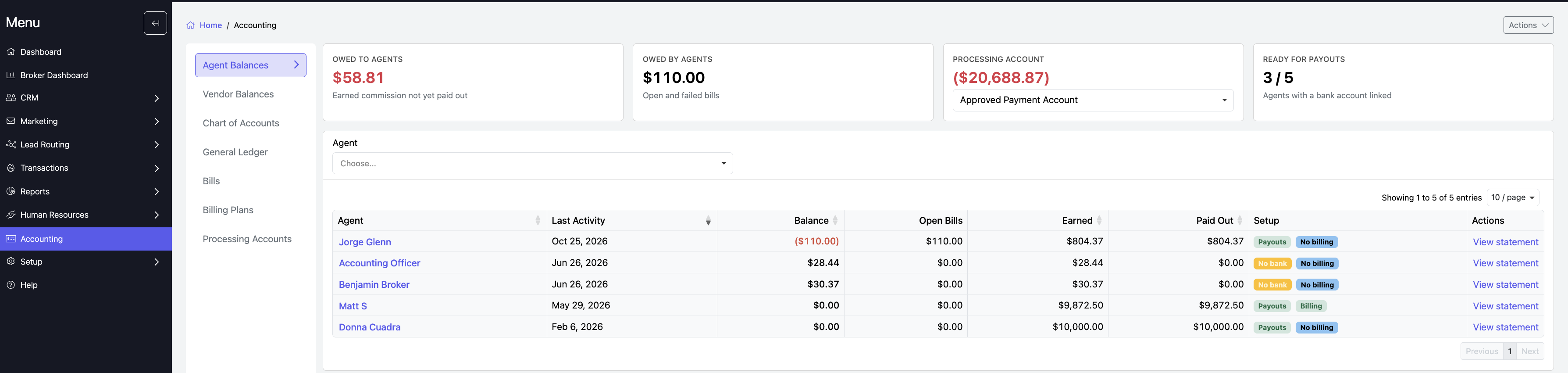
Payload Billing lets your brokerage bill agents for fees, like desk fees, technology fees or one-off charges, and collect them through Payload. Billing is managed from Accounting in the left menu.
With Payload Billing you can:
- Create Billing Plans for recurring fees that bill agents automatically on a weekly, monthly, quarterly or annual schedule.
- Send one-time Bills for anything that isn't recurring.
- Charge automatically (Auto Bill) or let agents pay a bill themselves from My Profile.
- Deduct unpaid bills from an agent's next commission payout.
- Download PDF Invoices and Receipts for every bill.
NOTE: To add Payload Billing to your account, please email Support@TotalBrokerage.com.
BEFORE YOU BEGIN
- Payload Billing must be turned on for your brokerage. If you don't see Bills and Billing Plans under Accounting, email Support@TotalBrokerage.com.
- Brokerage Managers and Accounting users can create plans, send bills, charge, void and refund. Other roles can't see these actions.
- You need an Active Processing Account. Bills are collected into the Processing Account you choose on each plan or bill. Processing Accounts are added under Accounting > Processing Accounts (see "Payload: Billing & Payouts" for setup).
- Agents need a billing method on file. An agent adds a bank account or card in My Profile > Payload and checks the box allowing the brokerage to charge it for bills. Without one, Auto Bill can't charge them, and the bill stays Open until they add one.
NOTE: Cards can only be used to pay bills, never to receive payouts. A bank account can do both once the agent authorizes billing on it.
CREATE A BILLING PLAN
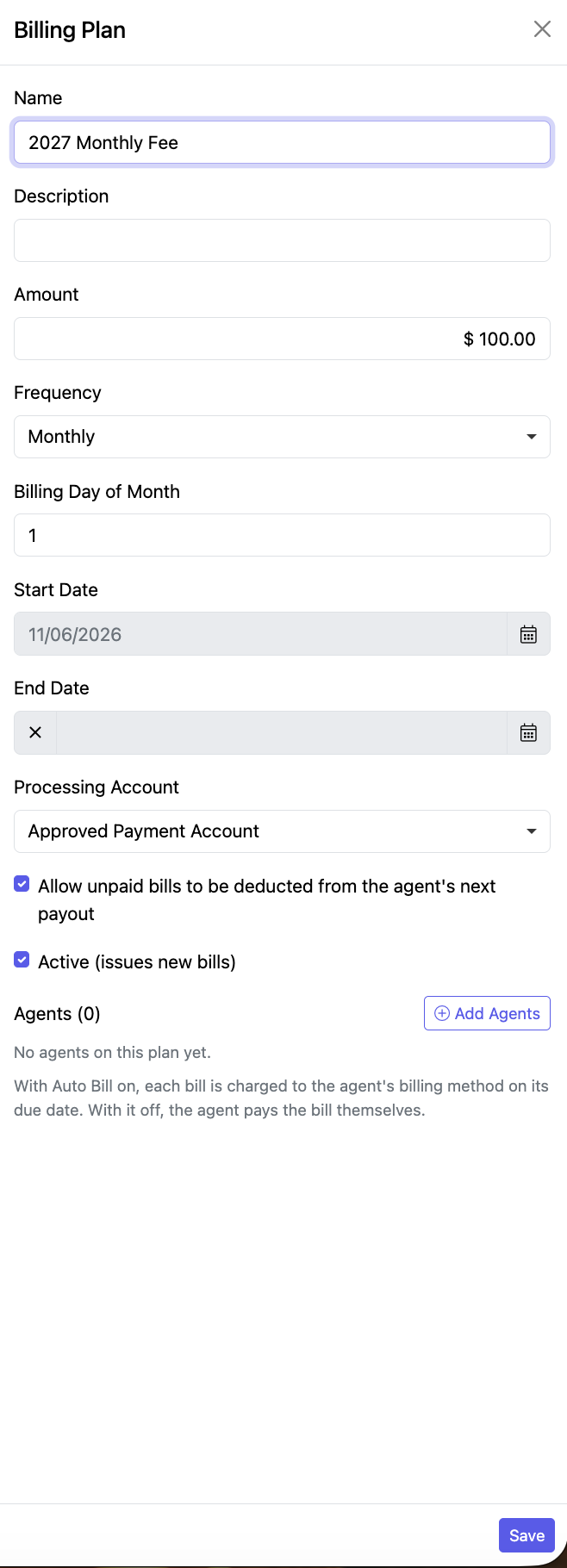
Billing Plans are for recurring fees. Each plan issues a new bill to every agent on it on each billing day.
- Go to Accounting and click the Billing Plans tab.
- Click + New Billing Plan.
- Fill out the plan:
- Name: what agents see on their bill, e.g. "Monthly Desk Fee".
- Description: optional details shown on the bill.
- Amount: the fee charged each billing day.
- Frequency: Weekly, Monthly, Quarterly or Annually.
- Billing Day of Week (Weekly) or Billing Day of Month (all others). Annual plans also pick a Billing Month.
- Start Date and optional End Date.
- Processing Account: where the money is collected.
- Allow unpaid bills to be deducted from the agent's next payout: check this to recover unpaid bills from commission.
- Active (issues new bills): uncheck to pause the plan.
- Click Save.
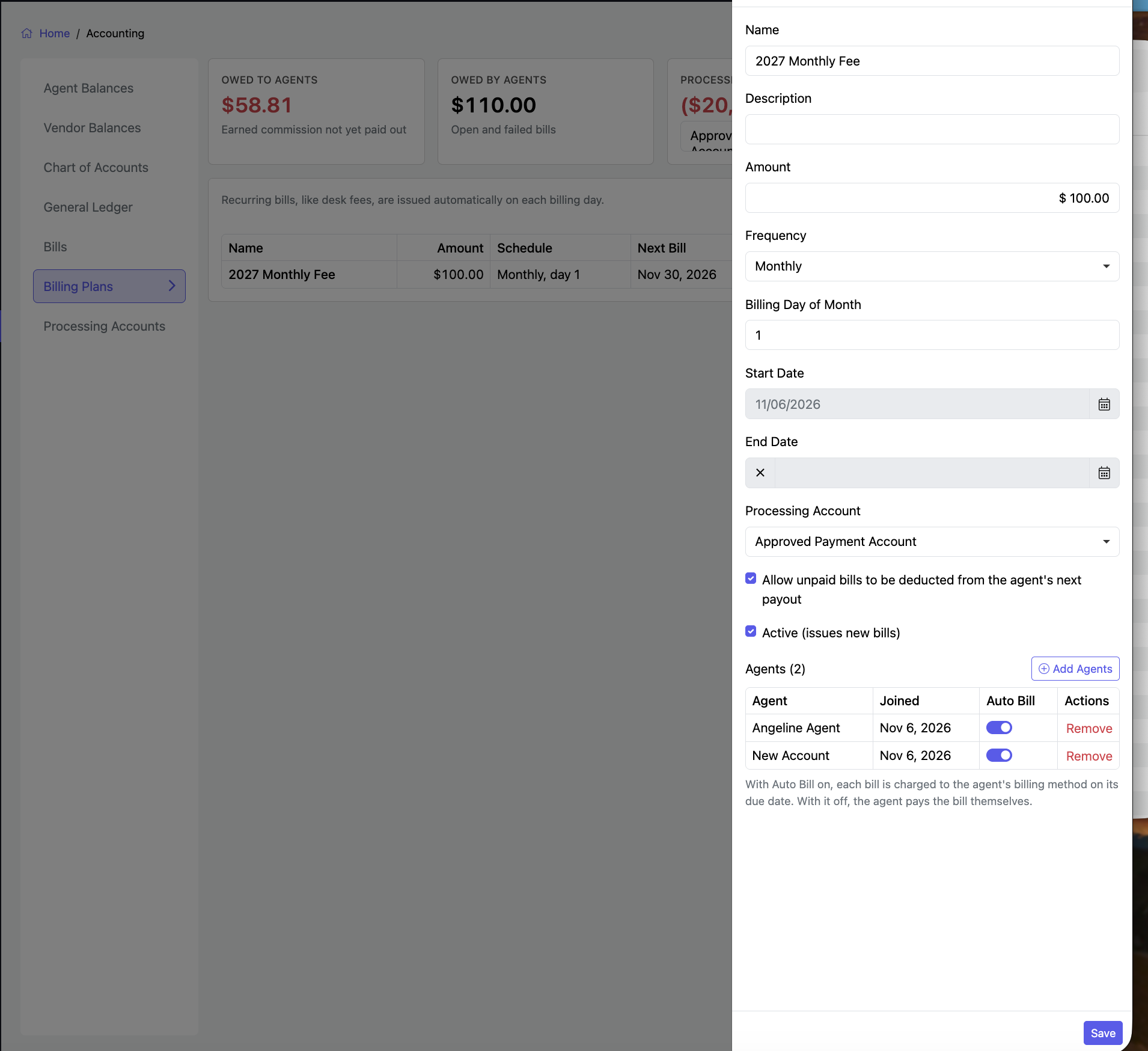
The Billing Plans table shows each plan's Amount, Schedule, Next Bill date and number of Agents. To change a plan, click Edit.
(Screenshot: the Billing Plans tab with two plans listed, one showing the "Deduct from payouts" badge.)
ADD AGENTS TO A BILLING PLAN
From the plan:
- On the Billing Plans tab, click Edit on the plan.
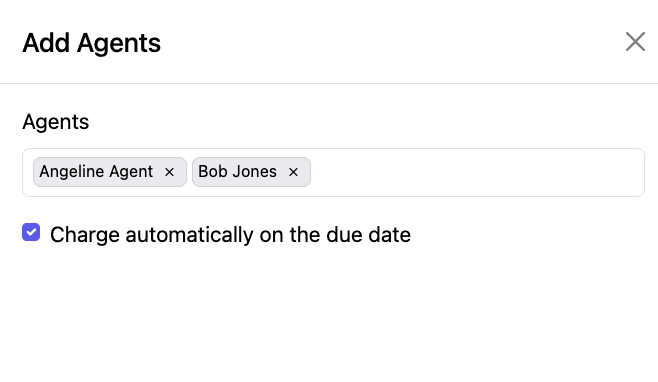
- Click Add Agents and select one or more agents.
- Check Charge automatically on the due date to turn on Auto Bill for them.
- Click Add.

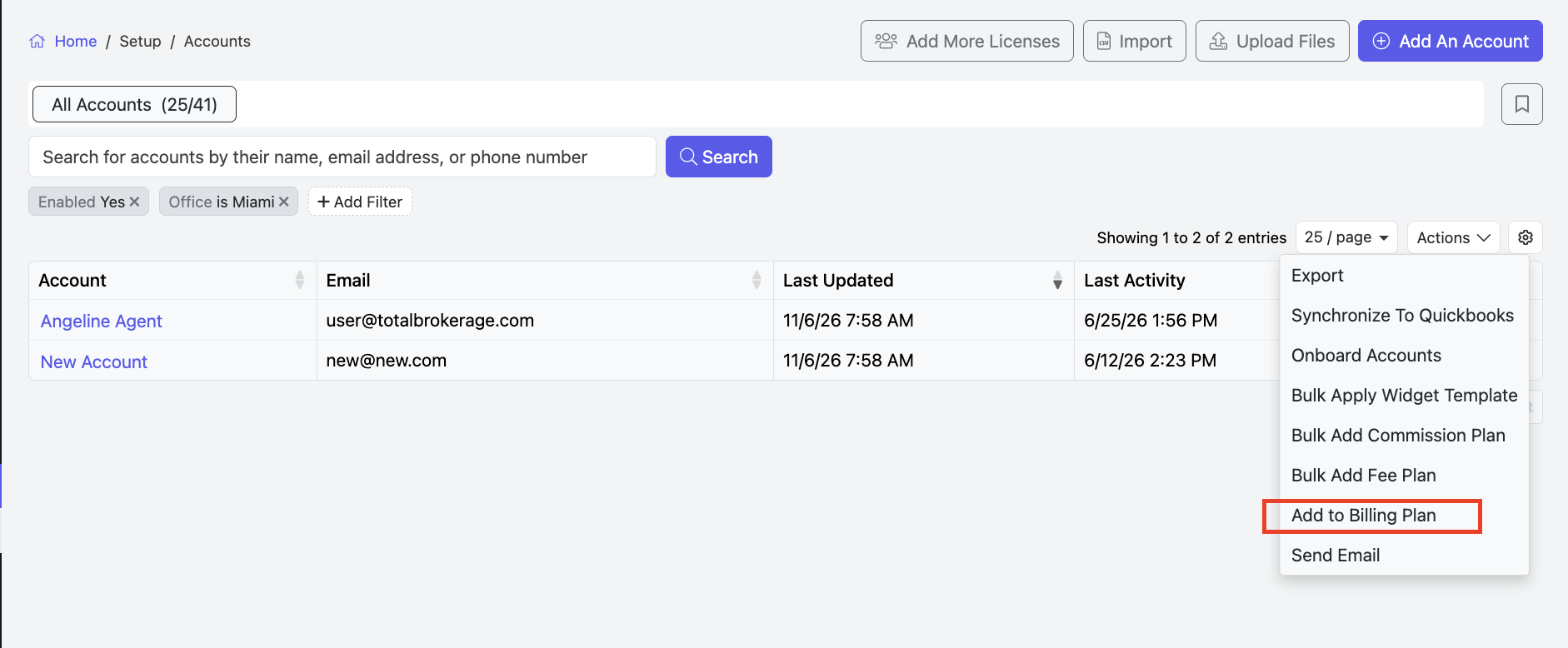
From Setup > Accounts (many agents at once):
- Search for the agents you want, e.g. by office.
- Click Actions > Add to Billing Plan and choose the plan.
- Agents already on the plan, and disabled accounts, are skipped.
- Inside the plan, each agent shows the date they Joined and an Auto Bill checkbox.
- With Auto Bill on, each bill is charged to the agent's billing method on its due date.
- With it off, the agent pays the bill themselves.
- To take an agent off a plan, click Remove.
- Bills the plan already issued stay as they are.
SEND A ONE-TIME BILL
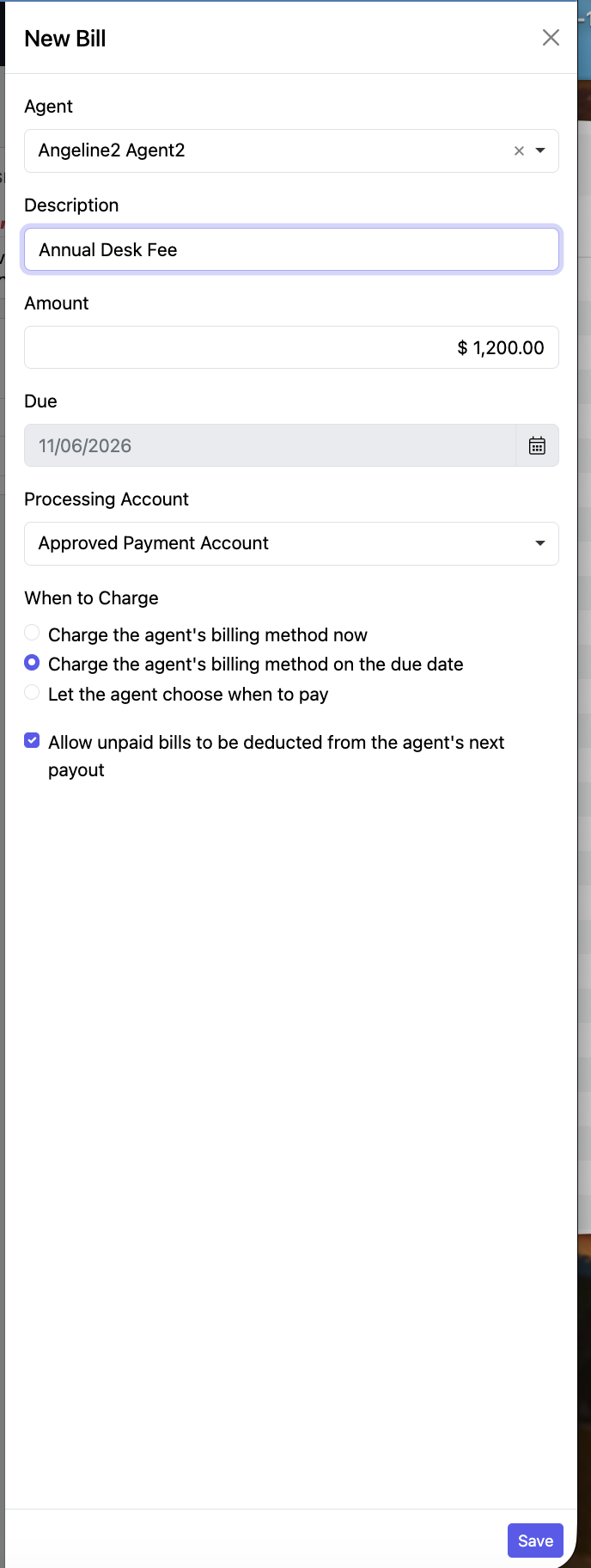
- On Accounting, click Actions > New Bill (under Agent).
- Choose the Agent, then enter a Description, Amount and Due date.
- Choose the Processing Account.
- Under When to Charge, pick one:
- Charge the agent's billing method now
- Charge the agent's billing method on the due date
- Let the agent choose when to pay
- Optionally allow the bill to be deducted from the agent's next payout.
- Click Save.
MANAGE BILLS
The Bills tab lists every bill, from plans and one-time bills. Filter by Agent or Status.
Status | What it means |
|---|---|
Open | Issued and not paid yet. |
Processing | A charge has been sent to Payload and is clearing. |
Paid | Collected in full. |
Failed | The charge was declined or returned. |
Deducted | Taken out of the agent's commission payout. |
Voided | Cancelled. The agent no longer owes it. |
Actions on a bill's row:
- Invoice / Receipt: download the bill's PDF. Receipts are available once the bill is Paid.
- Charge Now: charge the agent's billing method right away.
- Mark Paid: record a check or other payment made outside Payload (requires Payload Ledger).
- Void: cancel the bill.
- Refund: return all or part of a paid bill to the payment method the agent used.
- Resolve Dispute: shown when an agent disputed a payment with their bank (see FAQ).
DEDUCT BILLS FROM A PAYOUT
If a plan or bill allows it, open bills can be taken out of the agent's commission.
When you Synchronize to Payload from a transaction, check Deduct next to the agent.
The bill is marked Deducted and the agent is paid the rest.
(Screenshot: the Synchronize to Payload drawer with an agent showing Open Bills and the Deduct box checked.)
WHAT AGENTS SEE
Agents manage their bills in My Profile > Payload:
- Your Balance and Open Bills, with a Pay Now button on each.
- Paid Bills, with their invoice and receipt PDFs.
- Payment Methods: add a bank account (through Plaid) or a card, check Allow my brokerage to charge this payment method for my bills, and pick which one to Use for bills.
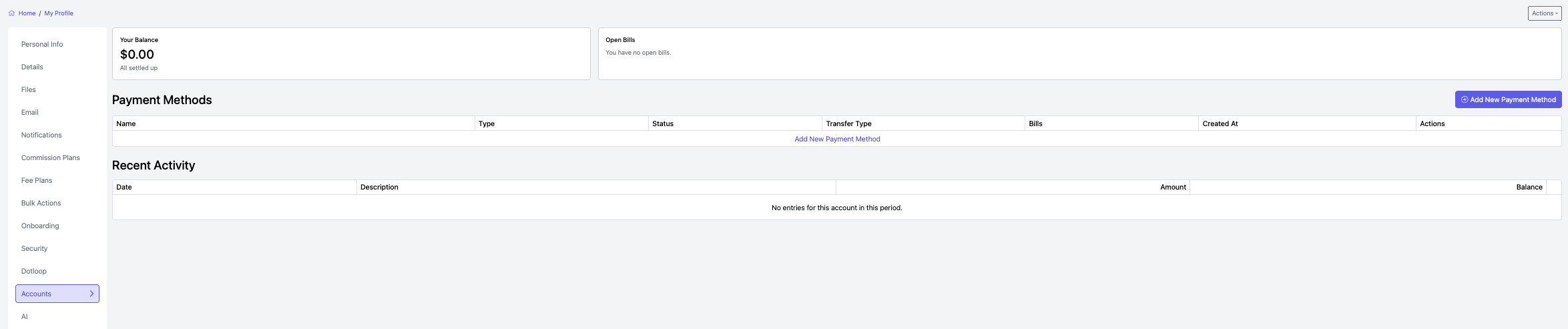
Managers can see the same information on the agent's account under the Accounting tab, and can add a payment method on the agent's behalf.
HELPFUL NOTES / FAQ
An agent's bill was left Open even though Auto Bill is on. The agent has no billing method on file. The bill is charged once they add one in My Profile > Payload and allow the brokerage to charge it.
A charge failed. The payment was declined. Ask the agent to check their billing method, then click Charge Now again, or Mark Paid if they paid another way.
What happens when an agent disputes a payment with their bank? The money is taken back and automatic billing is turned off for that agent. Click Resolve Dispute on the bill and choose one:
- Contest the dispute: copy the Summary for Payload Support and email it to Payload support. If the bank rules for the brokerage, the bill is marked Paid automatically.
- Collect another way: leave the bill open and collect by check or by deducting from the next payout.
- Write it off: void the bill.
Can I charge a disabled agent? No. Disabled accounts can't be charged and are skipped when adding agents to a plan.
Can I change a bill after it's sent? Void it and send a new one. A paid bill can be refunded up to its full amount. Refunds show in the ledger once Payload processes them.
Does removing an agent from a plan cancel their bills? No. Bills the plan already issued stay as they are; void them individually if needed.
Related articles: Payload: Billing & Payouts (Brokerage Managers & Accountants) · Payload: Accounting Ledger · My Profile (Payload: Billing & Payouts)