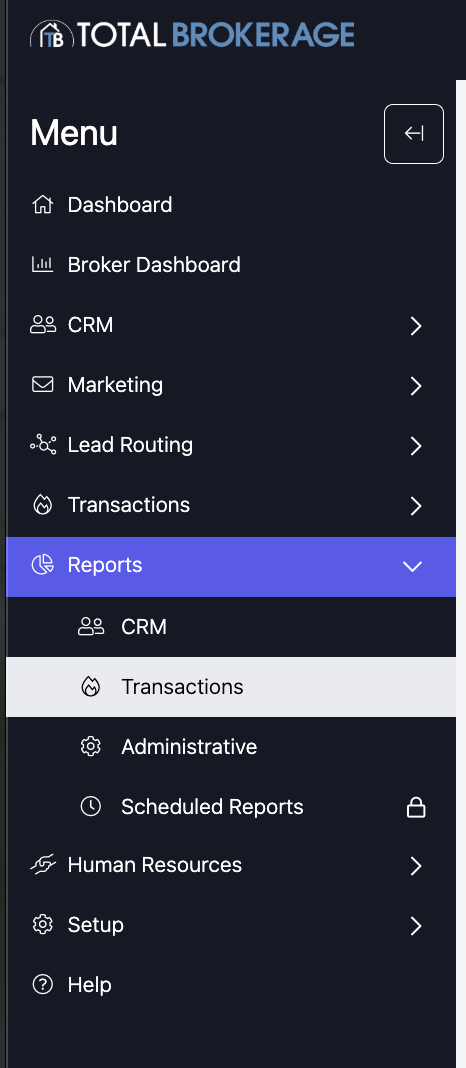
To access the Transaction Summary reports, click on “Reports” and then “Transactions” from your sidebar.
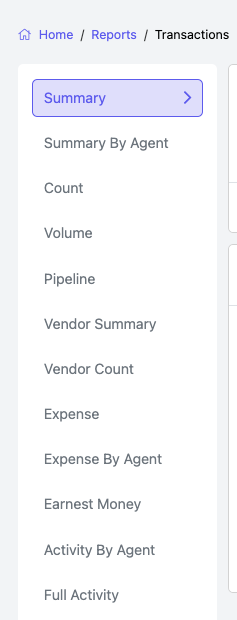
Here, you can run a report that shows the Transaction, Gross Sales Volume, Gross Commission, Agent Gross Commission, Agent Net Income, and Post-Split Broker Income
To customize the report, you can change the following:
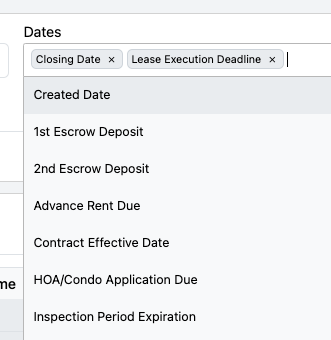
DATES: To change the dates, choose which date types this report is based on. For the range, click on the grey calendar date boxes and select the appropriate dates you want to run a report between.
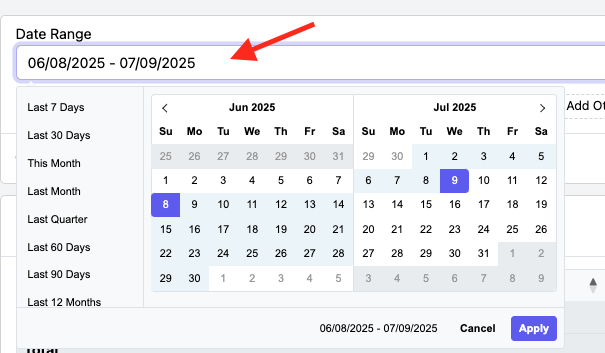
DATE RANGE: Click on the grey calendar date boxes and select the appropriate dates you want to run a report between. Once you have selected the Date Range, click Apply.
NOTE: The default setting of this report will run for the past month (plus a day).
ADD OTHER FILTERS: Click here to add additional fields for customizing your report.

Available Filters: You can refine your search by clicking the arrow and selecting from the available options when the sidebar opens.
NOTE: Your ability to choose some filters depends on your assigned role in TotalBrokerage.
`
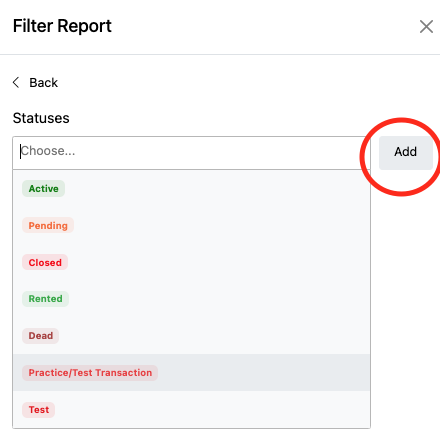
STATUSES: Click inside the Status box to select the status(s) that you want included in this report. (Note: Dead transactions are excluded from the report data). After you have made your selection, click Add.
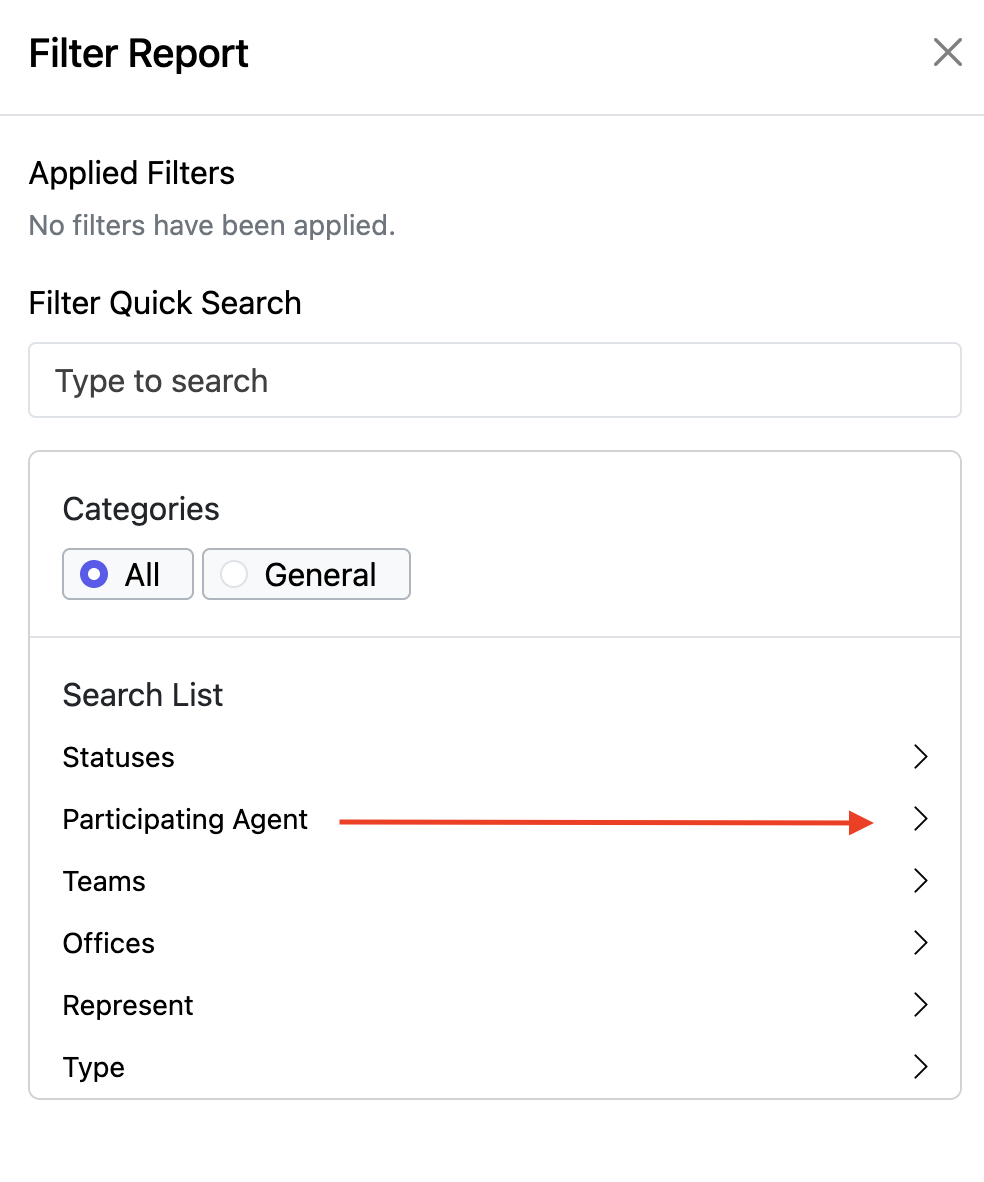
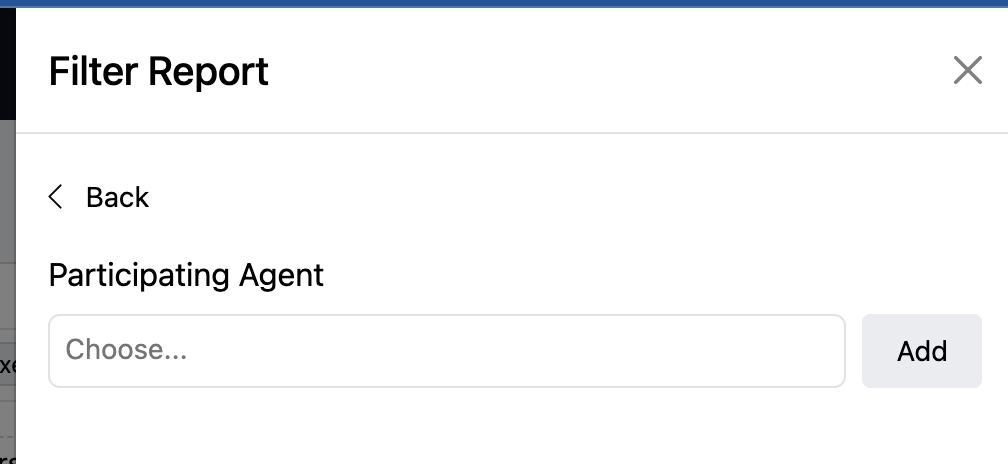
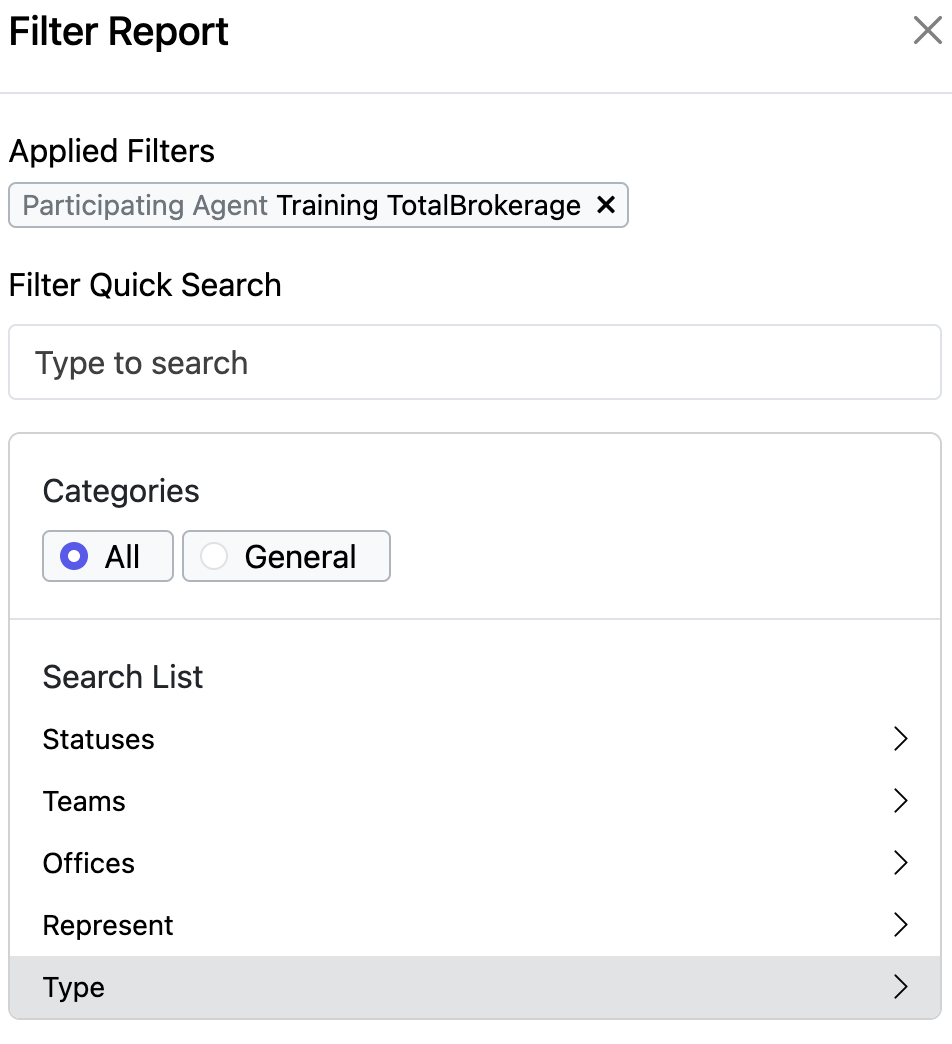
PARTICIPATING AGENT: Here, you can narrow your search by choosing which agents in your office or brokerage are included in the search.
Your ability to select agents will be contingent on your assigned role in TotalBrokerage.
You can only select yourself if you are an agent with no specified manager role.
To do so, click the arrow to the right of Participating Agent
Click in the box that says Choose..... and select the appropriate agent (s) you want to include, then click Add.
Click Apply when done.
`
OFFICE: Here, you can narrow down your search by choosing which offices are included in your search.
Your ability to select offices will be contingent on your assigned role in TotalBrokerage.
To do so, click the arrow to the right of Office
Click in the box that says Choose..... and select the Office you want to include, then click Add.
Click Apply when done.
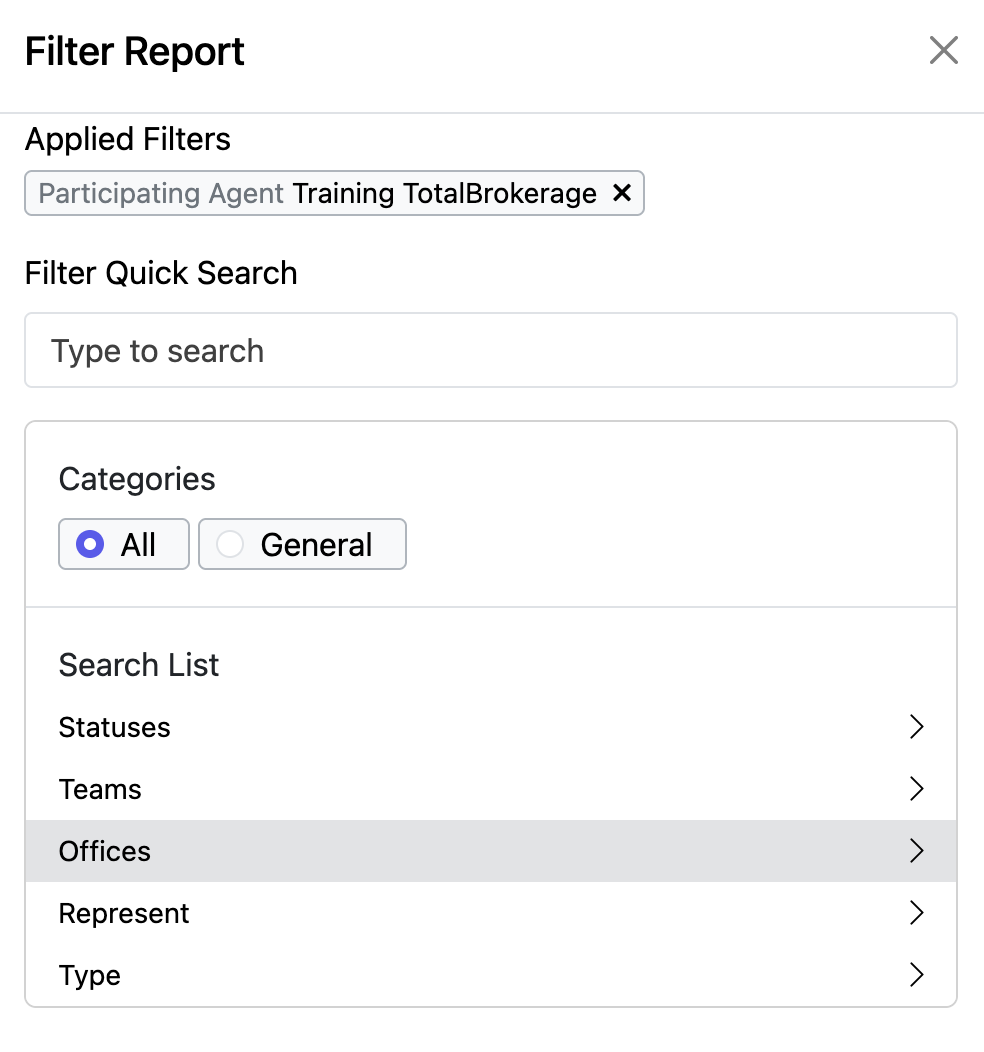
REPRESENT: Here, you can narrow your search to include what type of party was represented in the transaction: Buyer, Seller, Landlord, or Tenant.
To do so, click the arrow to the right of Office
Click in the box that says Choose..... and select the person type then click Add.
The default (or if left blank) will contain data for transactions representing all people.
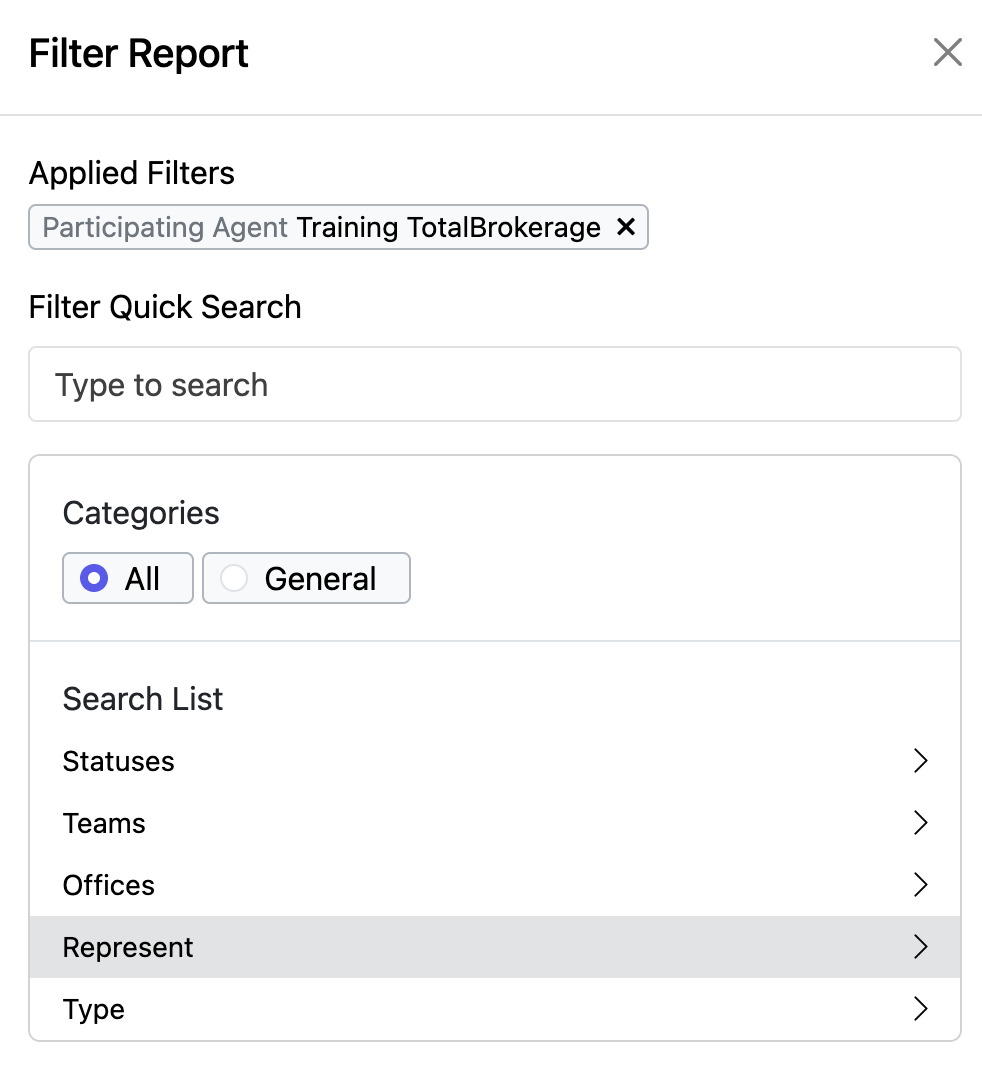
TYPE: Further filter your report by specific transaction type(s)
GENERATE REPORT: Once you have chosen all the parameters for your report, select the blue "Generate Report" button to run the report.

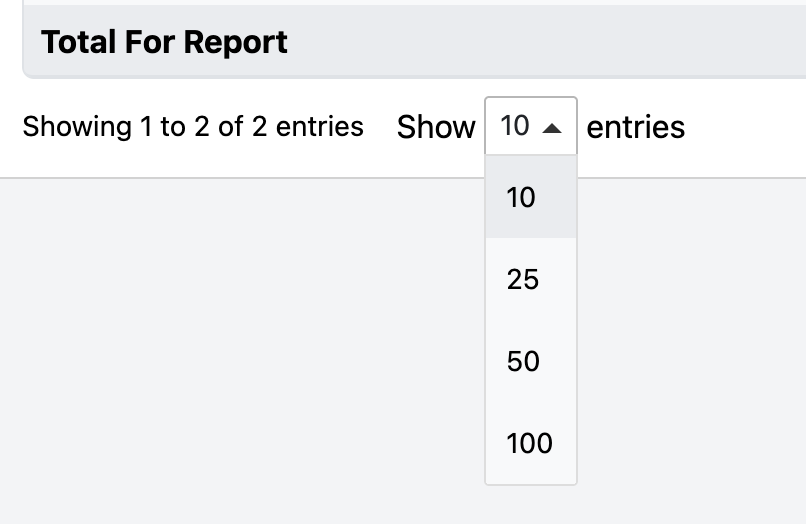
SHOWING ENTRIES: Here, you can expand the number of entries shown in the report.
- To do so, click on the drop-down arrow and select the appropriate number that you wish to expand by.
EXPORT CSV
You can also download your report as a CSV. To do this, just click the “CSV” button above the Report table to the right.
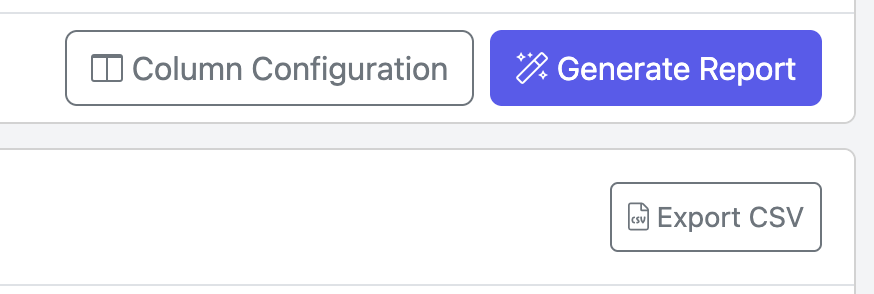
COLUMN CONFIGURATION: You can configure the column by clicking the Column Configuration button.
Reorder: Change the order of the selected columns by dragging to your desired location.
Or, click the trash icon to remove the column.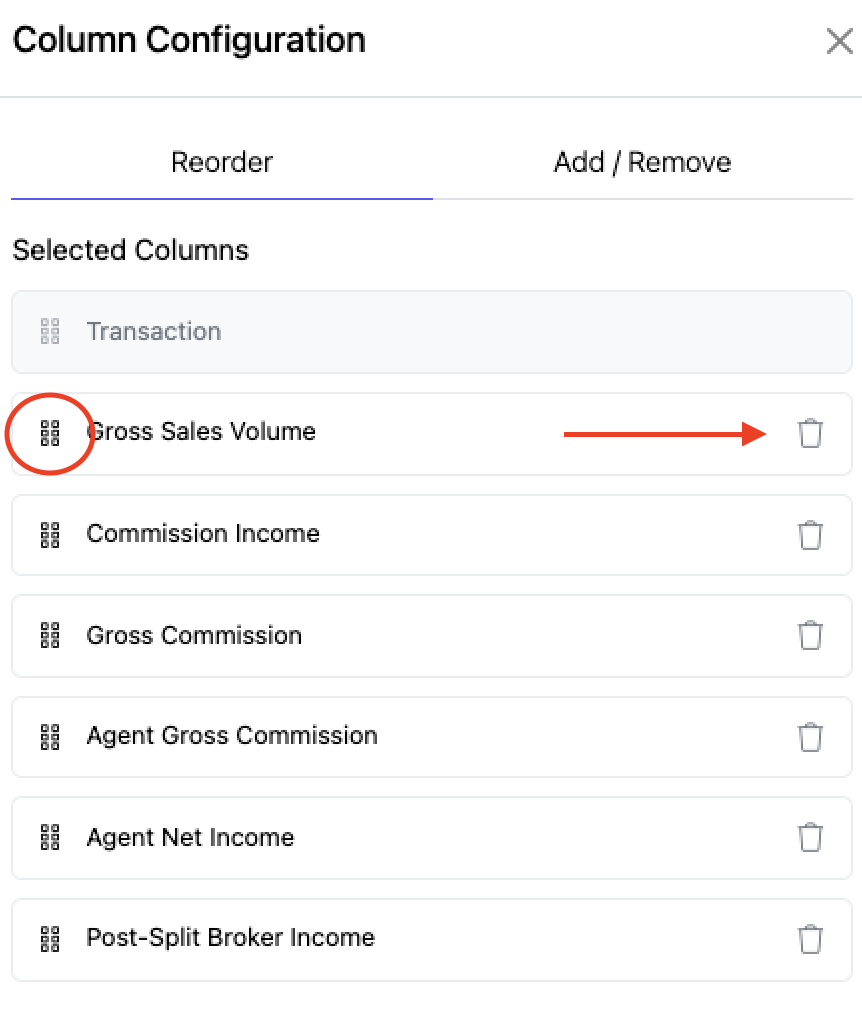
Add / Remove: Check the boxes for the columns that you want to add.
Click Save at the bottom when completed.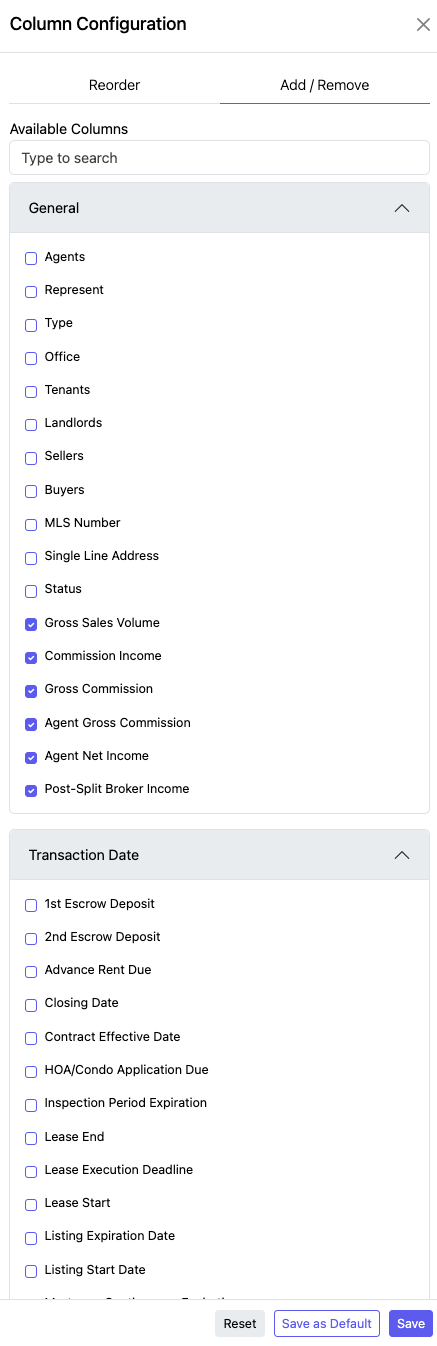
REPORT TOTALS
The totals for the entire report will be shown at the bottom of the table.

QUICK ACCESS WIDGET
Is this a report that you will run frequently?
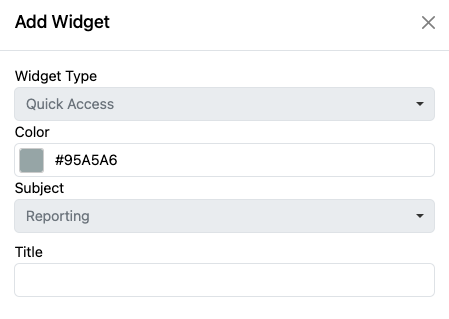
You can save the parameters by going to Actions (top right of the page)> Create Quick Action Widget.
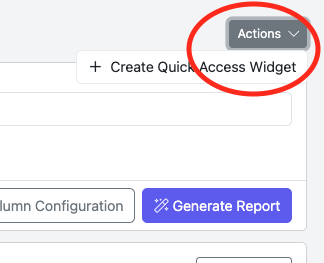
Select the Color, Enter a Title for the Widget and Save.