
The Quick Access widget in TotalBrokerage is designed to help users easily navigate to saved reports directly from the dashboard.
If a particular report is not available as a standard widget, you can still create a Quick Access widget that will take you to that report, pre-filled with the same parameters.
The only parameter you'll need to update is the date range.
CLICK HERE to view Transaction Report instructions.
GENERATE A REPORT
1) Navigate to the Reporting module within the TotalBrokerage platform.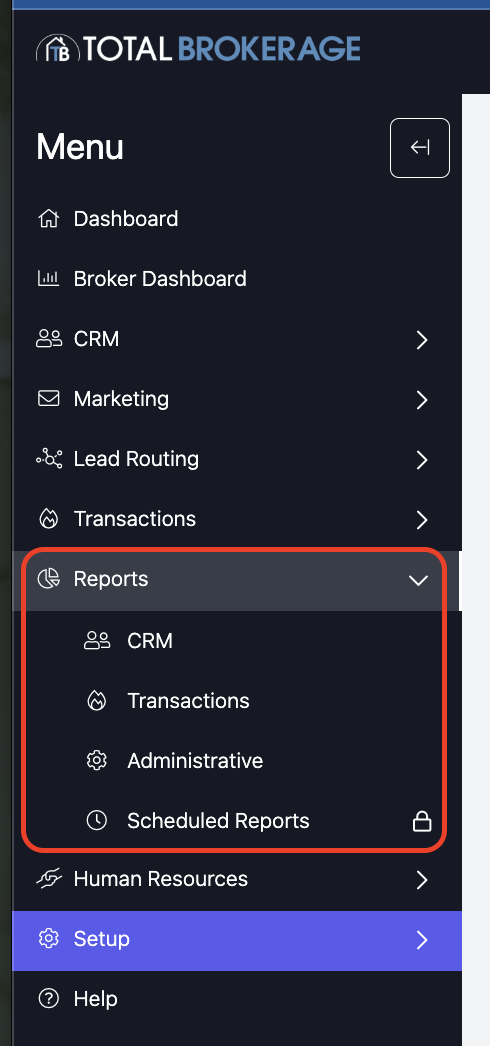
2) Enter the parameters on the report that you wish to save for quick access.
3) Click the Generate Report button.
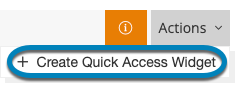
4) Click Actions on the top right. Select Create Quick Access Widget
5) Choose a color and title for the widget.
6) Click Save.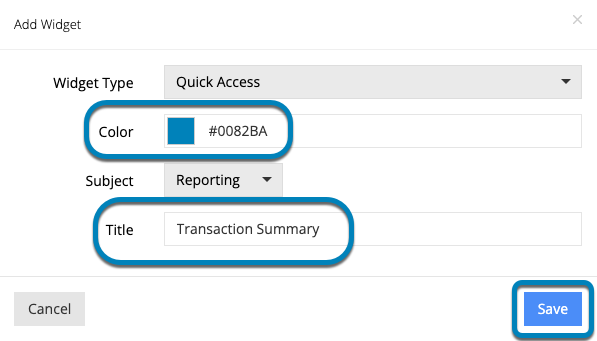
ACCESSING YOUR SAVED REPORT VIA THE QUICK ACCESS WIDGET
1) Go to your dashboard to see the newly created Quick Access WIdget.
2) Click on View to access the report. You will be brought to the Reports page.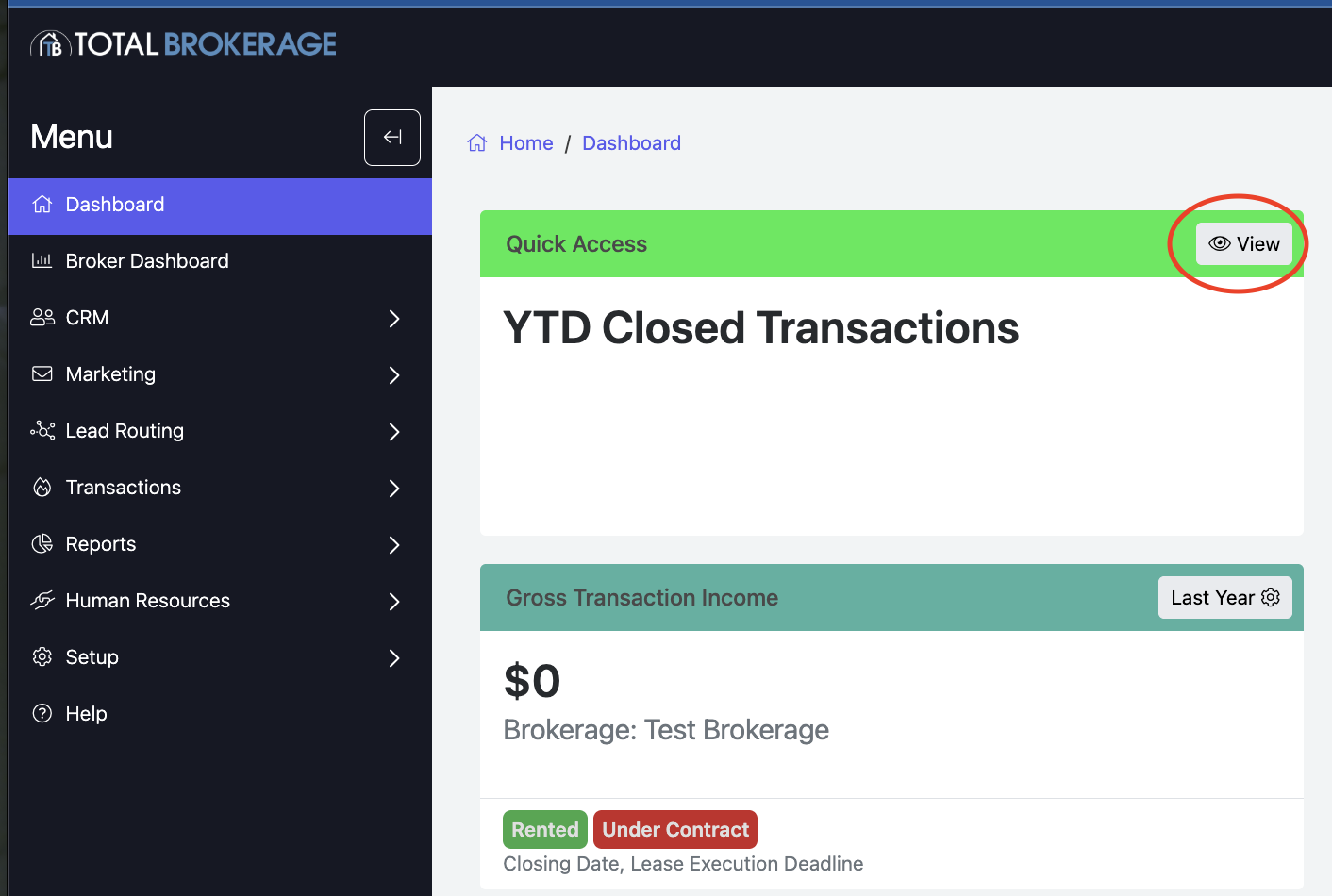
3) Update the date range to run the report with new data, if necessary.
4) Click Generate Report
Additional Information
- The Quick Access Widget does not automatically update the date range for the saved report. This will need to be manually adjusted each time you access the report.
- The widget will keep all other report parameters unchanged, providing a streamlined way to access commonly used reports.