
You can perform a basic or advanced search for a form in TotalBrokerage.
You can also edit, copy, or download forms in the Form Library here.
BASIC SEARCH
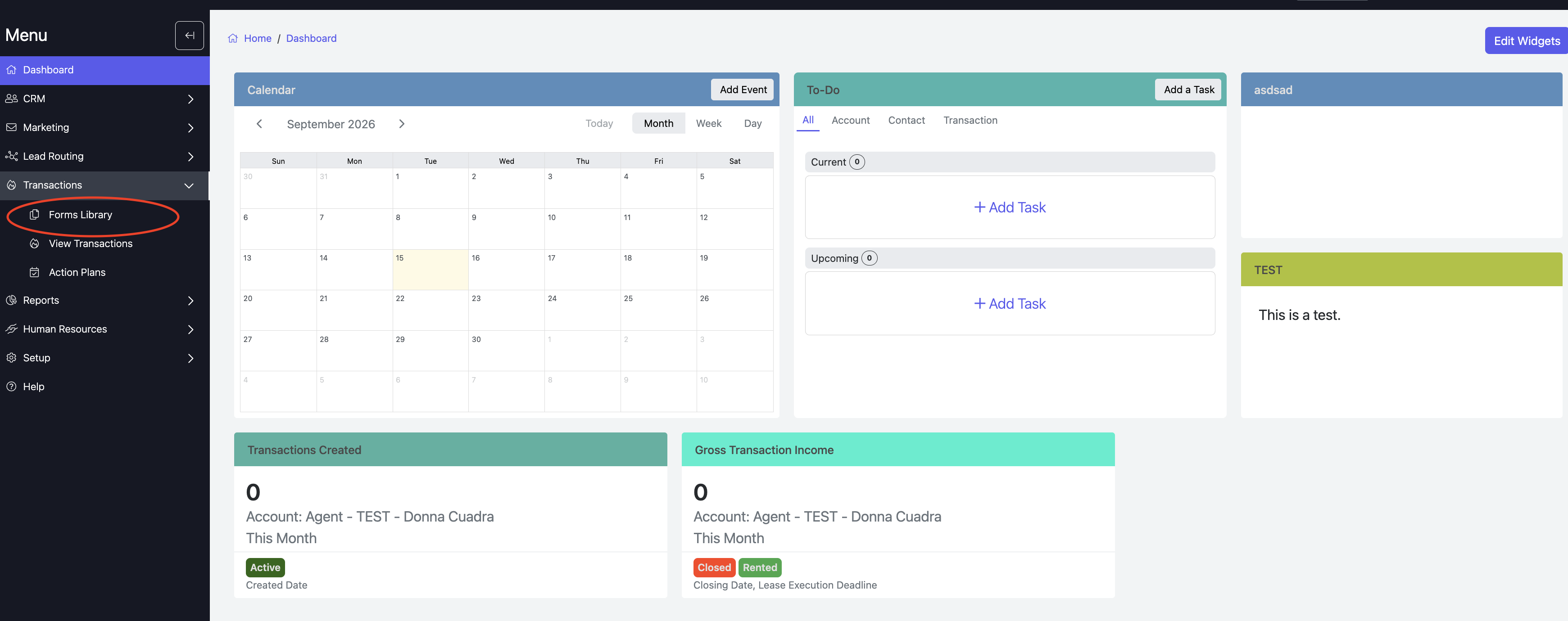
To perform a basic search, navigate to Transactions → Forms Library from the sidebar.
Type the name or group of the form you’re looking for in the Enter text box and click Search.
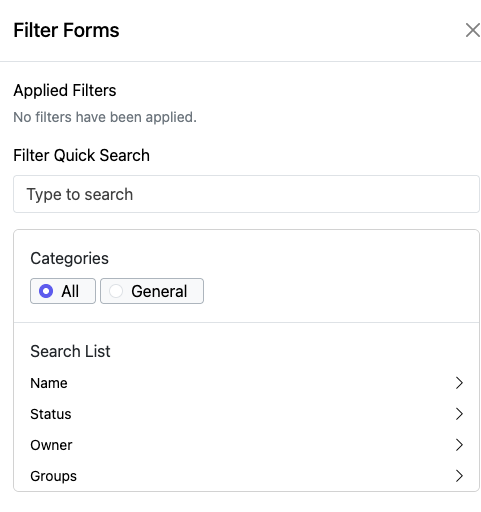
Or, if you need more search options, Click + Add Filter to narrow your results.

From here, you can search by Name, Status, Owner (who it’s available to), and Groups.
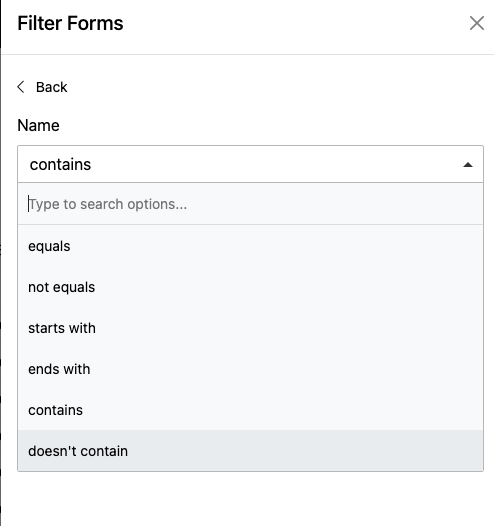
You can refine how each field is searched by selecting Equals (default), Not Equals, Starts With, Ends With, Contains, or Doesn’t Contain. These options are available using the drop-down arrows next to the Name, Status, and Owner fields.
Name: Enter your search text in the field.
Status: Select Active, Inactive, or Deleted from the drop-down menu.
Owner: Choose a specific Office or Brokerage.
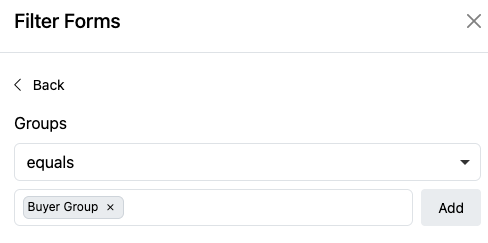
Groups: Enter the group name to view a list of forms that are part of the group.
Once you've added your filter, click Add.
Then click Apply.

Your results will appear at the bottom of the page.
