
You can upload any image or file from your device to your TotalBrokerage File Browser.
This is especially helpful for images you plan to use frequently.
Uploading files to the File Browser can save you time when adding them to your marketing pieces.
Tip: Make sure your files are named clearly before uploading. For example, instead of keeping a file named image123.jpeg, rename it to something descriptive. This makes it much easier to find and use in your marketing materials.
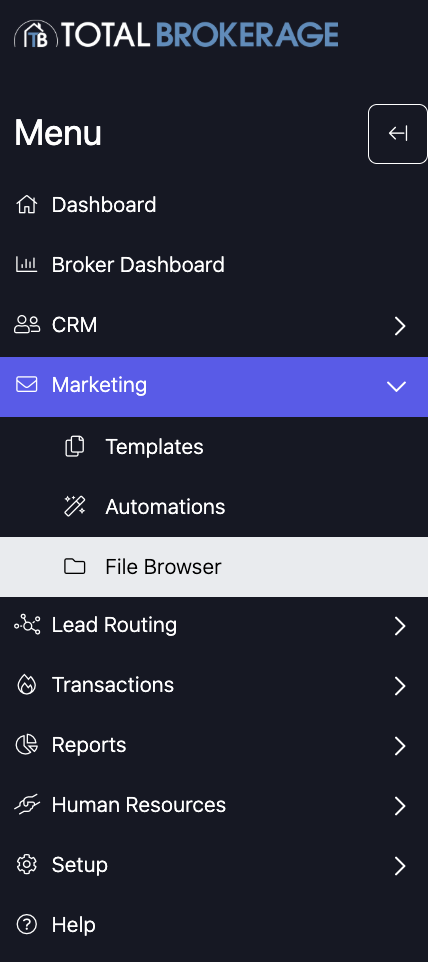
From your dashboard, click “Marketing” and then “File Browser”.
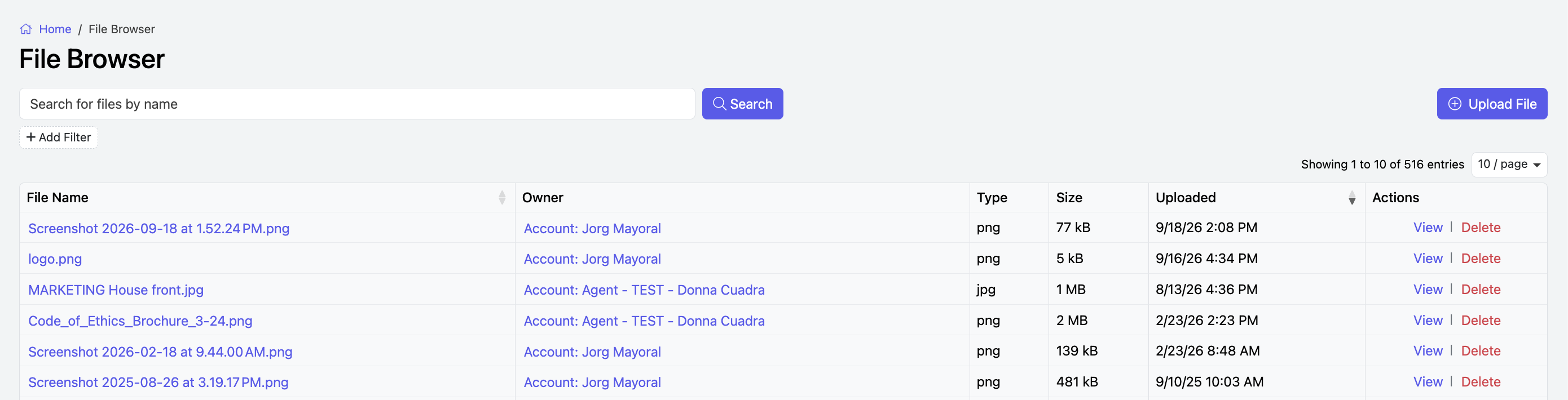
In File Browser, you can also search, edit, delete, and download files and documents.
To continue with your upload, click “Actions” in the top-right corner and then “+Upload a File”.
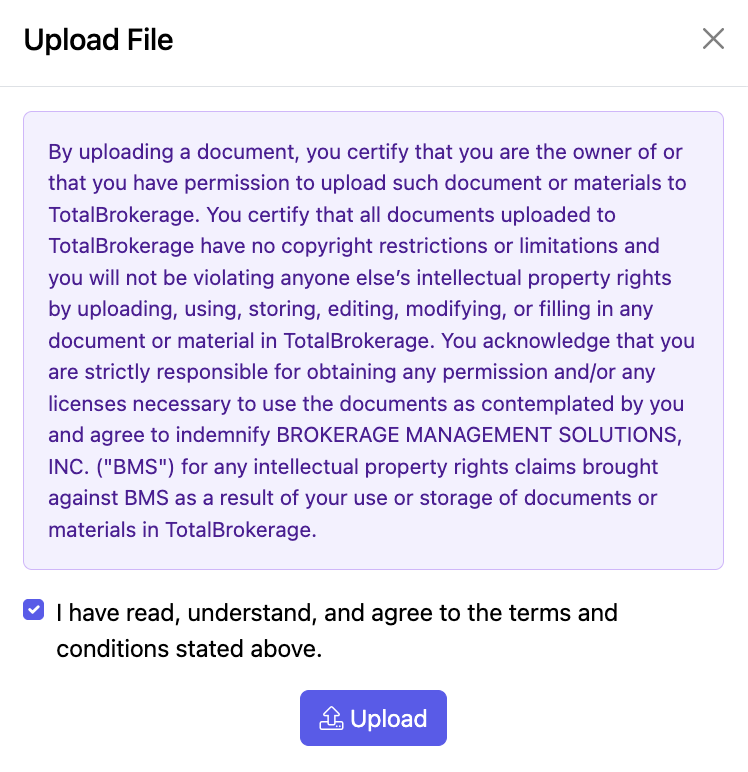
A blue disclaimer message will pop up.
Please read and then accept the terms if you agree.
After you’ve checked the box, click “Upload”.
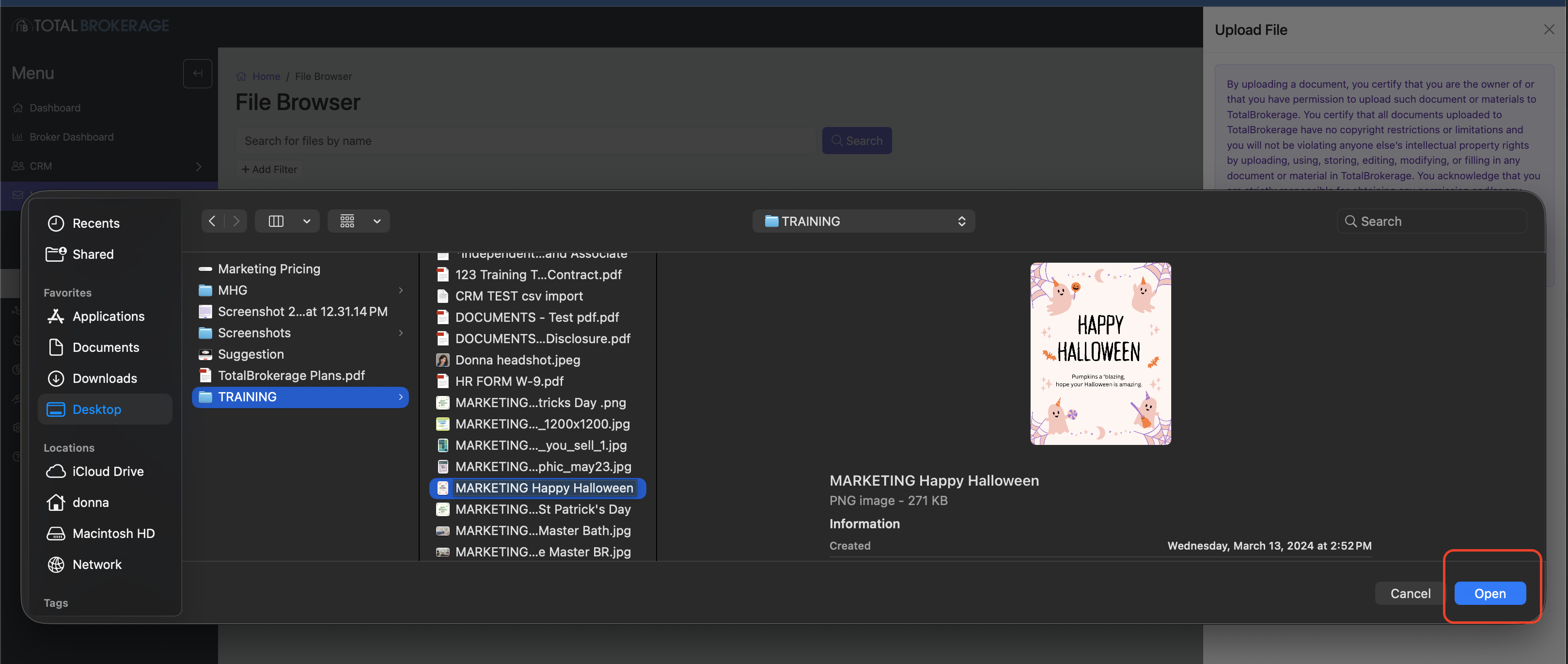
Choose the file that you would like to upload to TotalBrokerage from your device.
Then, click “Open”.
Your new uploaded file will now appear as the first line item on your file list.
