
To add a template for a marketing campaign, select Marketing → Templates.

Once in templates, select +Add a Template.
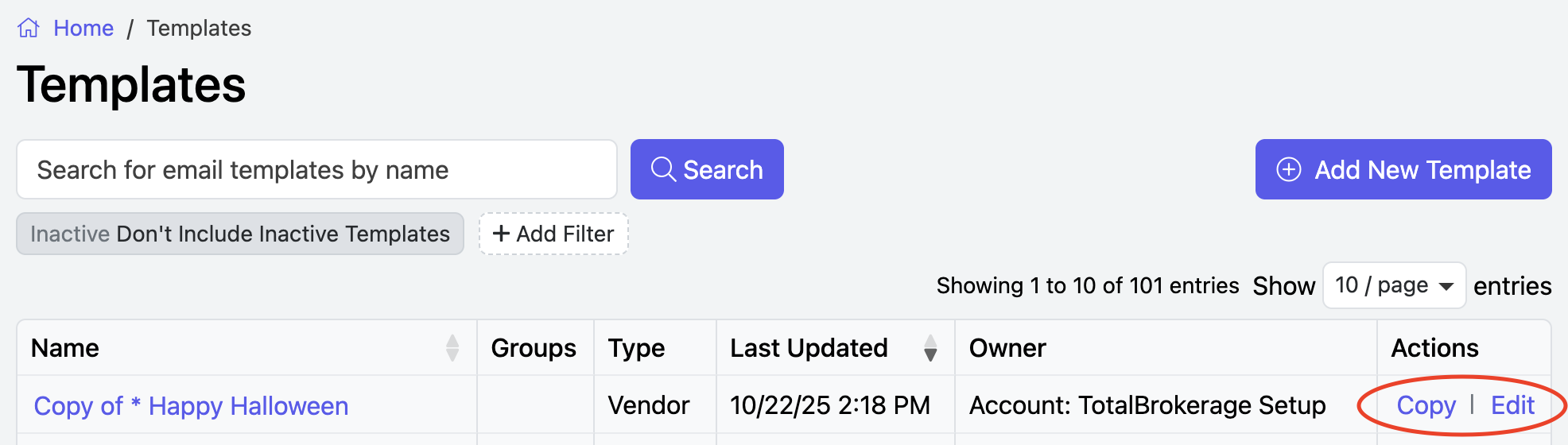
You can also click Copy or Edit to manage existing templates.
BASIC EDITOR
- Name your new template.
- Then choose the template type: Contact email (for contacts within the CRM), Vendor email (Vendors within the CRM), or Account email (for Totalbrokerage users).
- You can also add groups to this template to better organize it.
- Select the template Owner. Please note that only managers have permission to create and edit brokerage-wide templates.
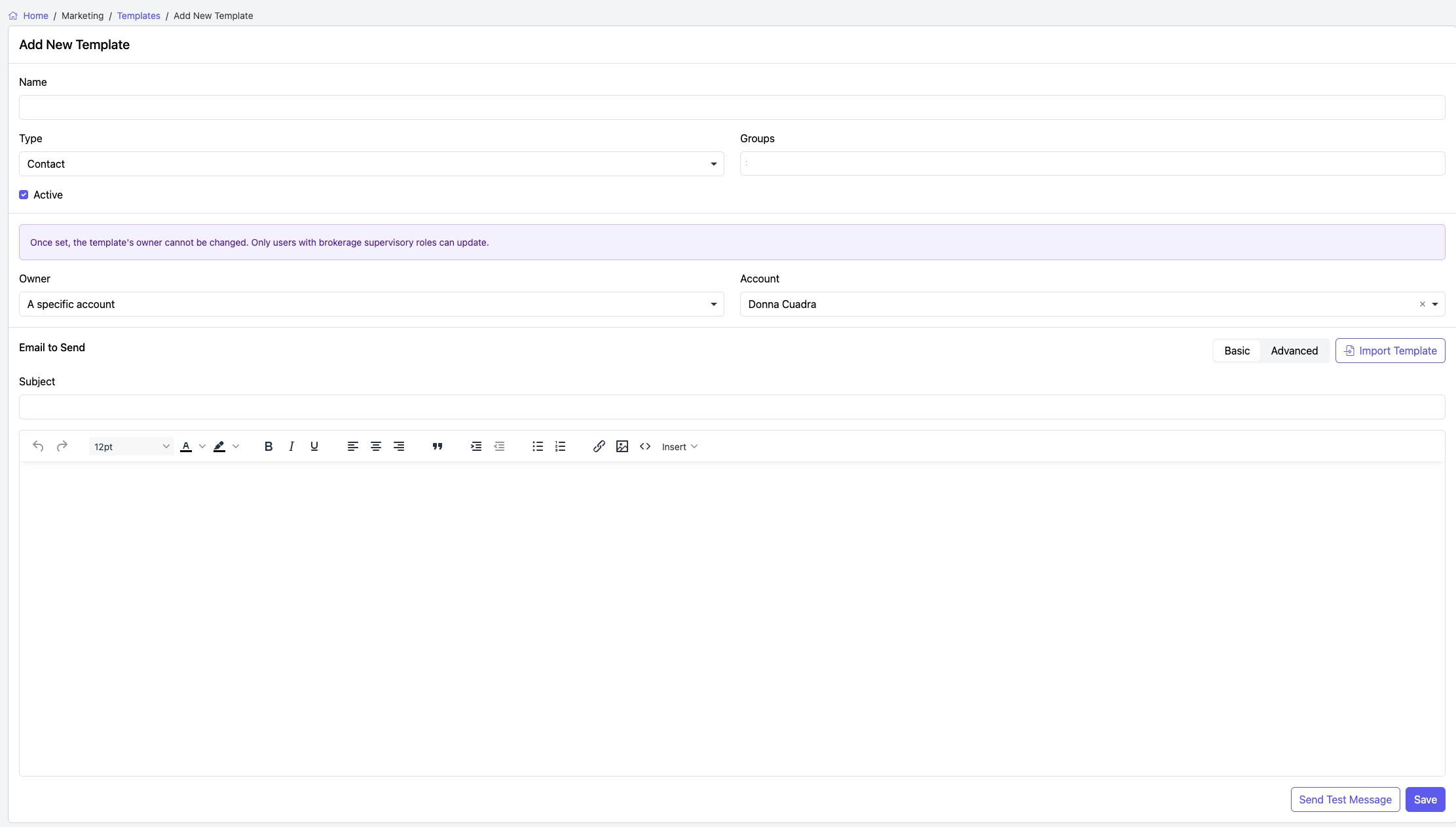
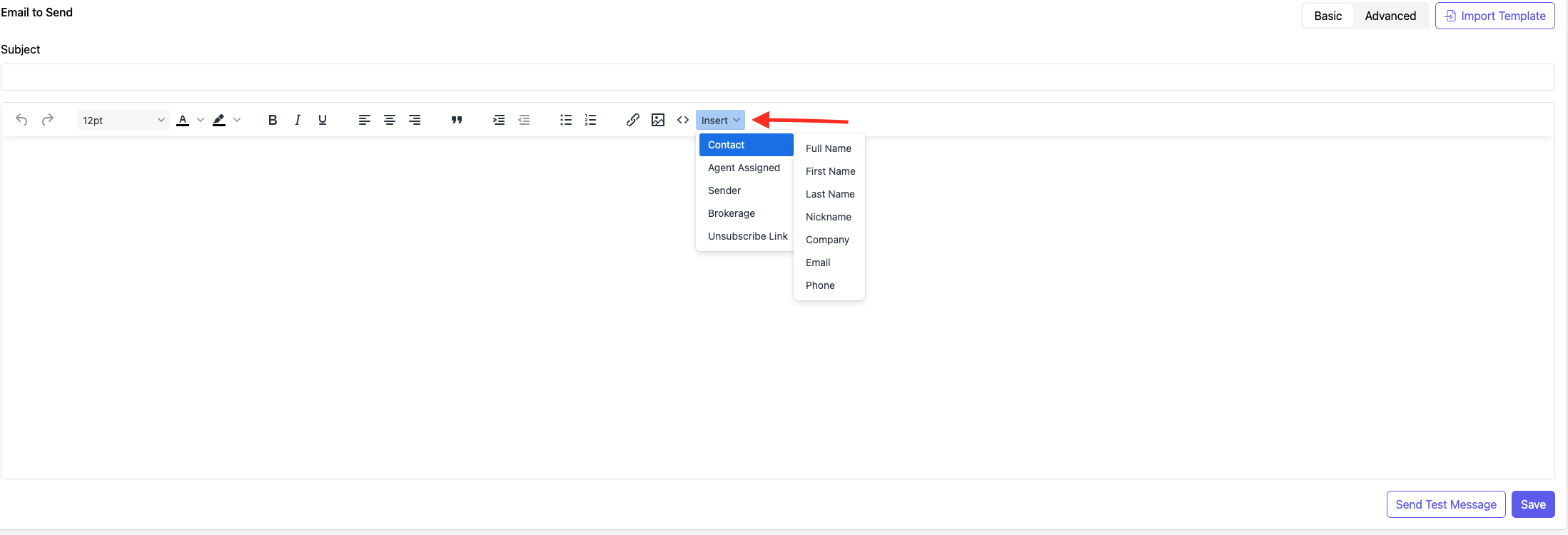
Scroll down to the Email to Send section and edit the body of the message.
Toolbar: Use the toolbar to enhance your template with dynamic elements like images, hyperlinks, or custom HTML code.
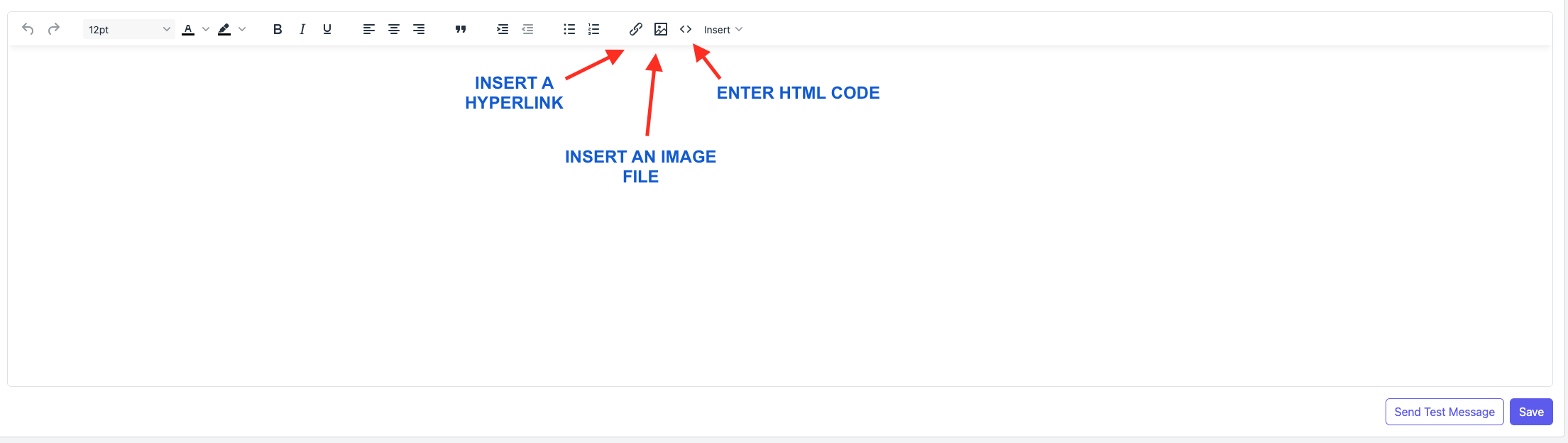
Insert: Inside the template's body, you can also use the Insert button to pull details of the contact via mail merge.
By clicking Send Test, you can send a test email to yourself for preview purposes.
When you are done, click the Save button to save your new template.

ADVANCED EDITOR: Please click here to learn more about the enhanced editor.