

HELP DESK / CRM
Add and import contacts
Add one contact manually or import a list of contacts from a CSV file.
Add a single contact
- From the dashboard, go to CRM → Add a Contact.
- Enter the contact’s details. Add addresses, lead types, lead sources, tags, notes, or a team as needed.
- To enter another email address or phone number, open the arrow next to Email or Phone, then choose the option to add a new one.
- Select Save.
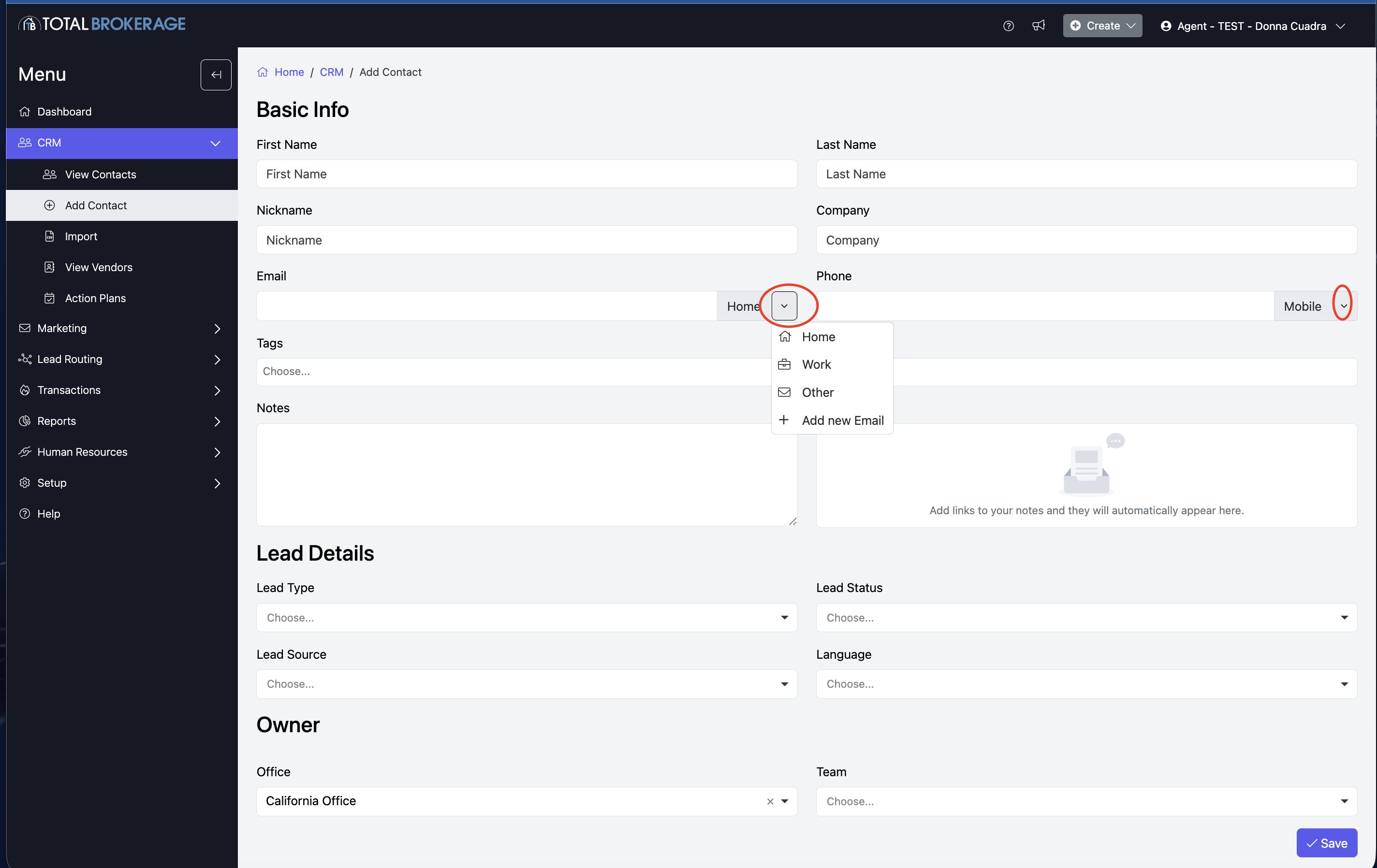
Use the Email or Phone dropdown to add another entry. Select the screenshot to open it full size in a new tab.
Upload a CSV
- From the dashboard, go to CRM → Import.
- Read the disclaimer and select the acknowledgment checkbox if you agree.
- Select Contact as the upload type. Select Upload, choose your .csv file and select Open, or drag the file onto the upload area.
Match your fields
- For each CSV column you want to import, use the dropdown to choose the matching TotalBrokerage field.
- Leave columns you want to skip set to Do Not Import. Unmatched columns default to this setting.
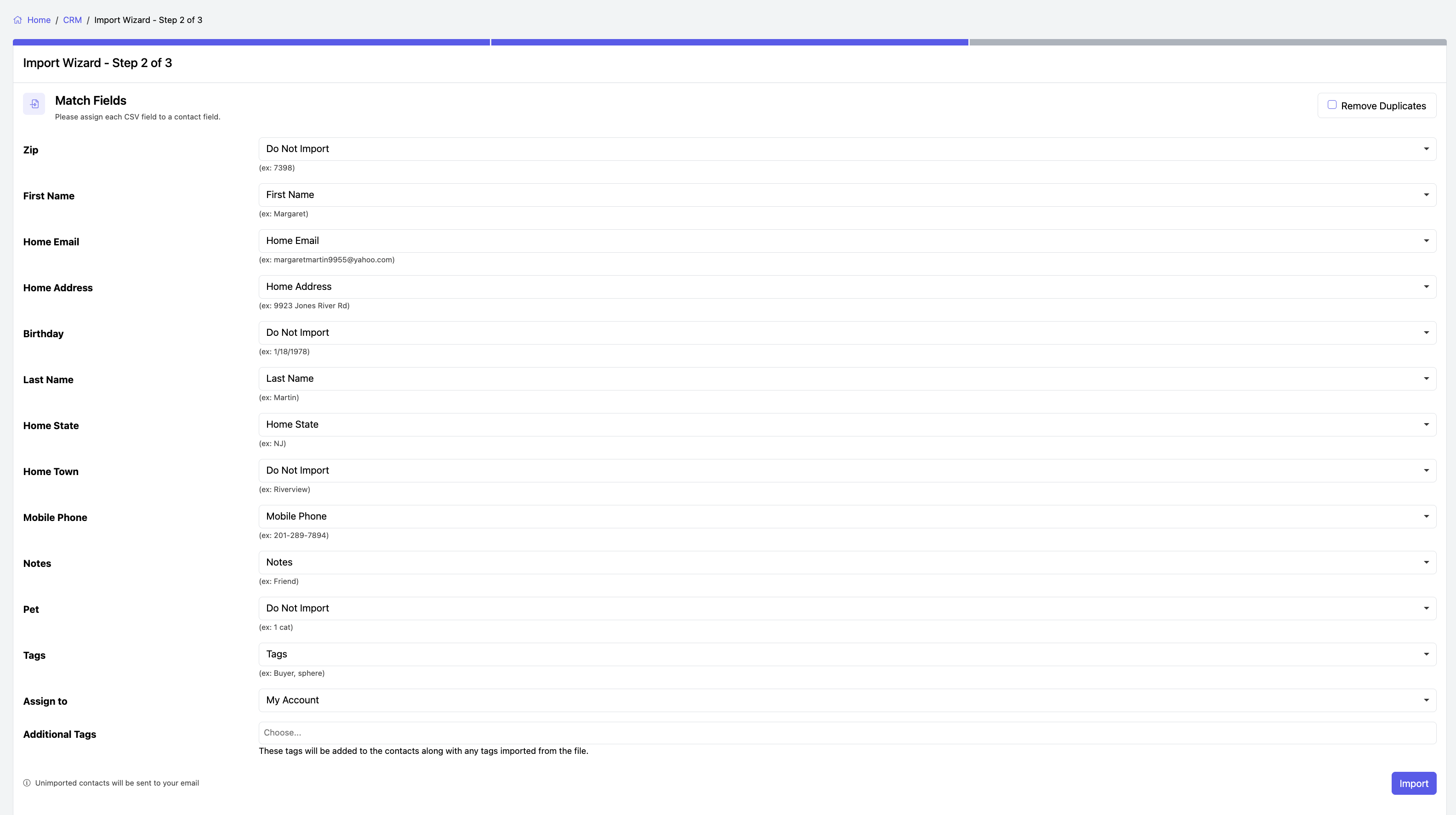
Match each CSV column to a TotalBrokerage field. Select the screenshot to open it full size in a new tab.
Set options and import
- If you’re a manager, use Assign To to choose a specific Account or Lead Route.
- Use Additional Tag to group the imported contacts so you can find them later. If some contacts may already be in your CRM, select Remove Duplicates.
- Select Import at the bottom of the page and look for the green confirmation message.